




Weather Widget for WordPress: Real-Time Forecasts for Your Website


Want to give visitors a quick look at the weather without making them leave your website? A Weather Widget for WordPress can display current conditions and forecasts right on your pages, from temperature and rain to wind and humidity. Here’s how weather widgets can add practical value to your site and how to set one up easily with Weather365.
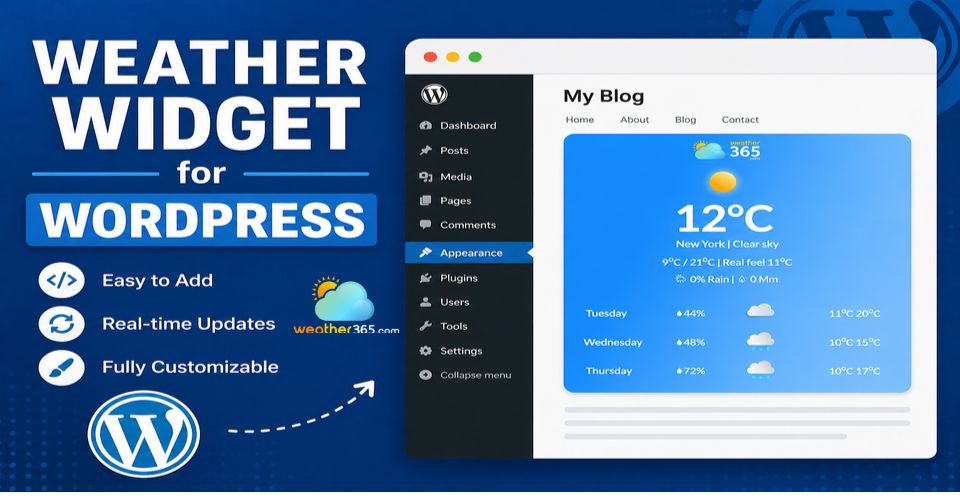
Understanding Weather Widget to WordPress
What is a weather widget for WordPress?
A weather widget for WordPress is a small website element that displays real-time weather conditions and forecasts directly on a WordPress website.
It lets visitors check local weather information without leaving the page.
Depending on the widget, you can show key details such as current temperature, precipitation, wind speed, humidity, weather conditions, and forecasts for a selected location.
This makes weather information easy to access while keeping visitors on your site.
So, why are weather widgets so widely used? They can:
Improve user experience: Give visitors quick access to useful weather information.
Keep visitors engaged: Provide relevant, real-time data without requiring users to leave the website.
Add practical value: Help visitors plan trips, events, outdoor activities, or daily activities.
Provide location-specific information: Display weather conditions and forecasts for a specific destination or area.

Benefits of using a weather widget for WordPress
Why choose Weather365 as a WordPress Weather Widget?
Weather365 Widget is a powerful yet easy-to-use solution that brings real-time weather updates directly to your WordPress.
It offers a free WordPress weather widget that combines accurate forecasts with simple customization and easy integration.
Also, the Weather365 widget is a practical option for websites that want reliable weather information without adding extra costs or complex code.
Here’s what your website gets with a Weather365 widget:
Accurate weather forecasts: Provide reliable current conditions and forecasts for your selected locations.
You can display forecasts for destinations such as Texas, Alabama, Hawaii, or New York, making it easy for visitors to check local conditions.
Real-time weather updates: Keep visitors informed with up-to-date weather data, including temperature, weather conditions, precipitation, wind, and other useful information.
Flexible customization: Customize the widget to match your website by choosing the location, forecast duration, temperature and precipitation units, colors, layout, and widget size.
Responsive and lightweight design: The widget works smoothly across desktop, tablet, and mobile devices. Its lightweight design helps provide a fast-loading experience while keeping weather information easy to access.
Easy WordPress integration: No complex development is required. Simply generate your Weather365 widget, copy the HTML embed code, and add it to your WordPress website.
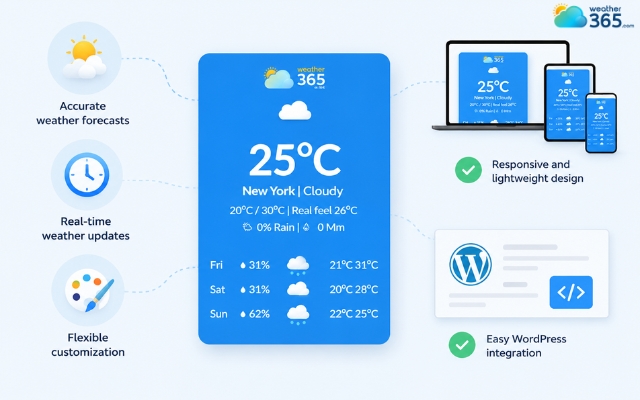
Features of a weather widget for WordPress
How Does Weather365 Work With WordPress?
Adding a no-code weather widget for WordPress using Weather365 is simple and requires no technical skills.
Follow these simple steps to add the Weather365 widget to WordPress in minutes.
Step 1: Customize the Weather365 Widget
Visit Weather365, choose your location and forecast type, then customize the layout, colors, and units. Click Create Widget and copy the generated HTML code.
Want to see how the widget works in real-time? Check Washington weather today to test the widget layout and data accuracy!
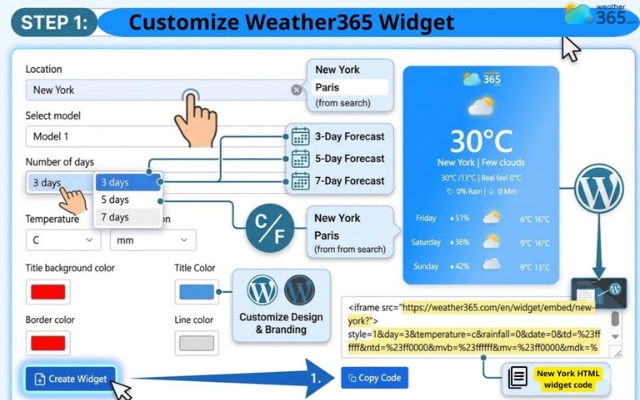
Step 1: Create a Weather365 widget and copy the HTML code
Step 2: Add the Widget to WordPress
Open the page, post, sidebar, or footer where you want the widget.
Add a Custom HTML block or widget and paste the code. Elementor users can use the HTML element.
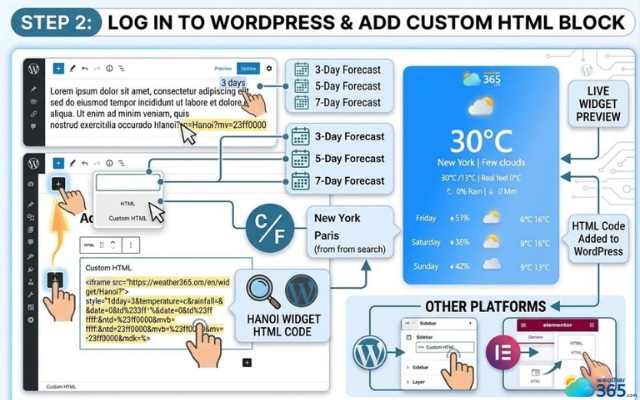
Step 2: Insert the HTML weather widget to WordPress
Step 3: Preview and Publish
Preview the widget on desktop and mobile to make sure it displays correctly. Then click Publish or Update to make it live.
For a more detailed walkthrough, see How to Add Weather Widget to WordPress.
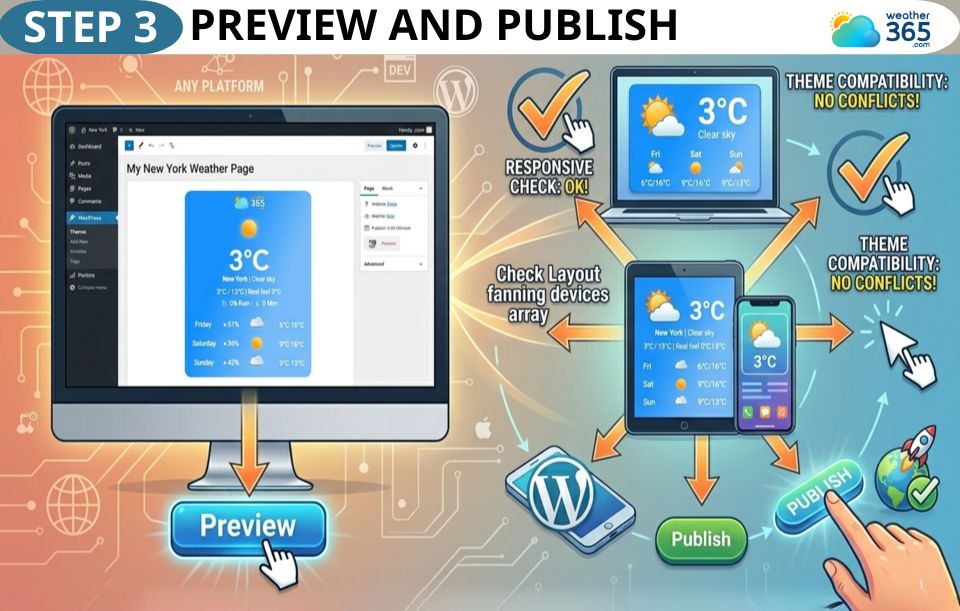
Check Weather365 widget before publishing
Don’t forget to preview your Weather365 widget before publishing!
If you are interested in ways to add a weather widget on different platforms, read now:
Where can you use a Weather365 WordPress widget?
A Weather365 WordPress widget can fit many types of websites.
It gives visitors quick access to local weather information without leaving your site.
Most common websites include:
Travel websites: Show current conditions and forecasts for destinations to help visitors plan their trips.
Hotel websites: Display local weather to help guests prepare for their stay and outdoor activities.
Event websites: Provide weather forecasts for weddings, festivals, sports events, and other outdoor gatherings.
Outdoor activity websites: Show weather conditions for hiking, camping, skiing, or other weather-sensitive activities.
Local business websites: Help customers check the weather before visiting restaurants, attractions, or other local services.
News and weather websites: Add real-time weather data and forecasts alongside weather-related content.
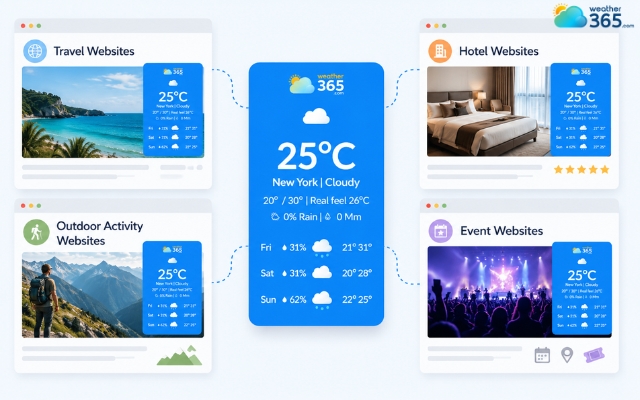
Typical websites using a weather widget for WordPress
The bottom line
Now you know how a Weather Widget for WordPress can make your website more useful by giving visitors quick access to real-time weather information. Why not add one to your site and see how it fits? With Weather365, you can customize the widget and get it live in just a few simple steps!
Frequently Asked Questions (FAQs)
Related post

Weather Widget for Squarespace: Quick Guide to Display A Live Weather
 387
387
 8
8
 4.7
4.7
 12/08/2026

How to Add Weather Widget to Any Platform? A Complete Guide for Beginners
356
8
4.7
17/08/2026

Weather Widget for Wix: How To Add Live Weather In Minutes
304
8
4.9
12/08/2026

How to Add a Weather Widget for Webflow in minutes? A detailed guide
249
8
4.8
20/08/2026

8 Comment
Dominic Ruiz
Does the widget automatically adjust to mobile screens, or do you need to change the dimensions manually?
weather365
Weather365's widget is designed to be responsive, but it's still a good idea to preview it on both desktop and mobile to check the spacing and readability.
Hudson Carter
I like that you can adjust the colors and layout. I wouldn't want a weather widget that clashes with the rest of my website design.
weather365
That's an important detail! Matching the widget to your site's existing design helps create a more consistent experience for visitors.
Wesley Mills
Thanks for explaining the Gutenberg method. Sometimes the simplest steps are the hardest to find when you're trying to set something up for the first time.
weather365
You're welcome! The key is to use a Custom HTML block, paste the generated code, and preview the page before publishing.
Theo Smith
I've been wanting to add a weather widget to my WordPress site but thought I'd need a plugin for it. Good to know there are other options!
weather365
Yes! Using a Custom HTML block is another option if your setup allows it. You can add the embed code directly without installing a separate weather plugin.
Leave a comment
Your email address will not be published. Required fields are marked *