




Weather Widget for Squarespace: Quick Guide to Display A Live Weather


Struggling to keep visitors engaged on your site for more than a few seconds? Adding a weather widget for Squarespace could be the simple fix you’ve overlooked: bringing real-time updates, practical value, and a more dynamic experience that keeps people scrolling. Keep reading to learn how to add one in minutes!
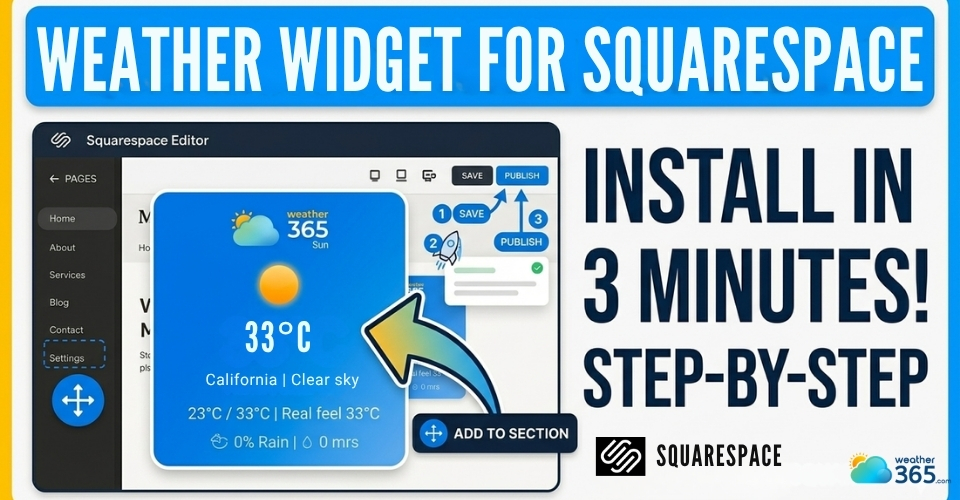
Weather widget for Squarespace
- Why Your Squarespace Needs a Weather Widget?
- Features of Weather365 Widget
- How To Add a Weather Widget For Squarespace
- Step 1: Choose and Create Your Weather Widget
- Step 2: Copy the Embed Code
- Step 3: Add a Code Block in Squarespace
- Step 4: Make Sure the Code Displays Correctly
- Step 5: Adjust Layout and Position
- Step 6: Check Mobile Responsiveness
- Step 7: Save and Publish
Why Your Squarespace Needs a Weather Widget?
Have you ever landed on a website that looks great… but doesn’t really offer anything useful beyond visuals?
That’s a common problem with many Squarespace sites. They’re beautiful, but sometimes feel static.
And that’s exactly where a weather widget can make a real difference.
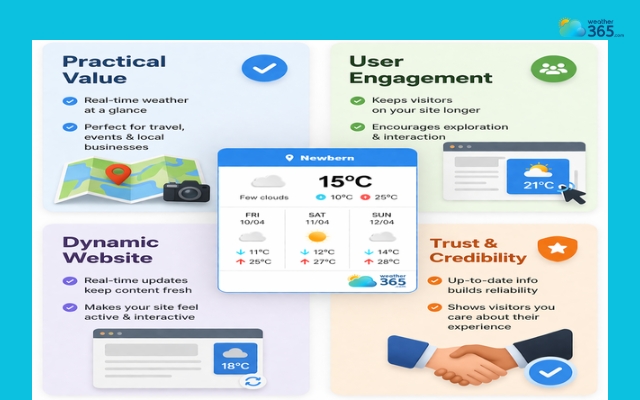
Practical value
First, a weather widget adds instant practical value.
Instead of just browsing, your visitors can quickly check real-time weather conditions without leaving your site.
This is especially useful for travel, events, outdoor activities, and local services.
For example, a travel site can show a California 3-day weather forecast, a New Mexico 5-day weather forecast, or a South Carolina 7-day weather forecast.
User engagement
Another important reason is user engagement. When visitors find something useful, they tend to stay longer.
A weather widget naturally encourages people to pause, interact, and explore more of your content.
Over time, this can help reduce bounce rates and improve overall site performance.
A weather widget can significantly boost your site
Dynamic website
It also makes your website feel more dynamic and alive. Static pages can feel outdated, even if the design is modern.
But when you include real-time elements like weather updates, your site constantly refreshes itself, creating a more interactive experience.
Trust and credibility
From a branding perspective, it helps build trust and credibility. A site that provides up-to-date, relevant information feels more reliable.
Visitors are more likely to see your brand as thoughtful and user-focused.
Features of Weather365 Widget
So, what makes Weather365 widget different from other options out there?
Once you start using it, you’ll notice how thoughtfully it’s designed for real websites, not just display.
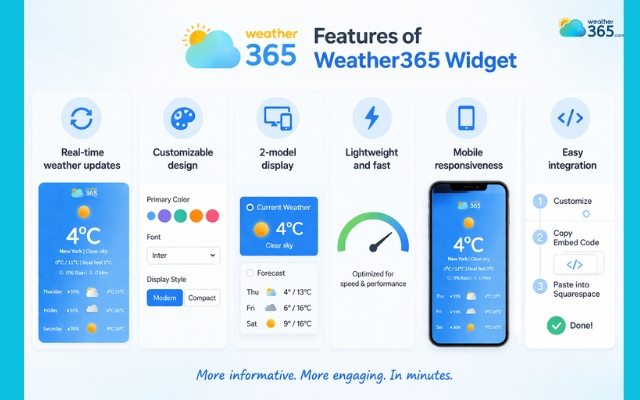
Real-time weather updates
One of the standout features is real-time weather updates.
The widget continuously pulls current data, including temperature, humidity, wind speed, and forecasts.
This means your visitors are always seeing fresh, relevant information, not something outdated or static.
For sites that rely on timing (like travel or events), this is a big deal.
Customizable design
Another strength is its clean and customizable design. You’re not stuck with a one-size-fits-all layout.
Weather365 lets you adjust colors, fonts, and display styles so the widget actually matches your Squarespace theme.
Instead of looking like an add-on, it feels like a natural part of your website.
Embed clean weather elements on Squarespace sites to inform visitors about local climates such as Florida weather today.
Outstanding features of the Weather365 widget
2-model display
It also supports 2 display formats. Whether you want a simple current weather view or a more detailed forecast, you can choose how much information to show.
This flexibility helps you avoid overwhelming your visitors while still giving them useful insights.
Lightweight and fast
Performance is another area where Weather365 does well. It’s built to be lightweight and fast-loading, which is crucial for both user experience and SEO.
A slow widget can drag down your entire site, but this one is optimized to run smoothly in the background.
Mobile responsiveness
You’ll also appreciate its mobile responsiveness. With so many users browsing on phones, it’s important that your widget looks good on every screen size.
Weather365 automatically adapts, so you don’t have to worry about broken layouts or awkward spacing.
Easy integration
Finally, it’s designed for easy integration. You don’t need technical skills or a complex setup. Just customize, copy the embed code, and paste it into Squarespace.
Within minutes, your site becomes more interactive and informative.
How To Add a Weather Widget For Squarespace
The good news is that you don’t need to be a developer.
This guide on how to add weather widget to any platform is simple and easy to follow.
Of course, Squarespace makes the process fairly straightforward, as long as you follow the right steps.
Step 1: Choose and Create Your Weather Widget
Before anything else, you’ll need a widget provider (like Weather365 or similar tools).
On their platform, you typically:
Select a widget model
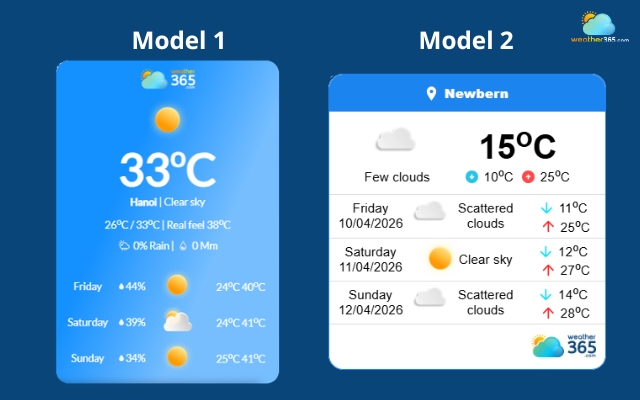
Weather365 provides two widget models
Enter your location
Customize colors, layout, and forecast type
For example, you can add a Massachusetts 3-day weather forecast, a Wisconsin 5-day weather forecast, or a Utah 7-day weather forecast.
Once you’re done, the system will generate an embed code. This code is what connects the widget to your Squarespace site.
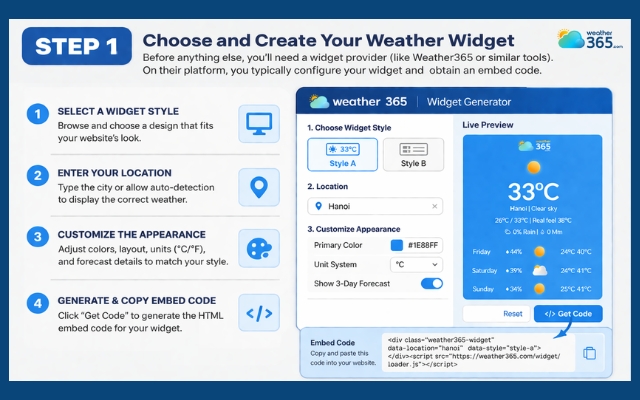
Customize the widget
Step 2: Copy the Embed Code
After customization, click “Create Widget” and then copy the provided code.
You’ll receive a snippet of HTML (sometimes including JavaScript).
Just copy it, no need to edit anything unless you know what you’re doing.
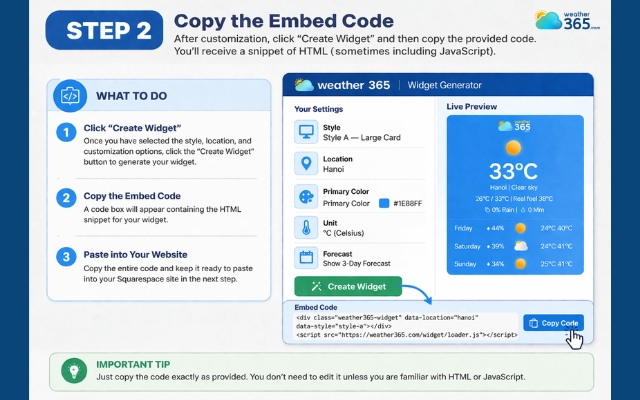
Copy the embed code
Step 3: Add a Code Block in Squarespace
Now comes the key part.
Go to your Squarespace editor:
Click Edit on the page where you want the widget
Click Add Block
Choose Code Block
Then:
Open the block editor
Paste your embed code into the text field
Squarespace allows you to insert custom HTML, CSS, or scripts through code blocks, making it the standard way to embed third-party widgets.
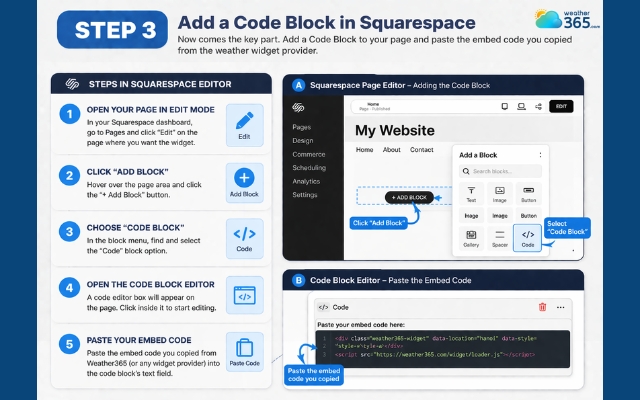
Create a code block in Squarespace
Step 4: Make Sure the Code Displays Correctly
After pasting the code, ensure:
The block is set to HTML mode (not plain text)
The widget actually renders (sometimes it won’t show in editor view)
Important note: Sometimes embedded content doesn’t appear while editing, but it will show on the live site.
If needed, preview your site in a new tab or incognito mode.
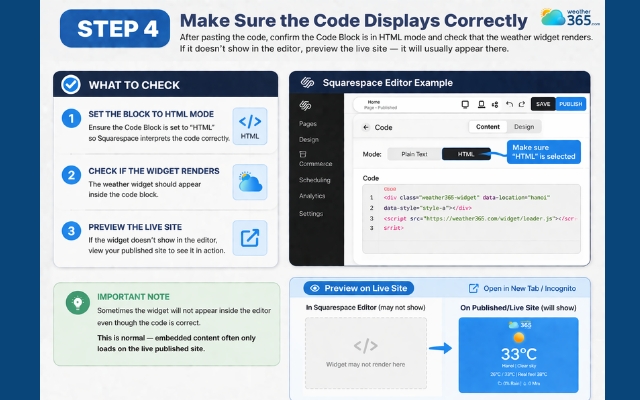
Preview the site before publishing
Step 5: Adjust Layout and Position
Once the widget appears, you can:
Drag it to the right section (header, sidebar, footer, etc.)
Resize it to fit your layout
Add spacing so it doesn’t feel cramped
This step matters more than people think.
A poorly placed widget can feel distracting, while a well-placed one feels natural and helpful.
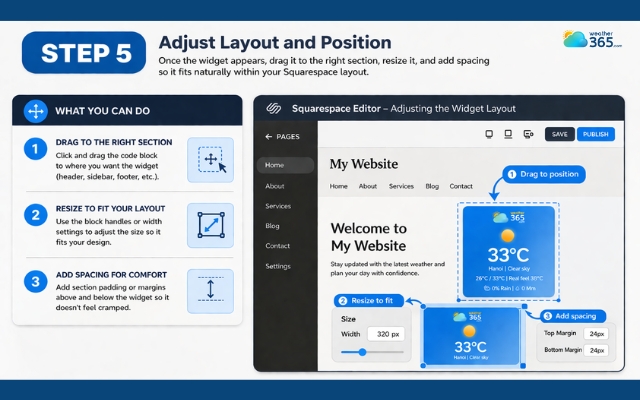
Adjust the widget position
Step 6: Check Mobile Responsiveness
Switch to mobile view inside Squarespace and double-check:
Text readability
Widget size
Spacing
Since most users browse on mobile, this step ensures your widget doesn’t break the layout or feel overwhelming.
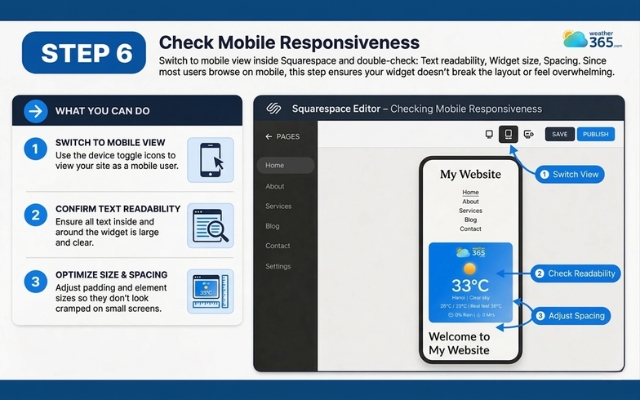
Do not forget to check the mobile version
Step 7: Save and Publish
Finally:
Click Save
Hit Publish
Your Weather Widget for Squarespace is now live.
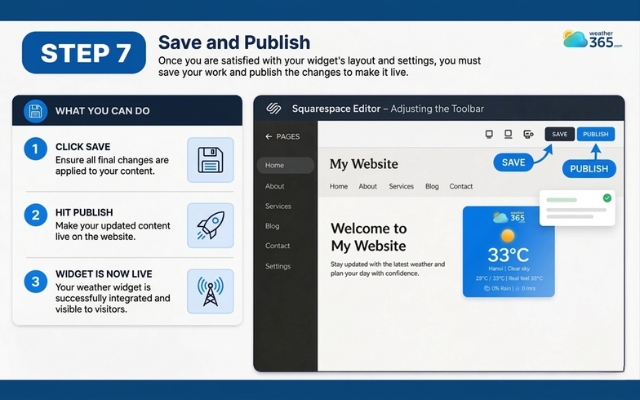
Publish the weather widget
You may also like this:
Sum up
A Weather Widget for Squarespace is a powerful way to make your website more useful, engaging, and dynamic. Looking for more options? Discover the best weather widgets for websites and find what works for you. With easy setup, customizable design, and real-time updates, it adds both value and professionalism to your site. If you haven’t added one yet, now is the perfect time to enhance your user experience in just a few minutes.
Frequently Asked Questions (FAQs)
Related post
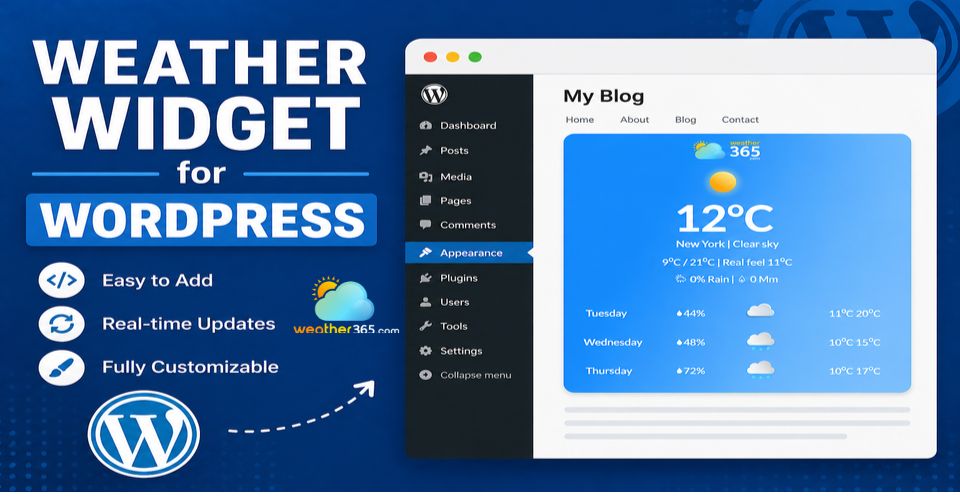
Weather Widget for WordPress: Real-Time Forecasts for Your Website
 629
629
 0
0
 4.7
4.7
 20/08/2026

Weather Widget for Shopify: Must-Have Tool for Any Online Store
282
0
4.9
12/08/2026

Weather Widget for Wix: How To Add Live Weather In Minutes
282
0
4.9
12/08/2026

0 Comment
Leave a comment
Your email address will not be published. Required fields are marked *