




How to Add a Weather Widget for Webflow in minutes? A detailed guide


How to add a weather widget for Webflow in minutes? It’s not as difficult as you think. Scroll down and follow simple steps, and you will be able to show a weather widget right on your website easily and quickly.
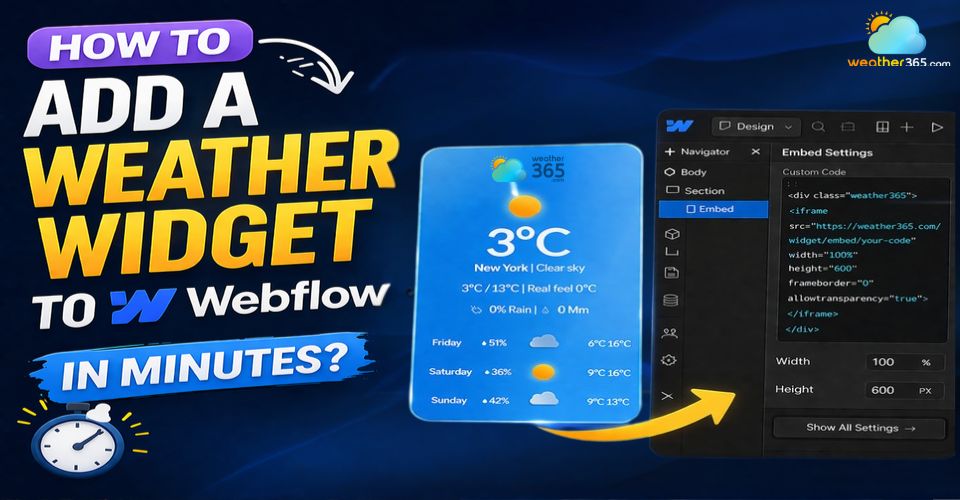
How to add a Weather365 widget to Webflow easily?
How to add a Weather Widget for Webflow?
Adding a Weather365 widget to Webflow is quick and requires no coding skills. Simply create your widget, copy the embed code, and paste it into a Webflow Embed element to display real-time weather on your site.
Take a look at the step-by-step guide below.
Step 1: Create a Weather365 Widget
First, visit Weather365.com and click the Widget tab to create your own weather widget.
After that, you customize the weather widget that matches your website theme.
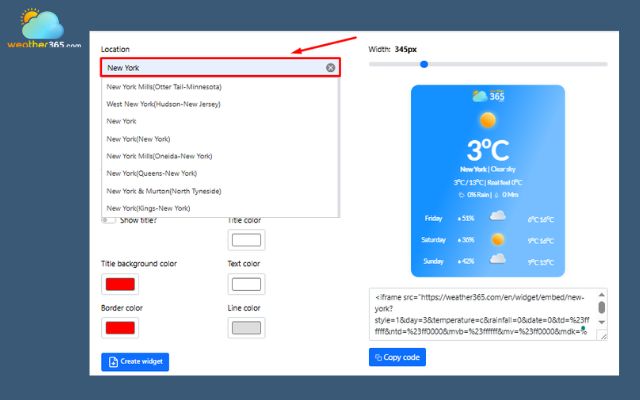
Choose the location:
Select the location you want to display.
For example, you can show a Virginia 3-day weather forecast, an Indiana 5-day weather forecast, or Texas weather updates.
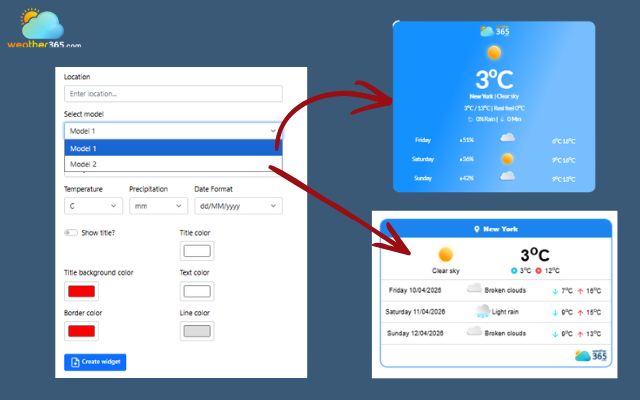
Select the display model: Weather365 offers two widget models. Choose the one that best fits your website layout.
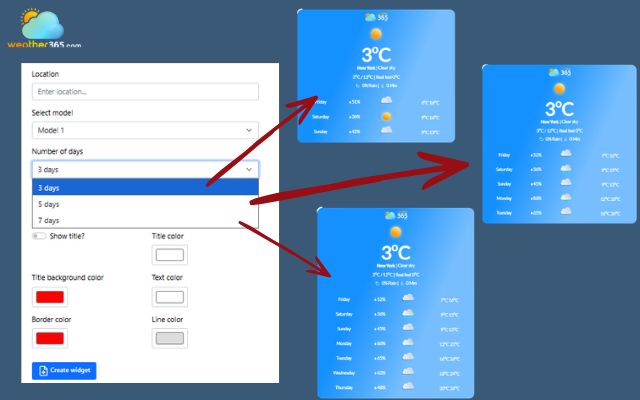
Choose the forecast period: Weather365 lets you select a 3-day, 5-day, or 7-day forecast. Choose the period that best fits your content and layout.
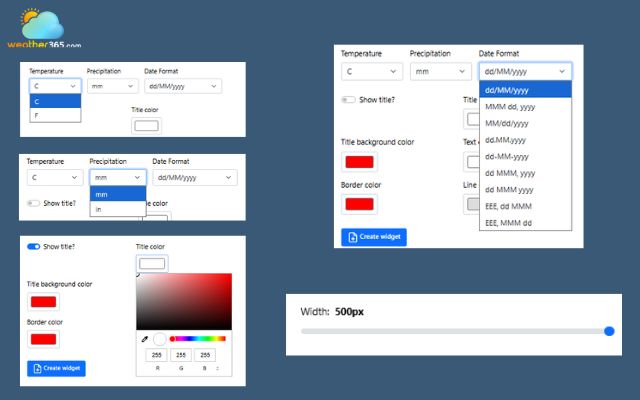
Customize the widget: Adjust the title, text, background, border, and line colors to match your website branding. You can also set the temperature unit, rainfall unit, and date format.
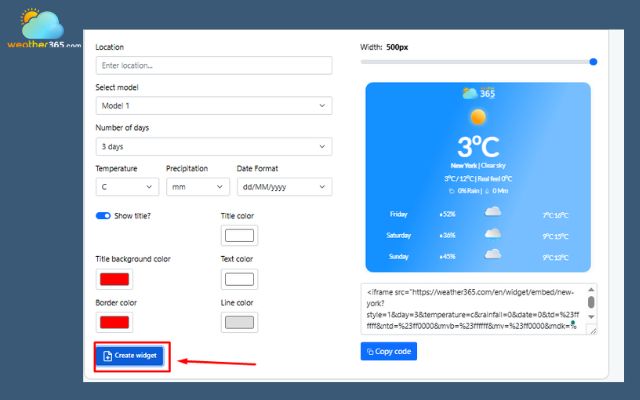
When you’re ready to customize the Weather365 widget to your Webflow website, click the “Create Widget” button.
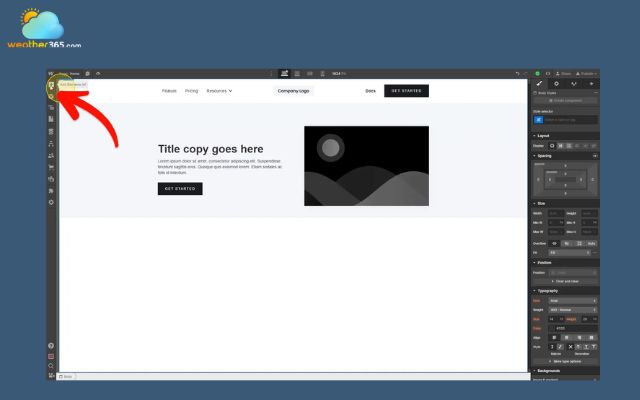
Step 2: Embed HTML widget code in Webflow
Now, visit your Webflow site editor. In the left panel, click the Add Elements button to begin adding components to your page.
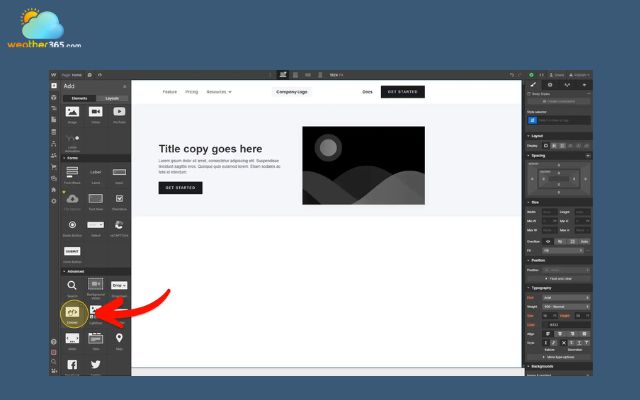
Locate and choose the Embed element in the Advanced section.
Note: this feature is only accessible with a Webflow premium plan.
Drag the Embed element onto your page and position it wherever you want the live weather forecast to appear.
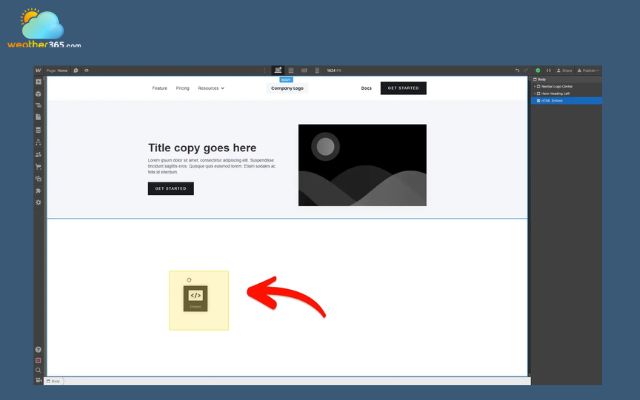
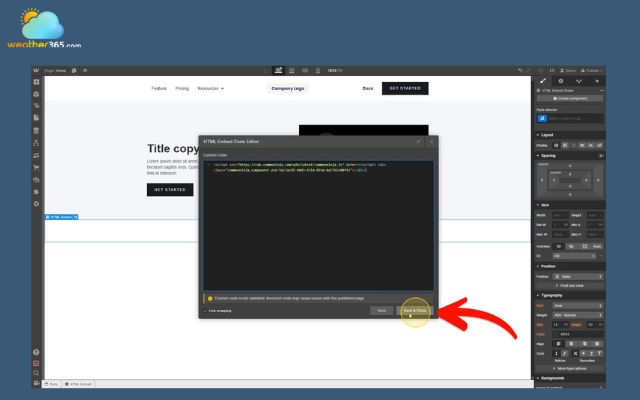
Step 3: Paste HTML code into Webflow and Publish
Insert the live weather forecast code by pasting the embed snippet you copied earlier into the HTML Embed Code window.

Click Save & Close to apply your changes and exit the code editor.
The live Weather365 widget may not appear inside the Webflow editor. Publish your website and open the live page to check the widget.
Before publishing, make sure the forecast shows the correct location and displays properly on both desktop and mobile devices.
Read more:
Why should you add the Weather365 Widget?
Adding a Weather365 widget or any weather widget for Webflow is a smart way to enhance both functionality and user experience.
Among the many weather widgets for websites, Weather365 stands out for its ease of use and customization.
It provides real-time, location-based weather updates that help visitors make better decisions.
For example, visitors can check a Kansas weather forecast, a Nebraska 3-day weather forecast, a Arkansas 5-day weather forecast, or a Rhode Island 7-day weather forecast.
These local forecasts can help people plan trips, shopping, outdoor activities, and other daily tasks.
Weather365 offers an easy setup and customizable design.
This makes it suitable for websites that need useful weather information without complex technical work.
The widget can also add dynamic content to your website.
This can encourage visitors to interact with your site and explore more pages.
Overall, Weather365 adds practical value and helps make your website more useful, relevant, and user-friendly.
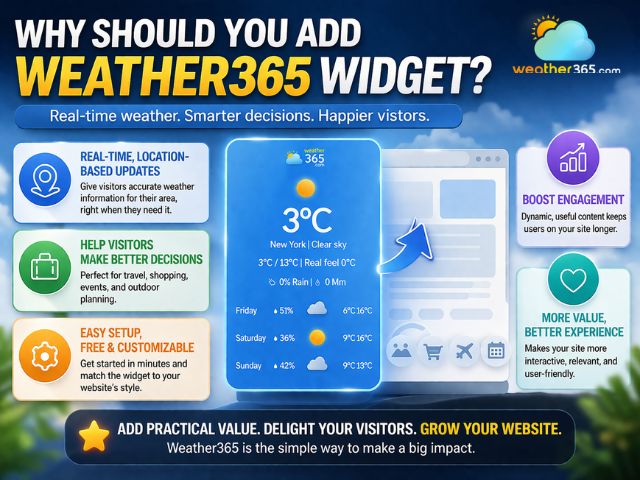
Benefits of adding the Weather365 Widget to Webflow
Common mistakes when adding weather widgets
The guide on "how to add weather widget to any platform" is easy to follow.
However, you can still make some common mistakes when adding a weather widget to Webflow.
Finding these issues early can improve performance, usability, and the overall user experience.
Incorrect embed placement: Add the code to a Custom HTML or Embed element. Using a regular text block may prevent the widget from working correctly.
Ignoring responsiveness: Check the widget on mobile and tablet screens. A poor layout can make the forecast difficult to read on smaller devices.
Overloading the page: Avoid adding too many widgets or heavy scripts. They can slow down your website and hurt page performance.
Theme or plugin conflicts: Some third-party tools may conflict with other website elements. Check for display errors or missing weather data after installation.
Lack of customization: Choose settings that match your website and audience. Select a relevant location and forecast period. You can also show local forecasts, such as the West Virginia weather forecast, Oklahoma 3-day weather forecast, or New Hampshire 5-day weather forecast..
Skipping testing: Preview the widget after adding it to your site. Test different devices and screen sizes to make sure it loads correctly and displays the right location.
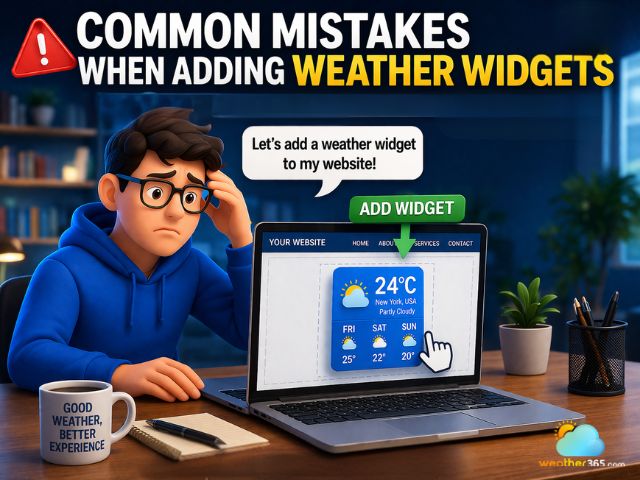
Common mistakes to avoid when inserting an HTML widget into Webflow
Final thoughts
In conclusion, it’s easy to add a weather widget for Webflow and enhance your website with real-time, dynamic content. With a simple embed process and no coding required, you can improve user experience, boost engagement, and make your site more informative and interactive.
Frequently Asked Questions (FAQs)
Related post
Weather Widget for WordPress: Real-Time Forecasts for Your Website
 646
646
 8
8
 4.7
4.7
 20/08/2026

Weather Widget for Squarespace: Quick Guide to Display A Live Weather
387
8
4.7
12/08/2026

Weather Widget for Wix: How To Add Live Weather In Minutes
304
8
4.9
12/08/2026

8 Comment
Jack Mills
I once added a third-party embed that looked fine in preview but didn't work as expected on the published site. Is there anything specific I should double-check?
weather365
I'd check the published page first, then verify the embed code and browser console for errors. Some embeds behave differently between the Designer and the live site.
Christian Horton
The customization part is what interests me most. I spend quite a bit of time getting spacing and colors right in Webflow, so I'd want the widget to fit the design too.
weather365
Totally understandable! Try matching the widget's colors and dimensions to your existing layout so it feels like part of the design.
Jessica Harrison
Just to clarify, can I add the widget directly through Webflow's Embed element, or do I need to install a separate integration?
weather365
You can generally use Webflow's Embed element to insert the widget code. Just check that the code is supported and preview the published page to confirm everything works.
Hailey Schultz
I've used Webflow for a couple of projects, but I've never thought about adding a weather widget. It could be a nice feature for websites focused on travel or outdoor activities.
weather365
That's a good point! It can be a useful addition when local weather is relevant to what visitors are looking for.
Leave a comment
Your email address will not be published. Required fields are marked *