




Weather Widget for Notion: Simple Way To Integrate Live Weather


Planning your day in Notion but still checking the weather somewhere else? A weather widget for Notion fixes that gap. It integrates live updates directly into your pages, helping you stay organized without breaking your focus. Learn how to easily add one to your site below!
Weather widget for Notion
- Why Add a Weather Widget for Notion?
- Features of the Weather365 widget
- How To Add Weather365 Widget to Notion
- Step 1: Go to the Weather365 Widget Page
- Step 2: Customize Your Widget
- Step 3: Copy the Embed Code
- Step 4: Paste the Code into Notion
- Step 5: Resize and Adjust the Layout
- Step 6: Test and Fine-Tune
Why Add a Weather Widget for Notion?
If you’re already using Notion to plan your day, manage tasks, or track goals; adding a weather widget can make a noticeable difference in how you organize your routine.
Better daily planning
First, it helps you plan your day more effectively.
Weather directly affects what you wear, when you go out, or even how you schedule meetings and errands.
Instead of checking a separate app, having real-time weather right inside Notion keeps everything in one place. It saves time and reduces small but constant distractions.
Workflow improvement
Another benefit is keeping your workflow uninterrupted. One of the biggest pain points when working online is switching between tabs.
You open Notion to focus, but then jump to a weather app, then maybe check something else, and suddenly your focus is gone.
A weather widget for Notion removes that friction by bringing essential information directly into your workspace.
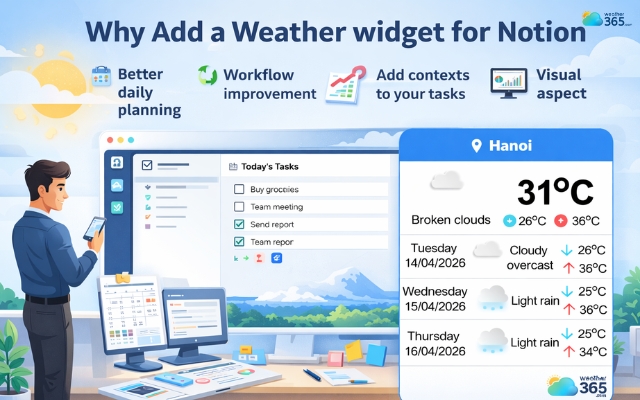
Benefits of adding a weather widget to Notion
Add context to your tasks
It also adds useful context to your planning system.
For example, if you’re managing a weekly planner, travel itinerary, or content calendar, seeing the weather alongside your schedule helps you make smarter decisions.
Rainy day? Maybe move that outdoor shoot. Sunny afternoon? Perfect time for a walk or coffee meeting.
Visual aspect
Beyond functionality, there’s also the visual and aesthetic aspect. Notion is not just about productivity, it’s also about creating a workspace you enjoy using.
A well-designed weather widget makes your page feel more dynamic and “alive,” rather than just static blocks of text.
All-in-one system
Finally, it’s about building a more complete digital workspace. Notion users often aim to centralize everything: notes, tasks, goals, and tools into one system.
Adding a weather widget is a small step toward that goal, turning Notion into a more all-in-one hub that supports both work and daily life.
Features of the Weather365 widget
What makes the Weather365 widget worth using? Now let’s discover notable features of Weather365 widget!
Real-time weather updates
Weather365 provides continuously updated data, including temperature, humidity, and precipitation.
This means you always see the latest conditions directly in Notion without needing to refresh or check another app.
Detailed forecasts (hourly and multi-day)
Instead of just showing basic conditions, the widget offers hourly forecasts and multi-day outlooks.
This is especially helpful when you’re planning your schedule for the day or organizing tasks for the week ahead.
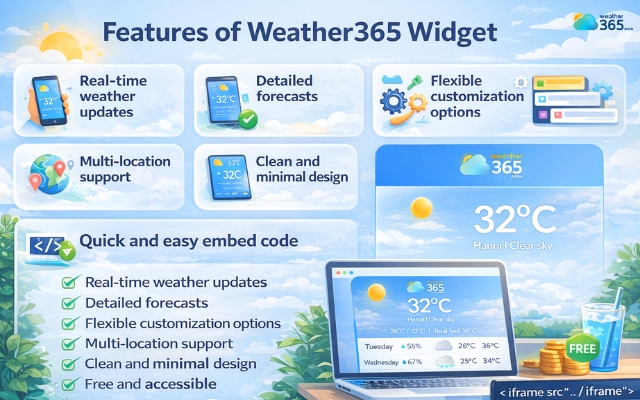
Advanced features of the Weather365 widget
Flexible customization options
One of its biggest strengths is customization. You can easily adjust the number of forecast days, temperature or precipitation units, or even the date format.
Furthermore, you can change the color of the text, border, or background of the widget to match your site.
This is also a reason why many people choose a weather widget for blog platforms, weather widget for Duda, Notion, etc.
Multi-location support
You’re not limited to one place. Weather365 lets you track multiple locations, which is useful if you travel often or manage plans across different cities.
Clean and minimal design
The widget is designed to be simple yet informative. When embedded in Notion, it doesn’t clutter your page; instead, it adds a clean, modern visual element that enhances your layout.
Quick and easy embed code
Setting it up is straightforward. You just configure the widget, copy the embed code, and paste it into Notion. No technical skills or complex setup required.
Free and accessible
Weather365 is free to use, making it a practical choice compared to other widgets that may require paid plans or API integrations.
How To Add Weather365 Widget to Notion
Let’s walk through how to add weather widget to any platform.
Taking the Weather365 widget to Notion as an example.
Step 1: Go to the Weather365 Widget Page
Start by visiting the Weather365 widget builder. This is where you’ll create and customize your widget before adding it to Notion.
Once you’re there, you’ll see a live preview along with multiple settings you can adjust.
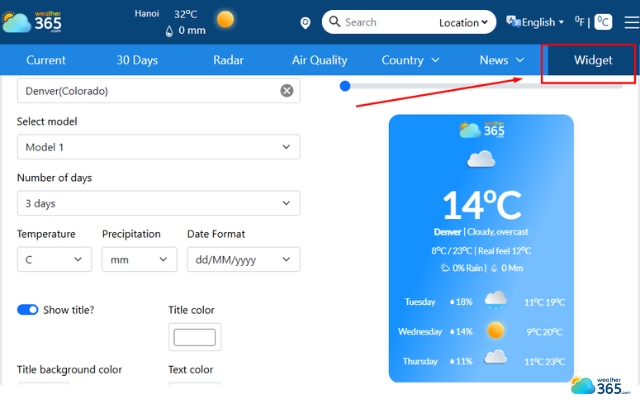
Go to Weather365 widget page
Step 2: Customize Your Widget
Before embedding, take a moment to tailor the widget to your needs. This step is important because it determines how the widget will look and function inside Notion.
You can customize things like:
Location (city or region you want to track)
Number of forecast days
Temperature unit (°C or °F)
Colors and overall style
Try to keep the design clean, so it fits nicely with your Notion layout. A simple, minimal style usually works best.
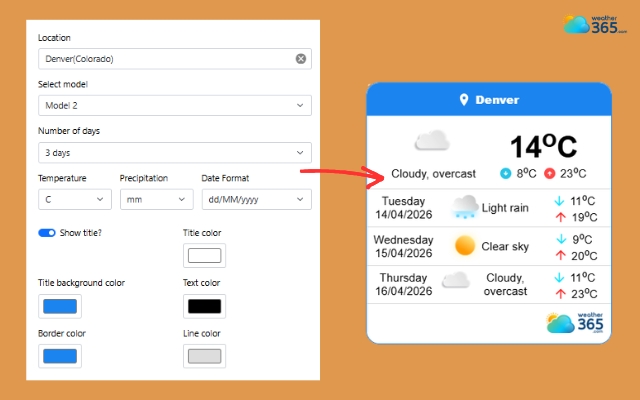
Easily customize the widget with Weather365
Step 3: Copy the Embed Code
After customizing, the platform will generate an embed code for you automatically.
Just click the copy code button. This code is what allows the widget to appear inside your Notion page.
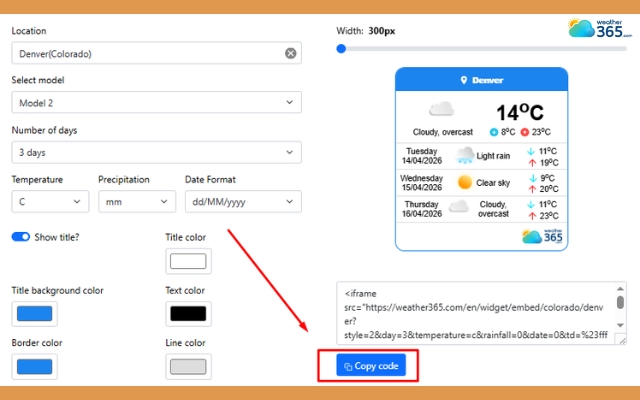
Create the widget and copy the provided code
Step 4: Paste the Code into Notion
Open your Notion page where you want the widget to appear.
Type /embed and select the Embed option. Then:
Paste the Weather365 embed code
Click the Embed link
Within a few seconds, your weather widget will appear directly on the page.
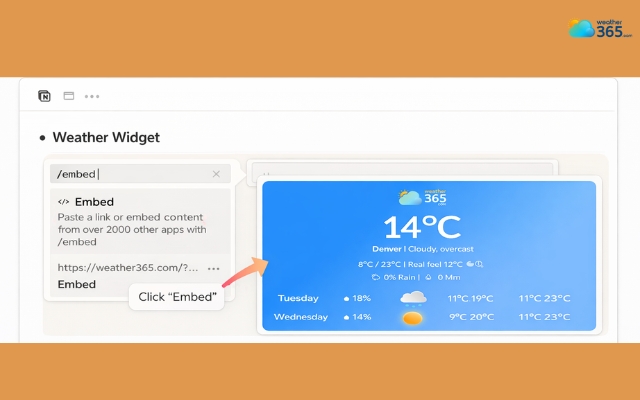
Create an embed part in your Notion page
Step 5: Resize and Adjust the Layout
Once the widget is embedded, you can drag the edges to resize it.
This step is often overlooked, but it makes a big difference.
Adjust the size so it aligns well with your other content whether it’s a dashboard, planner, or daily journal.
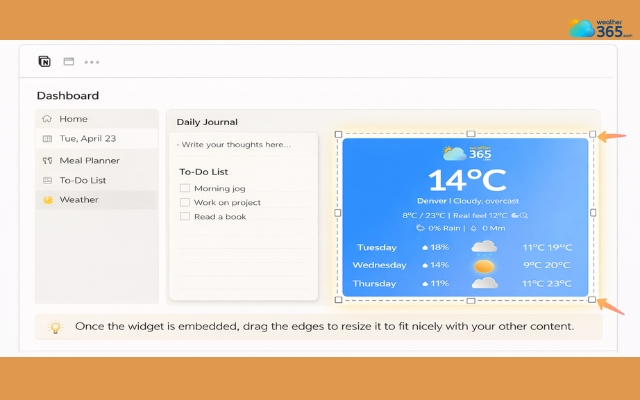
Resize the widget to fit your Notion page
Step 6: Test and Fine-Tune
Finally, take a quick look at how everything works:
Is the location correct?
Does the layout fit your page?
Is the information easy to read?
If something feels off, you can always go back, adjust the settings, and re-embed the widget.
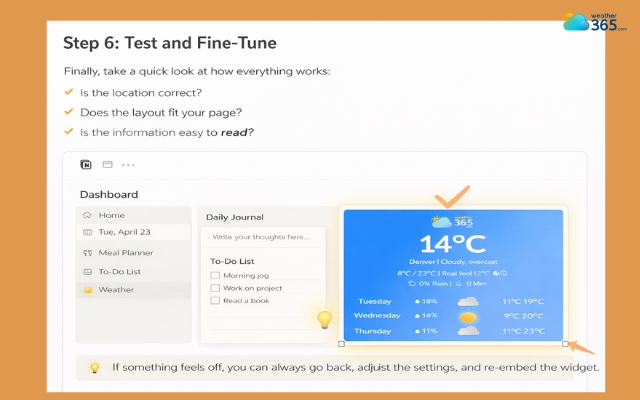
Completely check the widget
Sum up
Have you added a weather widget for Notion yet? If not, you might be missing a simple way to make your workspace feel more complete. With real-time weather right on your page, planning becomes easier, distractions are reduced, and your Notion setup starts working more in sync with your daily life.
Frequently Asked Questions (FAQs)
Related post
Weather Widget for Lightweight Builders: Adding Live Weather Easily
 178
178
 8
8
 4.8
4.8
 14/04/2026
Weather Widget for Hosted Builders: Step-by-Step Guide To Display a Live Weather
164
8
4.9
23/07/2026
Weather Widget for Joomla & Drupal: Adding Free Live Weather To Your Site
157
8
4.8
14/04/2026

8 Comment
Patrick Wright
I love customizing my Notion dashboard, but sometimes adding too many widgets makes it feel cluttered. A simple weather display would probably be enough for me.
weather365
We feel the same way! A clean dashboard is often easier to use. You can start with a compact weather display and adjust the layout to fit your workflow.
Cody Mccarty
Can the weather widget be added to a personal Notion page, or does it only work on publicly shared pages?
weather365
It depends on how the widget is embedded and the available options in Notion. If you're using an external weather widget, check its embed instructions and test it on your page to see how it displays.
Winston Fuller
This is actually a pretty cool idea for a Notion travel planner. I usually have to switch between apps just to check the forecast for my next destination.
weather365
Exactly! Keeping weather information alongside your itinerary can make trip planning feel much more organized. Hope you enjoy setting up your Notion workspace!
Ian Gilbert
I use Notion to organize almost everything, from daily tasks to travel plans. Having the weather right on my dashboard would be a nice little addition!
weather365
That sounds like a great use case! Having relevant information in one place can make your workspace more convenient. A weather widget could be especially handy when planning your day or an upcoming trip.
Leave a comment
Your email address will not be published. Required fields are marked *