




Weather Widget for Duda: Display Live Weather In Minutes


Weather widget for Duda can instantly transform your website from static to dynamic, but are you using it to its full potential? In this guide, you’ll discover how a simple feature can enhance user experience, add real-time context, and make your site feel more interactive and engaging in just minutes. Scrolling down to add one now!
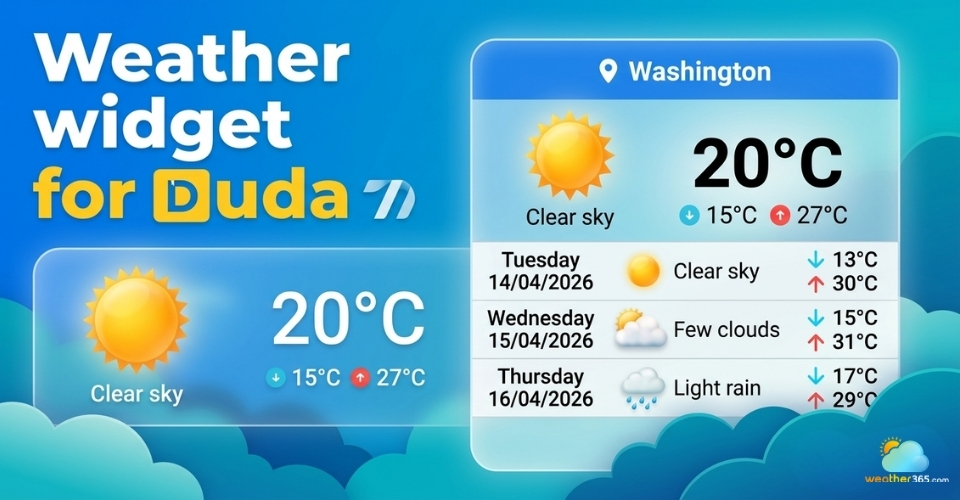
Weather widget for Duda
- Discover Weather365 Widget
- Main Features of Weather365 Widget
- Why Duda Needs a Live Weather Display
- How To Add A Weather Widget for Duda
- Step 1: Create Your Weather Widget
- Step 2: Open Your Duda Editor
- Step 3: Add an HTML Widget
- Step 4: Paste the Embed Code
- Step 5: Adjust Design & Responsiveness
- Step 6: Publish Your Site
- Common Mistakes When Adding A Weather Widget
Discover Weather365 Widget
Weather365 is a simple yet powerful weather widget designed to display real-time weather information directly on your website.
Instead of sending visitors elsewhere to check the forecast, it brings that data right into your interface.
Think of it as a small but smart add-on: once embedded, it continuously updates weather conditions like temperature, location, and forecasts without requiring any manual effort from you.
For Duda users, this means you can enhance your site without adding complexity.
Main Features of Weather365 Widget
What makes Weather365 especially appealing is how it balances functionality with ease of use.
Here are the standout features:
Real-time weather updates
Your visitors always see the latest conditions, which keeps your site relevant and useful.
Detailed forecasts
Go beyond just temperature: show multi-day forecasts to give users more context.
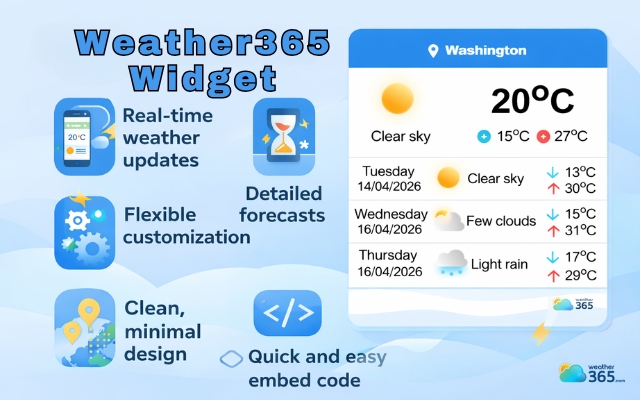
Standout feature of the Weather365 widget
Flexible customization
Adjust colors, layout, and display style so the widget matches your site’s design perfectly.
Multi-location support
Ideal if your business serves multiple regions or if your audience is global.
Clean, minimal design
The widget looks modern and doesn’t clutter your page - important for maintaining a professional feel.
Quick and easy embed code
No technical skills needed. Just copy, paste, and you’re done.
Why Duda Needs a Live Weather Display
Now you might be wondering - does every website really need a weather widget?
Not necessarily. But for many use cases, it can make a real difference.
First, a live weather display adds instant value.
If your website is related to travel, events, hospitality, or local services, weather information becomes highly relevant to your visitors.
Second, it helps improve user engagement.
Just like with a Weather Widget for WordPress, adding live weather data can significantly improve user engagement and provide real-time value.
Third, it provides useful context.
Imagine a visitor planning a trip, booking a service, or attending an event, seeing the weather right away helps them make faster decisions.
Finally, it contributes to a more complete user experience.
Duda is known for building polished, user-friendly websites, and adding a weather widget is a small upgrade that can make your site feel more thoughtful and professional.

Benefits of a weather widget to Duda
If you're still exploring how weather widgets work across different tools, you can also read our guide on How to add weather widget to any platform to get a clearer overview before setting it up on Duda.
How To Add A Weather Widget for Duda
Now, let’s learn how to add a weather widget for Duda in the easiest way!
If you’ve used tools like Webflow, you’ll notice that adding a weather widget in Duda follows a similarly simple embed process.
Wanna add a weather widget for Webflow? Drop by here!
Step 1: Create Your Weather Widget
Start by choosing a reliable weather widget provider. Too many choices, yet you haven’t made up your mind?
Try the Weather365 widget - Totally free!
Go to the Weather365 widget. This is where you generate your custom widget.
Here, you can:
Enter your preferred location
Choose how many days of forecast to display
Customize colors, layout, and style
Once you’re happy with the design, simply click “Create widget” and copy the embed code provided.
This code is what connects the live weather data to your website.
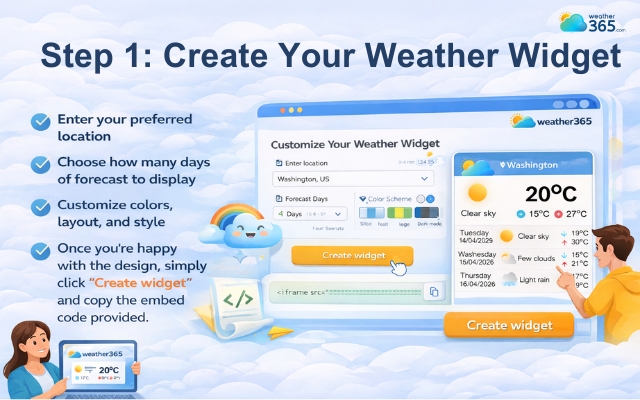
Create and customize your weather widget on Weather365
Step 2: Open Your Duda Editor
Next, log in to your Duda website builder dashboard and open the site you want to edit.
In the editor:
Navigate to the page where you want the widget to appear
Choose a position that makes sense (homepage, footer, sidebar, etc.)
Placement matters more than you think, weather widgets work best where users can quickly notice them without distraction.
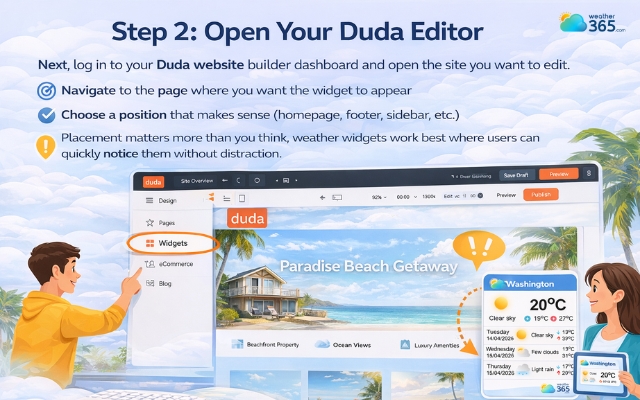
Choose a position where you want to place the weather widget
Step 3: Add an HTML Widget
Duda doesn’t have a built-in weather widget, but it allows you to embed one using custom code.
Here’s what to do:
Go to Widgets → HTML
Drag and drop the HTML widget into your page
Click on it and open the content editor
The HTML widget acts as a container where you can insert third-party tools like Weather365.
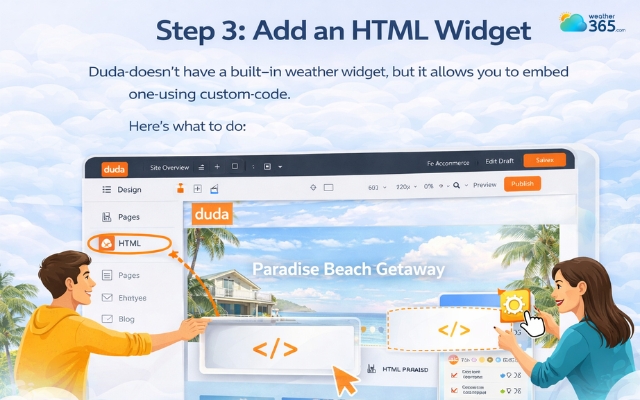
Drop the HTML widget into your page
Step 4: Paste the Embed Code
Now, paste the Weather365 embed code you copied earlier into the HTML box.
Once added:
Click Save / Done
Preview your site
You should now see a fully functional live weather display directly on your page.
What’s great here is that the widget updates automatically, so you don’t need to touch it again after setup.
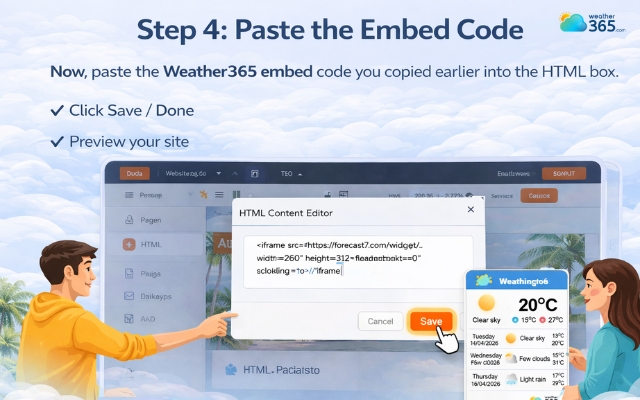
Paste the code into the HTML box
Step 5: Adjust Design & Responsiveness
After embedding, take a moment to fine-tune how the widget looks:
Resize it to fit your layout
Check how it appears on mobile and tablet
Align it with your site’s color scheme
Since Duda is responsive by default, your widget will adapt, but small adjustments can make a big difference in overall design quality.
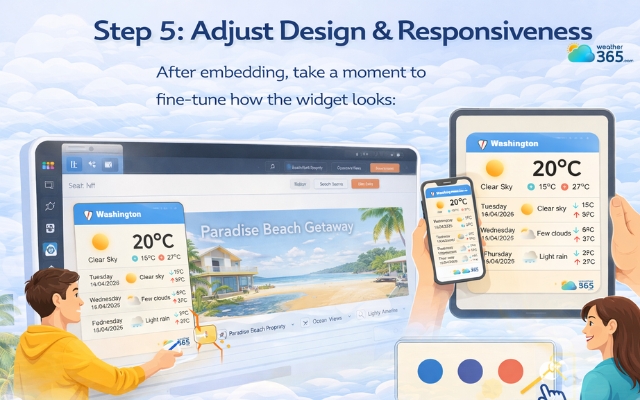
Check the widget on several devices
Step 6: Publish Your Site
Finally, hit Publish to make the widget live.
From this point on, your visitors will see real-time weather updates directly on your site, no extra clicks needed.
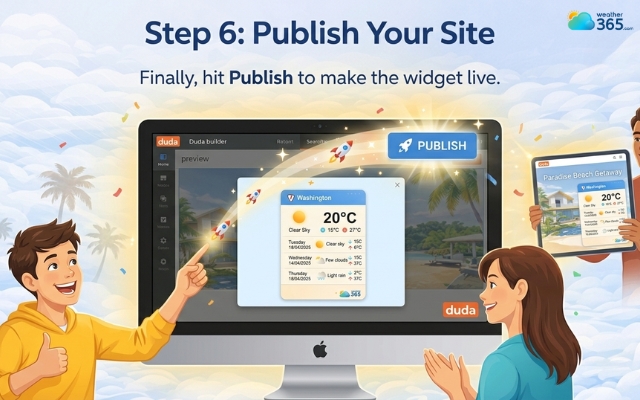
Publish your site and enjoy the live weather
Common Mistakes When Adding A Weather Widget
Adding a weather widget to your website can be very simple, but many users still make small mistakes that affect performance, design, or user experience.
Let’s go through the most common ones so you can avoid them from the start.
Wrong placement: Placing the widget too low or in a cluttered area makes it less visible and reduces its impact.
Too much information: Showing excessive forecasts or multiple locations can make the widget heavy, slow, and hard to read.
Ignoring mobile: If not optimized, the widget may break layout or look oversized on mobile devices.
Design mismatch: Using colors or styles that don’t match your site makes the widget look out of place.
Not checking performance: Heavy embeds or multiple scripts can slow down your page speed.
No testing after setup: Failing to recheck after publishing may lead to display or location errors over time.
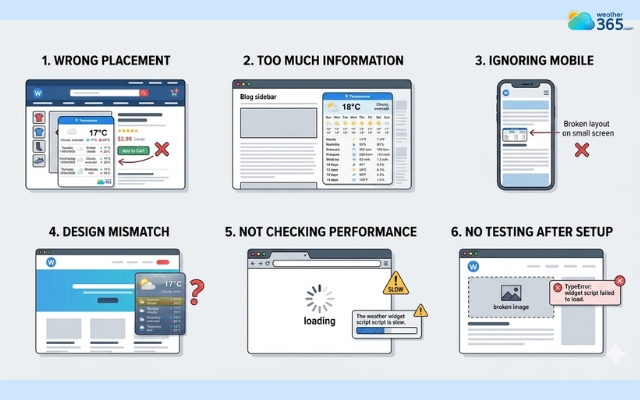
Several mistakes can affect your site's performance
Final Words
Weather widget for Duda is one of the easiest ways to make your site more interactive and useful. With a simple setup, you can display real-time weather and improve user experience instantly. Try adding one today and give your visitors a more dynamic, engaging browsing experience.
Frequently Asked Questions (FAQs)
Related post
Weather Widget for Notion: Simple Way To Integrate Live Weather
 192
192
 0
0
 4.9
4.9
 20/04/2026
Weather Widget for Lightweight Builders: Adding Live Weather Easily
171
0
4.8
14/04/2026
Weather Widget for Joomla & Drupal: Adding Free Live Weather To Your Site
151
0
4.8
14/04/2026

0 Comment
Leave a comment
Your email address will not be published. Required fields are marked *