




Weather Widget for Joomla & Drupal: Adding Free Live Weather To Your Site


Weather Widget for Joomla & Drupal can instantly turn your website into a more useful, engaging space, but how easy is it to actually set up? Scrolling down to discover a no-code way to add and customize a fully functional weather widget in just minutes!
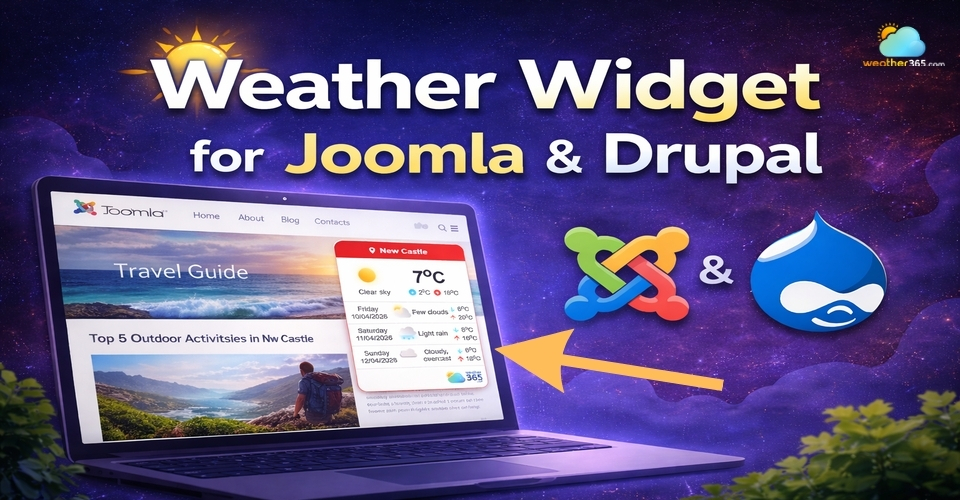
Weather widget for Joomla & Drupal
- Weather365 Widget
- Key features
- Why it’s ideal for Joomla & Drupal?
- How To Add Weather Widget for Joomla & Drupal
- Step 1: Create and Customize Your Widget
- Step 2: Copy the Embed Code
- Step 3: Add Weather Widget to Joomla
- Step 4: Add Weather Widget to Drupal
- Step 5: Optimize Display on Desktop & Mobile
- Common Mistakes When Adding a Weather Widget
Weather365 Widget
Weather365 Widget is a web-based tool that allows you to display real-time weather information directly on your website.
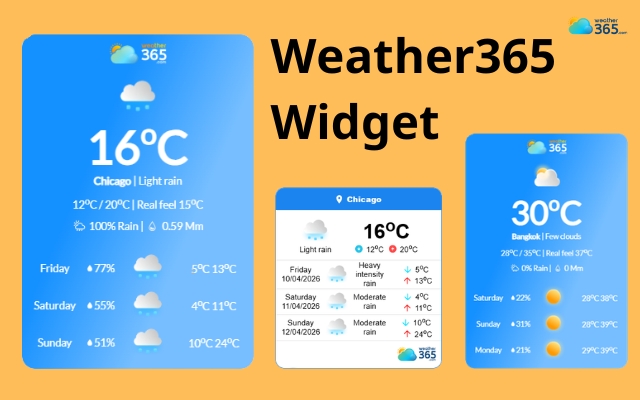
Multiple weather widgets from Weather365
Instead of relying on complex plugins or backend configurations, it works through a simple embed code that you can paste into Joomla or Drupal.
In practical terms, this means you don’t need technical skills to get started. Everything is handled through a visual interface where you customize the widget, copy the code, and place it on your site.
Within minutes, your visitors can see live weather updates without leaving your page.
Key features
One of the reasons Weather365 stands out is its balance between simplicity and flexibility. It gives you just enough control to make the widget useful without overwhelming you with technical settings.
Real-time weather data: Display current temperature, weather conditions, humidity, and more
Hourly and daily forecasts: Let users plan ahead with short-term and extended forecasts
Customizable design: Adjust colors, layouts, and styles to match your website branding
Flexible location settings: Choose a fixed location or allow dynamic display based on user needs.
Responsive layout: Automatically adapts to desktop, tablet, and mobile screens.
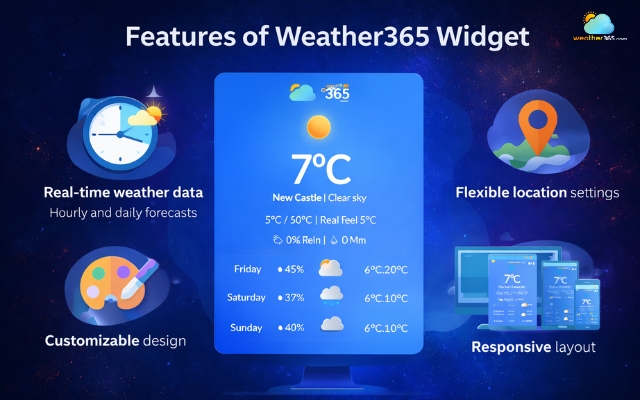
Significant benefits of the Weather365 widget
Why it’s ideal for Joomla & Drupal?
Joomla and Drupal are powerful CMS platforms, but they’re not always the most beginner-friendly when it comes to adding external features.
That’s exactly why a tool like Weather365 works so well here.
First, it doesn’t require any plugin installation, which helps you avoid compatibility issues or system conflicts.
You simply embed the widget using HTML, and it works seamlessly within your existing layout.
Second, Weather365 widget is fast to implement. Whether you’re managing a blog, a travel site, or a local business page, you can add weather information in just a few minutes without touching core files.
Finally, it helps improve user experience and engagement.
Visitors don’t need to leave your site to check the weather, which keeps them browsing longer, especially useful for content related to events, tourism, or outdoor services.

A weather widget can elevate a Joomla & Drupal site
How To Add Weather Widget for Joomla & Drupal
Now that you understand what a weather widget can do, let’s move on to the practical part: how to add weather widget to any platform.
Taking Joomla and Drupal as an example.
Most modern widgets (like Weather365) follow a no-code, copy–paste approach, so you can have everything live in just a few minutes.
Step 1: Create and Customize Your Widget
The first step is to build your widget using an online editor. Try Weather365 Widget to see the difference!
This is where you decide how your weather widget will look and what information it will display.
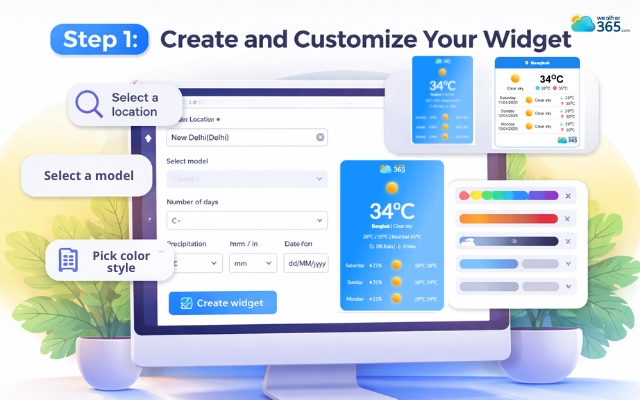
Configure the widget
With Weather365, you can:
Choose a model (model 1 and model 2)
Select a location (search city name)
Adjust temperature/precipitation unit, date format
Choose a color for title, text, line, background, and even widget border
Most tools provide a live preview, so you can instantly see how your widget will appear on your site while making changes.
Take a few minutes here to match the design with your website; it will make a big difference in user experience later.
Step 2: Copy the Embed Code
Once you’re happy with the design, click “Create widget”, the platform will generate a unique embed code for your widget.
This code is essentially a small script that loads the weather data and displays it on your site. You don’t need to edit it - just copy it and keep it ready.
Most platforms make this step very straightforward:
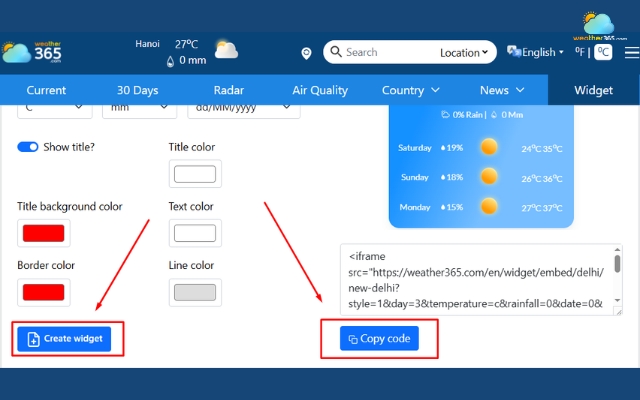
Create widget and copy the code
Step 3: Add Weather Widget to Joomla
For Joomla, the process usually involves adding the code into a custom HTML module.
Here’s how it works:
Log in to your Joomla admin dashboard
Go to Extensions → Modules
Create a Custom HTML module
Paste the embed code into the content area
Choose where you want it to appear (sidebar, footer, etc.)
Save and publish
That’s it. The widget will now appear on your site without needing any additional setup.
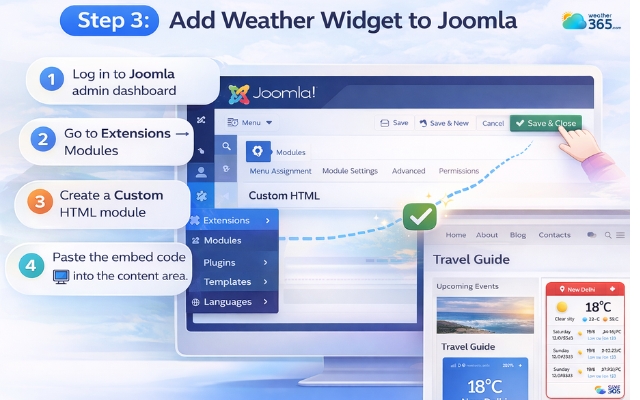
Paste the code into the Joomla
Step 4: Add Weather Widget to Drupal
Drupal gives you a bit more flexibility, but the logic is the same: paste the code into an HTML-enabled area.
You can do it in two common ways:
Option 1: Add to a specific page
Go to Manage → Content
Select the page you want to edit
Switch to Full HTML mode
Paste the embed code and save
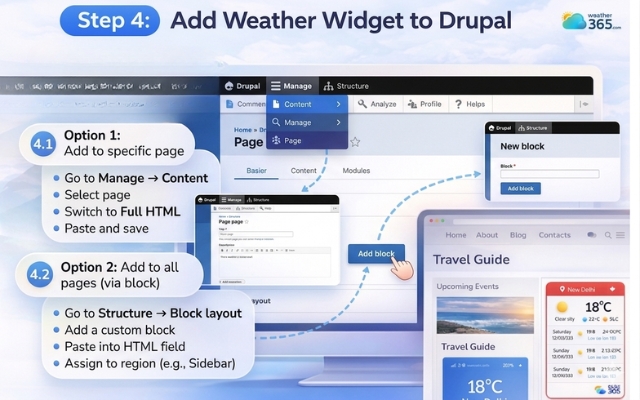
Add the weather widget to the Drupal
Option 2: Add to all pages (via block)
Go to Structure → Block layout
Add a custom block
Paste the code into the HTML field
Assign it to a region (like footer or sidebar)
Step 5: Optimize Display on Desktop & Mobile
Once your widget is live, take a moment to review how it actually appears across different devices.
A widget that looks perfect on desktop can sometimes feel too large or misaligned on smaller screens, so it’s important to check both views before considering everything done.
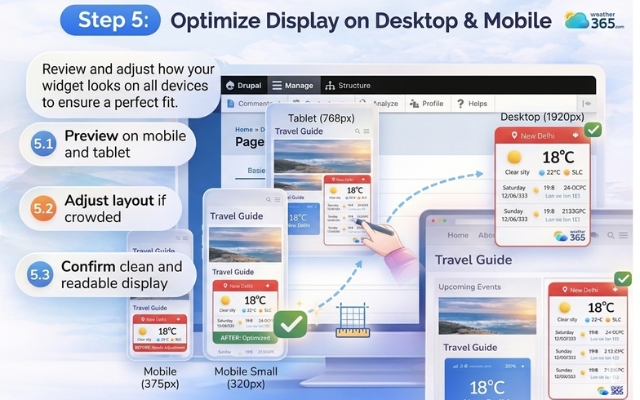
Check the desktop and mobile view
Start by previewing your site on mobile and tablet to ensure the layout remains clean and readable.
If the widget feels too crowded or out of place, adjust its size or reposition it within your page.
The goal is to make it blend naturally with your design rather than stand out awkwardly.
Adding a weather widget for Blog Platforms is also similar. You just apply those steps above and have a live weather forecast right on your site.
Common Mistakes When Adding a Weather Widget
Adding a weather widget is simple, but doing it well is a different story. Many websites technically install the widget correctly, yet still end up with poor user experience or unnecessary performance issues.
Avoiding a few common mistakes can make a big difference.
Choosing the Wrong Location
One of the most frequent issues is setting an incorrect location. If the widget shows weather for the wrong city, it immediately loses its usefulness.
Always double-check the location settings, or use auto-detect features if your audience is spread across different regions.
Overloading Your Website
It’s tempting to add multiple widgets or combine them with other dynamic elements, but too many scripts can slow down your site.
A weather widget should enhance your website, not affect its loading speed. Keeping things minimal usually works best.
Poor Placement
Even a well-designed widget won’t help if users can’t easily see it. Placing it too low on the page or in a cluttered area reduces its impact.
Instead, choose a position where it feels natural, like a sidebar or header without interrupting the main content.
Not Customizing the Design
Using the default widget style might be quick, but it often doesn’t match your website’s look and feel.
When the design feels out of place, it can make your site look less professional.
A few small adjustments in color and layout can help the widget blend in seamlessly.
Ignoring Mobile Optimization
A widget that looks good on a desktop doesn’t always translate well to mobile.
If it’s too large, too small, or misaligned, it can hurt the overall experience.
Always preview and adjust the widget on different screen sizes before publishing.
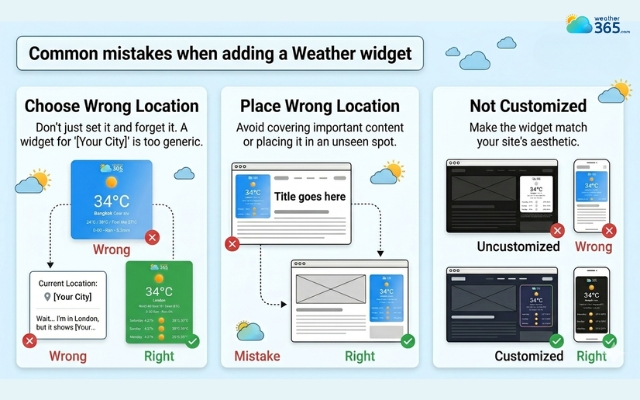
Some common mistakes to avoid when adding a weather widget
Sum up
The Weather Widget for Joomla & Drupal is an easy way to upgrade your website without overthinking the technical part. Once installed correctly, it blends in naturally, improves engagement, and gives your visitors something genuinely useful at a glance.
Frequently Asked Questions (FAQs)
Related post

How to Add Weather Widget to Any Platform? A Complete Guide for Beginners
 356
356
 8
8
 4.7
4.7
 17/08/2026

How to Add a Weather Widget for Webflow in minutes? A detailed guide
249
8
4.8
20/08/2026
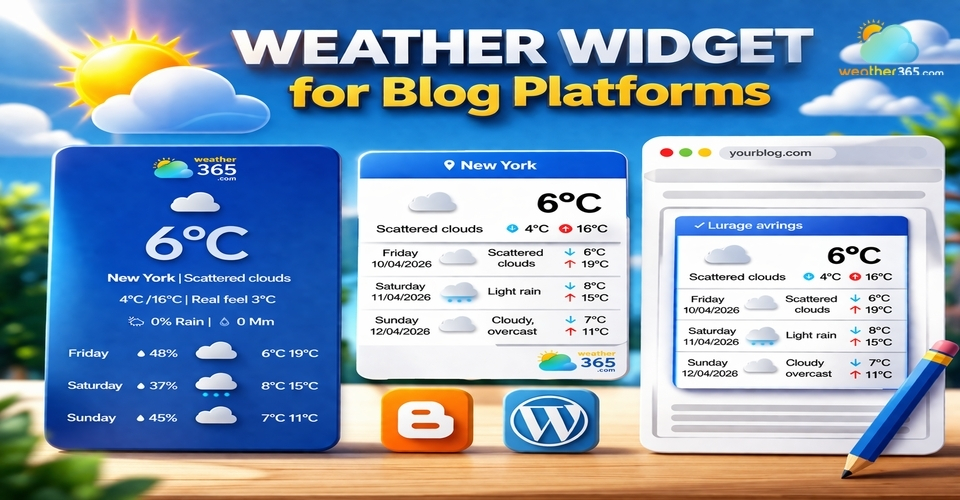
Weather Widget for Blog Platforms: Free Way To Elevate Your Blog Sites
179
8
4.8
13/04/2026

8 Comment
Raymond Ross
I like that you can generate the widget first and then embed it. Not every website needs a fully custom weather feature built from scratch.
weather365
Exactly! Using an existing widget can save development time when you only need weather conditions and forecasts displayed on your site.
Maximus Holmes
The Drupal instructions caught my attention. I'd rather embed a simple widget than maintain another module if I only need to display local weather on a page.
weather365
That makes sense. A custom block may be sufficient for this use case, depending on your Drupal permissions and text-format settings. It's worth checking those before adding the embed code.
Maximus Schultz
I'm using Joomla for a small website and have been wondering how to add weather information without building a custom component. This looks like a practical solution.
weather365
That could be a good option! A custom HTML module can work for embedding a weather widget, provided your Joomla configuration allows the required code.
Kenneth Gibson
I've worked with a few CMS platforms, and adding third-party features can sometimes be more complicated than expected. It's nice to see a guide that breaks the process down into manageable steps.
weather365
Glad you found it useful! Once you've customized the widget and copied the embed code, the main task is placing it in the right module or block on your website.
Leave a comment
Your email address will not be published. Required fields are marked *