




The Ultimate Temperature Widget Guide to Boost Site’s Engagement


Want to keep visitors engaged while adding useful real-time information to your website? A temperature widget can improve user experience, increase retention, and make your site feel more dynamic. In this guide, you’ll learn what a temperature widget is, its benefits, and how to add the Weather365 widget to your website in just a few minutes.

Understanding temperature widget
What is a temperature widget?
A temperature widget is a mini digital dashboard you can drop onto your website to show your visitors the live weather without making them click away to Google or an app.
It is one of the most popular types of weather widgets for websites used to boost user engagement.
It lives right on your page: in a sidebar, footer, or header, acting like a small, real-time window to the outside world.
How It Works Behind the Scenes?
While it looks simple and seamless to your users, the widget is actually doing a lot of heavy lifting in a fraction of a second. Here is the simple breakdown of its three-step workflow:
Fetching the Data (The API Link): The widget is constantly connected to a weather API (a system that allows two applications to talk to each other). This link feeds the widget live, raw data from global forecasting models.
Spotting the Visitor (Geolocation): The moment a user lands on your webpage, the widget uses secure, IP-based tracking to identify where they are in the world.
Rendering the Visuals: Instantly, the widget translates those cold, raw numbers into localized, easy-to-read text and icons (like a sun or rain cloud) that match your site's specific design.
Depending on your configuration, it can also display advanced metrics such as moisture levels via a humidity widget.
Highlight real-time highs and lows, which is essential for tracking heatwaves via Arizona current temperature.
From an SEO and user-experience perspective, this means your site feels instantly personalized and highly relevant to every single visitor the exact second your page loads.

The widget is constantly connected to a weather API
Benefits of using a temperature widget on a website
Adding a temperature widget to your website keeps your visitors hooked and gives them an instant reason to stay on your page longer, rather than bouncing away to check the weather elsewhere.
It is a simple, low-effort upgrade that delivers a major boost to your site's overall engagement metrics.
From an SEO and user-experience perspective, here is exactly how this small addition makes a massive difference:
Boosts User Retention (Time on Site)
When you give people the exact details they need right where they are, they stick around. For local news outlets, travel blogs, real estate portals, or outdoor event sites, weather dictates plans.
Keeping that data on your page stops users from wandering off to a search engine, which signals to Google that your site provides high-quality, sticky content.
Enhances User Experience (UX)
Great website design is all about eliminating friction.
By providing valuable, real-time climate info directly within your layout, your users do not have to open a new tab or jump into an app.
They get a smooth, seamless browsing experience where all their questions are answered in one single spot.
Aesthetic Appeal
No one likes reading a massive wall of text.
Modern widgets act as clean, dynamic visual elements that instantly breathe life into your layout.
Whether tucked neatly into a sidebar or spanning a footer, their shifting icons and smooth designs break up dense content and make your pages feel active, modern, and polished.
Instant Local Relevance
Thanks to automated geolocation, the widget recognizes where your visitor is checking in from and immediately serves up personalized data.
This instant customization creates an immediate connection, making your platform feel highly relevant and tailored to their specific neighborhood the second the page loads.

Metrics of adding a temperature widget
About Weather365
The Weather365 temperature widget is a premium, highly responsive web integration tool designed to stream hyper-local, real-time climate data directly onto your website without lagging your page speeds.
It acts as an all-in-one bridge between complex global meteorological databases and your specific website layout, giving you a plug-and-play solution to engage your local audience.
When picking a tool for your site's SEO architecture, stability and site performance are everything.
The Weather365 widget is built from the ground up to support modern web design frameworks while keeping your backend completely lightweight.
Here are the key technical advantages that make this widget a top-tier choice for creators and webmasters:
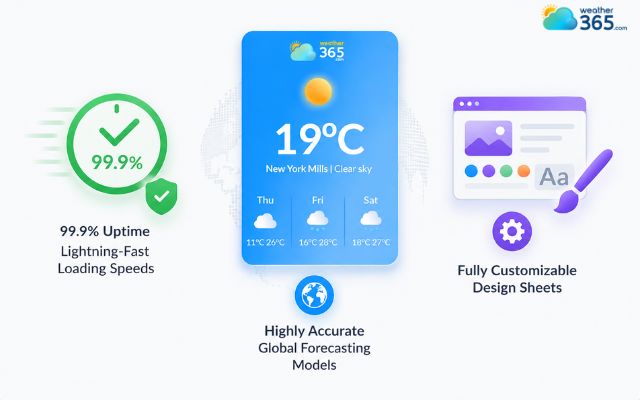
99.9% Uptime and Fast Loading Speeds
A slow widget can instantly tank your user retention metrics and hurt your Core Web Vitals (which Google uses to rank your site).
Weather365 operates on an optimized content delivery network (CDN) framework, ensuring the widget elements load almost instantly without pulling down your overall page performance.
Accurate Global Forecasts
Weather365 delivers accurate weather forecasts for locations around the world. It uses reliable weather data to help users track changing conditions.
Visitors can check local forecasts for areas such as the Colorado weather forecast, Georgia weather forecast, or 5-day Nevada weather forecast.
The Weather365 widget shows key details such as temperature, rain (perfect if you are embedding a rainfall widget), wind, and multi-day forecasts.
This gives users clear and useful weather information for planning their daily activities.
Fully Customizable Design Sheets
You do not have to worry about an ugly, blocky element ruining your site's hard-earned aesthetic.
The configuration panel gives you full design control. You can quickly toggle dark mode, tweak background and text colors to match your branding palette.
Also, you can scale the sizing dimensions to fit perfectly into a sidebar or header banner, and choose exactly how many forecast days to display.
Unique features of the Weather365
How to add Weather365 to your site?
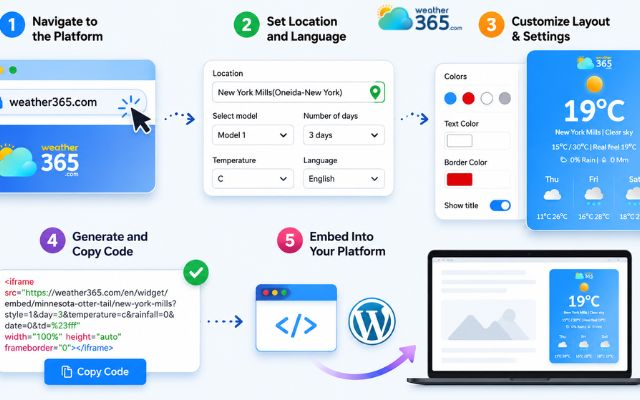
Adding a professional touch to your layout takes less than five minutes. Follow these simple steps to go live:
Step 1: Navigate to the Platform
Open your browser and head directly to the official Weather365 widget configuration page.
Step 2: Set Location and Language
Input your target city or set the widget to automatic geolocation. Change the display language from the dropdown menu to match your target audience.
For example, you can add a Michigan 5-day weather forecast, a Virginia 3-day weather forecast, or a Hawaii 7-day weather forecast.
Step 3: Customize Layout & Settings
Tailor the interface properties. Select your preferred model layout, choose the number of forecast days (1-day, 3-day weather widget, or 7-day weather widget), set your units (°C or °F, mm or inches for precipitation), adjust date formats, and pick your custom title/background colors.
Step 4: Generate and Copy Code
Once you are happy with the live preview, click the "Create Widget" button. Highlighting the generated iframe or JavaScript code block, then copy it to your clipboard.
Step 5: Embed Into Your Platform
Paste the code snippet directly into your web backend depending on your setup layout:
Custom HTML / CMS (Wix, Squarespace, WordPress, Google Sites): Open your page editor, add an "Embed Code," "HTML," or "Custom Code" block exactly where you want it to appear, paste your Weather365 snippet, and click save or publish.
WordPress alternative: If you prefer plugin-driven dashboards, you can alternatively navigate to your WordPress Plugin Directory to install dedicated tools like Location Weather directly onto your control panel.
Add a weather widget with a few easy steps
Sum up
A temperature widget is one of the simplest, most effective design upgrades you can give your website. It transforms static pages into helpful, interactive hubs that keep your visitors engaged longer. Give Weather365 a try, configure your custom code snippet, and enhance your site’s user experience today!
Frequently Asked Questions (FAQs)
Related post

Wind Speed Widget: How to Add Live Wind Data to Your Site
 240
240
 0
0
 4.9
4.9
 26/08/2026

Humidity Widget: Real-Time Moisture Tracking for Sites
217
0
4.8
17/08/2026

Heat Index Widget: Why Your Website Needs Real-Feel Weather Data?
205
0
4.7
14/08/2026

0 Comment
Leave a comment
Your email address will not be published. Required fields are marked *