




Multi-Language Weather Widget: A Simple Way To Go Globalize Your Site


Weather is a universal need, but your users don’t all speak the same language. So how can you make your website feel truly local to everyone? A multi-language weather widget might be the simplest upgrade with the biggest impact. In this guide, you’ll discover the best tools available and how to set them up step by step.
Multi-language weather widget
- Benefits of Using a Multi-Language Weather Widget
- Best Multi-Language Weather Widget Tools: Top List
- Elfsight
- Weather365
- Location Weather
- How To Add A Multi-Language Weather Widget
- Step 1: Choose a Widget Provider
- Step 2: Choose Your Language
- Step 3: Customize the Weather Widget
- Step 4: Copy Embed Code (HTML/JS)
- Step 5: Paste the code
- Step 6: Publish the page
Benefits of Using a Multi-Language Weather Widget
You may wonder “Does this actually improve the user experience?”
With a multi-language weather widget, the answer is clearly yes, especially if you’re targeting a global audience.
Improve User Experience (UX)
When users see weather information in their own language, everything becomes easier to understand instantly.
They don’t need to guess meanings or rely on translation tools.
This small detail reduces friction and makes your website feel more natural, friendly, and trustworthy.
For example, international visitors planning a trip can easily check California weather while viewing the information in their preferred language.
This small detail reduces friction and makes your website feel more natural, friendly, and trustworthy.
Increase Global Engagement & Retention
If your website attracts visitors from different countries, language can be a barrier or a bridge.
A multi-language weather widget helps break that barrier, making international users more likely to stay longer, explore more pages, and come back again.
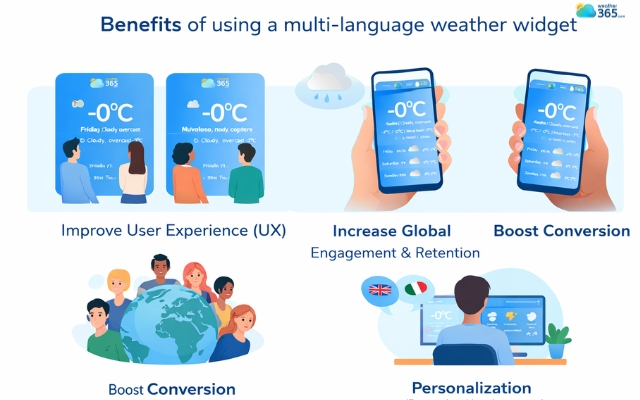
Advantages of using a multi-language weather widget
Boost Conversion (Especially Travel & eCommerce)
Clear information leads to better decisions. For travel websites, users can quickly check weather conditions before booking.
For e-commerce, especially in fashion or outdoor products, weather context can influence buying behavior.
For instance, visitors planning outdoor activities can review Utah weather conditions before choosing suitable clothing or equipment.
When users fully understand what they see, they’re more likely to take action.
Personalization (Remember User Language)
Modern widgets can detect or remember a user’s preferred language automatically.
This creates a personalized experience without extra effort from the user.
Over time, this kind of smart customization makes your website feel more tailored, and that’s something users appreciate.
Best Multi-Language Weather Widget Tools: Top List
Have you got any choice in your mind? If not, we have some of the best options you can consider below:
Elfsight
If you want a simple, all-in-one solution, Elfsight is one of the most popular choices.
It supports 30+ languages, allowing your widget to automatically display content in the user’s native language.
What makes it stand out is how easy it is to use: no coding needed, plus flexible layouts like hourly or weekly forecasts.
You can also customize colors, background, and size to match your website design.
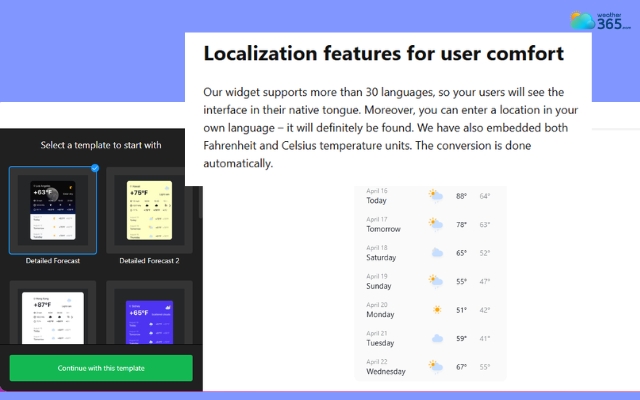
Elfsight weather widget supports more than 30 languages
Weather365
Weather365 widget is a strong option if you care more about design flexibility and control.
It offers multi-language (more than 100 languages) support along with customizable layouts, making it easier to create a widget that fits your brand.
Compared to simpler tools, Weather365 gives you more freedom in styling (colors, formats, layout), which is useful if you want your widget to feel like a natural part of your website.
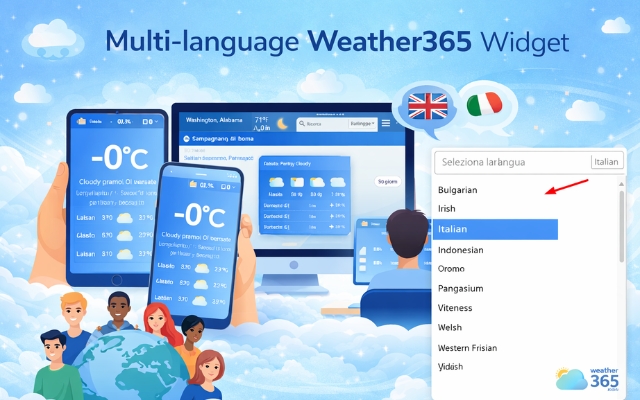
Weather365 supports more than 100 languages
Location Weather
This type of widget focuses on auto-detecting user location and adapting accordingly, often including language adjustments based on region.
It’s usually lightweight and fast, which makes it ideal if you don’t want to slow down your website.
While it may not have as many design options as other tools, it does the core job very well.
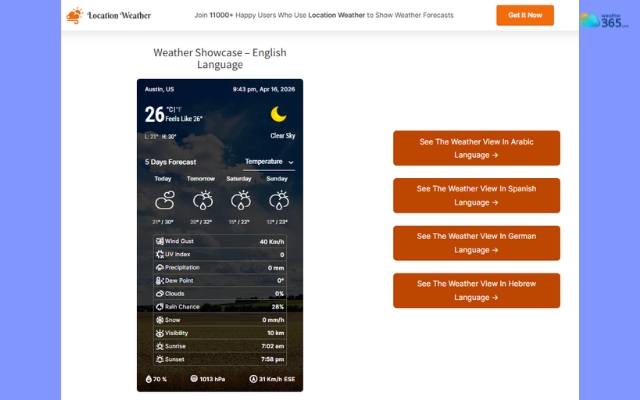
Location Weather offers language adjustments based on the region
How To Add A Multi-Language Weather Widget
So, how do you actually get a multi-language weather widget on your website?
Most modern tools are designed for beginners, so you don’t need advanced coding skills.
Let’s walk through the process step by step using Weather365 as an example.
Step 1: Choose a Widget Provider
Start by selecting a reliable widget provider that supports multiple languages. A good option is Weather365, which offers both flexibility and easy setup.
When choosing your provider, look for:
Multi-language support (manual or auto-detect)
Customization options (layout, colors, units)
Simple embed process
Picking the right tool from the beginning will save you time later.
When choosing your provider, make sure it offers the features you actually need.
You can explore our Weather Widget Features guide to better understand what to look for before making a decision.
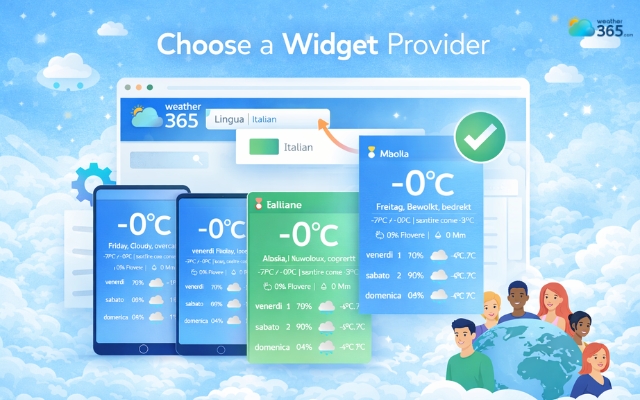
Try the Weather365 multi-language widget
Step 2: Choose Your Language
Once you’re on the Weather365 website, you can select the language you want your widget to display.
Some platforms allow:
Manual selection (you choose specific languages)
Automatic detection (based on user browser/device language)
Offer multi-language support for bilingual regions like Puerto Rico weather forecast readers.
If your audience is international, auto-detect is usually the best choice. It ensures each visitor sees weather information in their own language without doing anything.
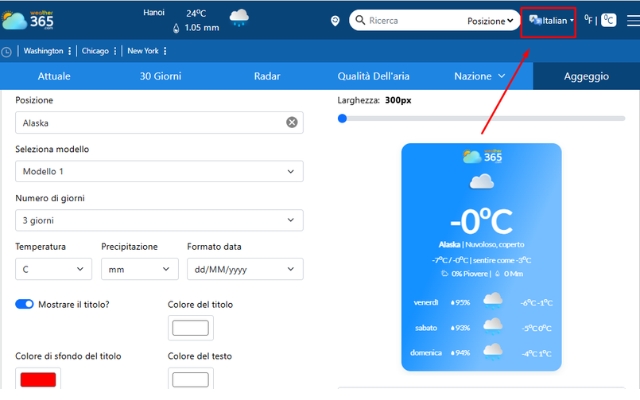
Change the language you want to appear on the widget
Step 3: Customize the Weather Widget
Next, head to the Widget section on Weather365 and start customizing.
Here’s what you can typically adjust:
Location (city or auto-detect location)
Can’t find a multi-location & auto-detect location weather widget? We have it here!
Layout model (compact, detailed, horizontal, etc.)
Number of forecast days
Units (°C or °F)
Colors & style to match your website
Take a few minutes here, this step is important because it ensures the widget fits into your site instead of looking out of place.
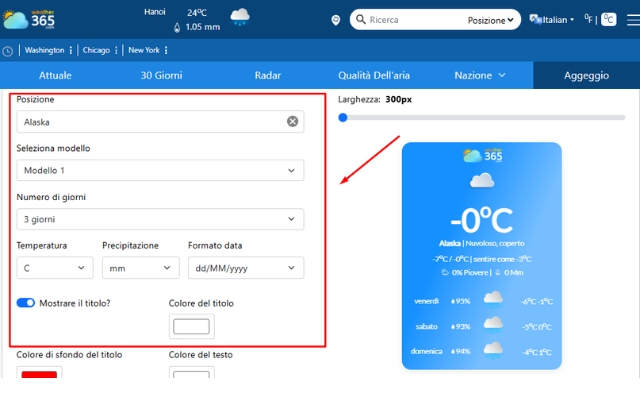
Customize the weather widget with Weather365
Want more options for a customizable weather widget? Let’s take a look at Customizable weather widget where we gather the most reliable ones!
Step 4: Copy Embed Code (HTML/JS)
After customizing, click the “Create widget” button. The system will automatically generate an embed code for you.
Copy the provided HTML or JavaScript snippet
No need to edit the code, just copy and paste
This is the code you’ll use to display the widget on your website.
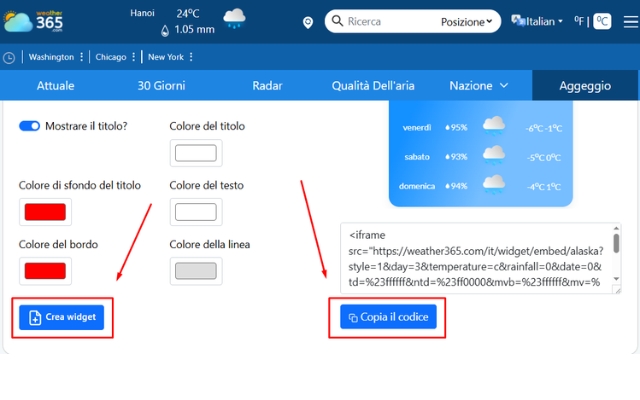
Generate and copy the code
Step 5: Paste the code
Go to your website’s backend or CMS (like WordPress, Shopify, or a custom HTML page), then open the page where you want the widget to appear.
Paste the embed code into the appropriate section:
HTML site: paste directly into the HTML file where you want it displayed
WordPress: use a Custom HTML block
Shopify: paste into theme editor or section file
Make sure you place it in a visible area (homepage, sidebar, or footer), then save your changes.
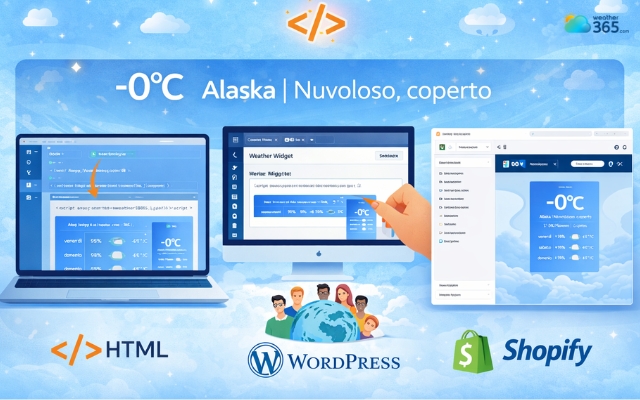
Paste the code in the place you want to show the weather widget
Step 6: Publish the page
Finally, publish the page and preview the weather widget to see if it has any problems.
After publishing:
Refresh your page
Check if the widget loads correctly
Test different languages to make sure everything works smoothly
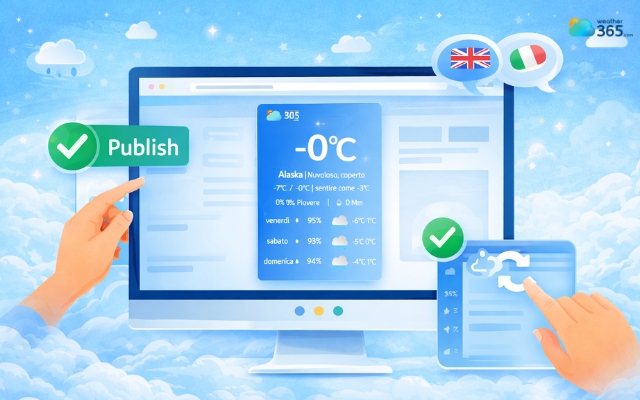
Publish the page to preview the weather widget
Sum up
Is it hard to add a multi-language weather widget to your site? If you are still stuck somewhere, do not hesitate to leave us a comment below! With tools like Weather365, you can set it up in minutes and instantly improve user experience for a global audience.
Frequently Asked Questions (FAQs)
Related post
Free Weather Widget For Website: Top Ad-Free Live Weather Tools
 253
253
 8
8
 4.8
4.8
 14/08/2026
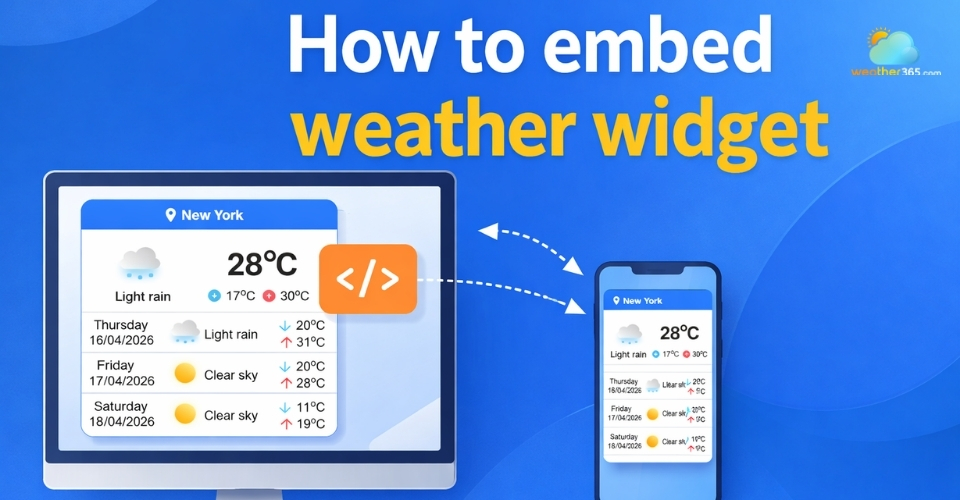
How to Embed Weather Widget on Any Site: Step-by-Step Guide
253
8
4.7
17/08/2026
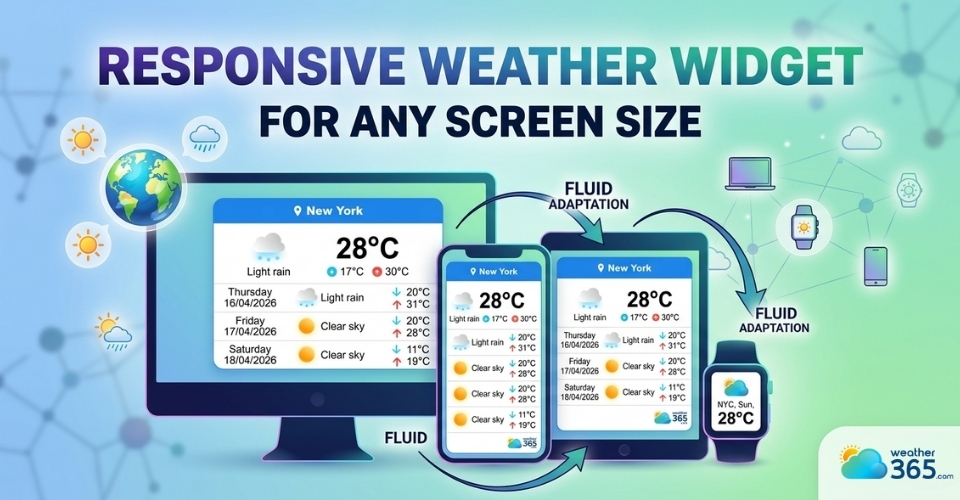
Discover Responsive Weather Widget for Any Screen Size
248
8
5.0
24/07/2026

8 Comment
Callum Rogers
I think localization is often overlooked when building a website for multiple markets. Translating the main content is important, but embedded tools should feel just as accessible.
weather365
Well said! A consistent experience across the whole website helps visitors navigate it more comfortably.
Ian Lambert
This is especially relevant for travel websites. Visitors planning a trip abroad would appreciate being able to check the local forecast in a language they understand.
weather365
Definitely. It’s a small addition that can make planning a trip feel a lot more convenient.
Tyler Barrett
I hadn’t thought much about the language of a weather widget before, but it makes sense. Not everyone visiting a website will be comfortable reading weather information in English.
weather365
Exactly! Weather data is only helpful when people can understand it quickly and easily.
Dylan Martin
A multilingual weather widget is such a useful feature for websites with an international audience. Small details like language can make the whole experience much easier for visitors.
weather365
Absolutely! Making information accessible in a visitor’s preferred language can make a website feel much more welcoming.
Leave a comment
Your email address will not be published. Required fields are marked *