




How to Embed Weather Widget on Any Site: Step-by-Step Guide


What’s the easiest way to show real-time weather on your website? If you’ve ever wondered how to embed weather widget without messing with complex code, you’re in the right place. In this guide, we’ll walk you through the simplest way! Diving in!
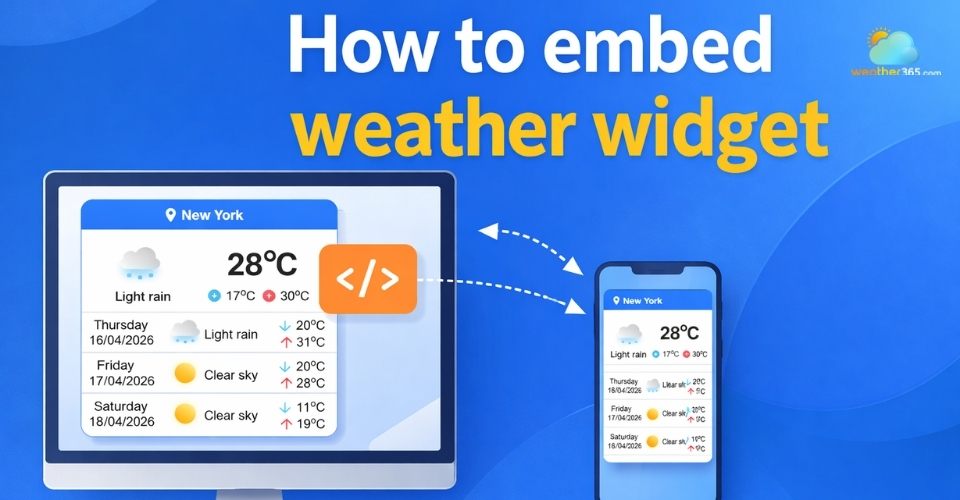
How to embed weather widget
- Why Should You Embed a Weather Widget?
- Features of a weather widget
- Why Embed a Weather Widget?
- How to Embed Weather Widget: General Methods
- Choose a weather widget provider
- Customize location, units, and design
- Copy the embed code (HTML/JS/iframe)
- Paste the code into your website
- Save and publish your page
- Different Ways to Embed Based on Widget Type
- Common issues when embedding a weather widget
Why Should You Embed a Weather Widget?
A weather widget is a small, embedded element that displays real-time weather information directly on your website.
Instead of users needing to check another app or site, they can instantly see the current temperature, forecast, humidity, or even wind conditions right where they are.
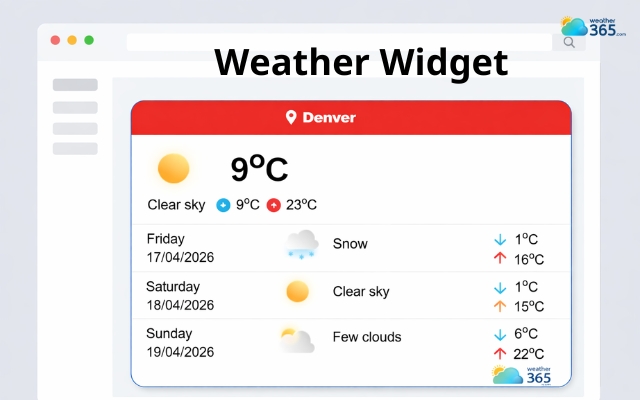
Weather365 widget on a website
Most modern widgets pull data from reliable weather APIs and update automatically. This means your content stays fresh without any manual effort.
Depending on the provider, a weather widget can be as simple as a temperature box or as detailed as a multi-day forecast with icons, charts, and animations.
Features of a weather widget
Not all widgets are the same, but the best ones usually come with a set of powerful and flexible features that make them suitable for different types of websites.
One of the most important features is real-time updates.
The widget continuously refreshes data, so users always see the latest weather conditions without needing to reload the page.
Another useful feature is location customization.
You can either set a fixed location (like a city your business operates in) or enable auto-detection so the widget shows weather based on the user’s location.
Most widgets also support customizable design. This includes changing colors, layouts, fonts, and sizes to match your website’s branding.
In addition, many tools offer multi-language support, which is especially valuable if your audience is international.
Combined with responsive design, the widget will look good on both desktop and mobile devices.
Most modern widgets now support customizable layouts, colors, and responsive design - features you can explore in detail in Weather Widget Features.
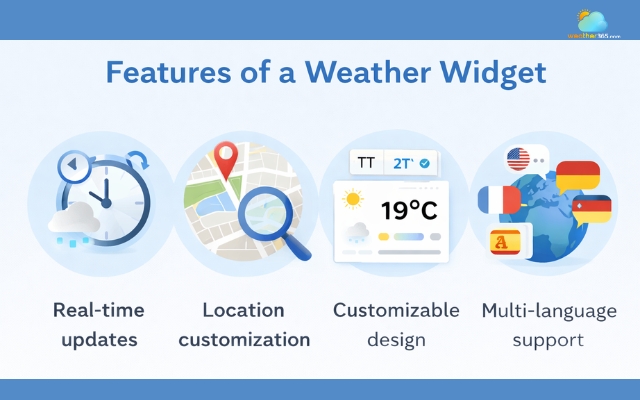
Flexible features of the weather widget
Why Embed a Weather Widget?
Embedding a weather widget is a simple way to make your website more useful and engaging. Here are the main reasons why it’s worth adding one:
Improve user experience
Visitors can check real-time weather directly on your site without going elsewhere.
Increase engagement and time on site
Dynamic content like weather updates naturally keeps users interested longer.
Add real-world context to your content
Perfect for travel blogs, local businesses, or event websites where weather matters.
Enhance visual appeal
A well-designed widget makes your site look more modern and interactive.
Quick and easy to implement
Most widgets only require copying and pasting a simple code snippet.
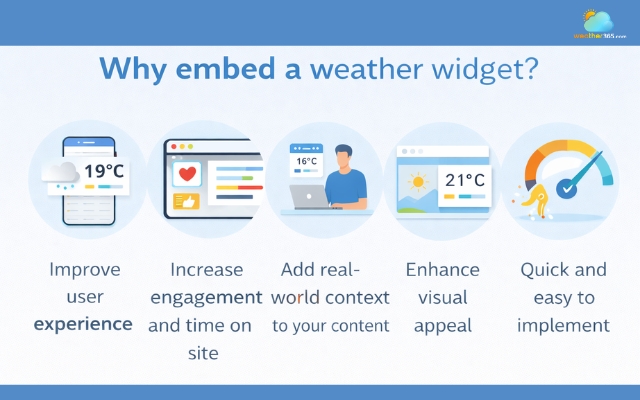
Advantages of embedding a weather widget
How to Embed Weather Widget: General Methods
Ready to learn how to embed weather widget?
Learn the basic embedding techniques to showcase accurate forecasts like Illinois daily weather.
Choose a weather widget provider
Start by selecting a reliable weather widget provider. This is where your widget’s data and design will come from.
When choosing, look for:
Easy-to-use interface
Customization options (colors, layout, size)
Support for iframe or JavaScript embed
Free or affordable pricing
Some providers are more beginner-friendly, while others offer advanced options for developers.
If you’re just starting out, go for something simple with ready-made embed code like Weather365 widget.
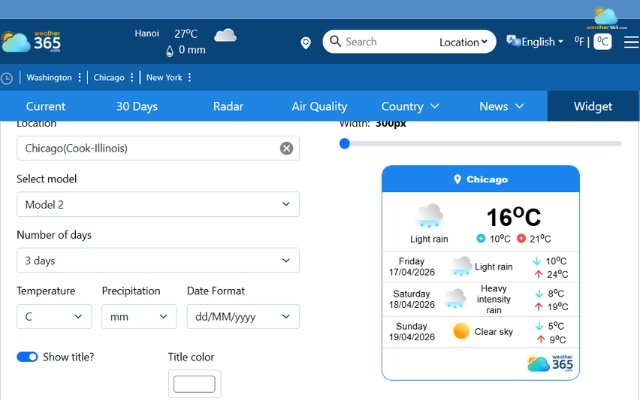
Choose Weather365 for a perfect weather widget
Customize location, units, and design
Once you’ve picked a provider, the next step is to customize your widget.
Typically, you can adjust:
Location (city, country, or auto-detect user location)
Units (°C or °F)
Layout (compact, full forecast, horizontal/vertical)
Colors and theme to match your website
Take a minute here to make sure the widget fits your site’s style.
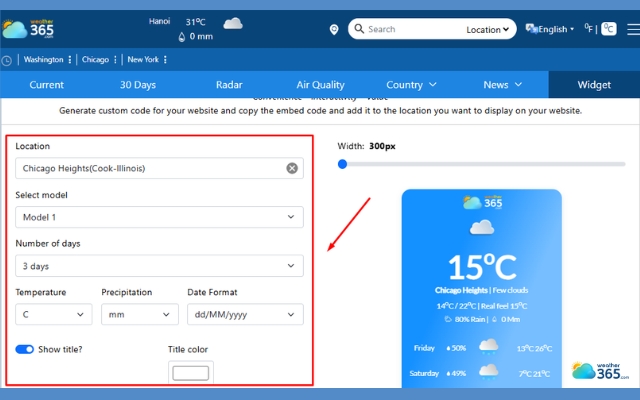
Customize the widget with Weather365
Looking for the best customizable weather widget? Drop by here!
Copy the embed code (HTML/JS/iframe)
After customization, the provider will generate an embed code for you.
This code can come in different formats: HtML snippet, iframe, or JavaScript
You don’t need to fully understand the code, just copy it exactly as provided.
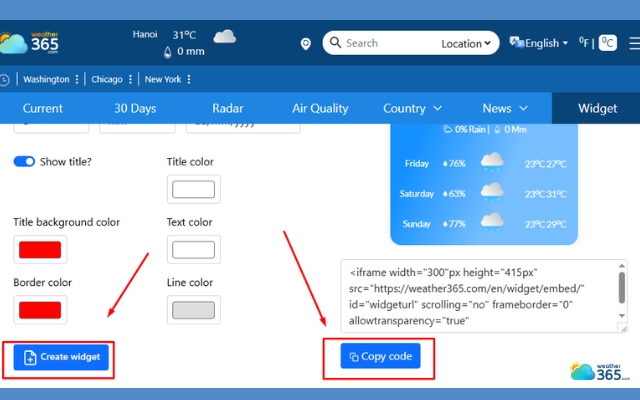
Generate and copy the code
Paste the code into your website
Next, paste the code into your website where you want the widget to appear.
Depending on your platform:
HTML website → paste directly into your code
WordPress → use a Custom HTML block or widget area
Wix / Webflow / Squarespace → use an embed/code block
Make sure you place it in a visible and logical position, like the sidebar, footer, or homepage section.
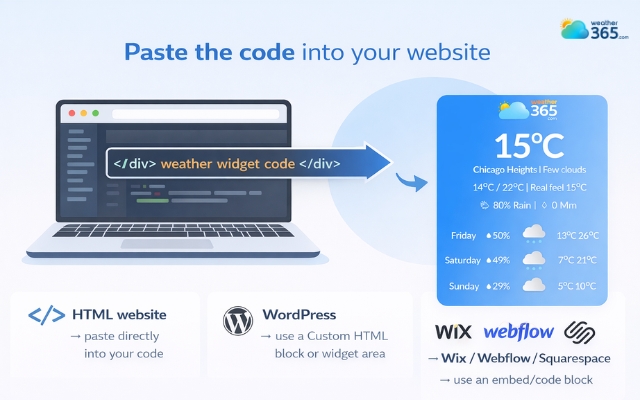
Paste the code in the position you want the widget to appear
Save and publish your page
Finally, save your changes and publish the page.
Once live, check:
The widget displays correctly
The layout looks good on both desktop and mobile
The data updates properly
If everything looks right, you’re done!
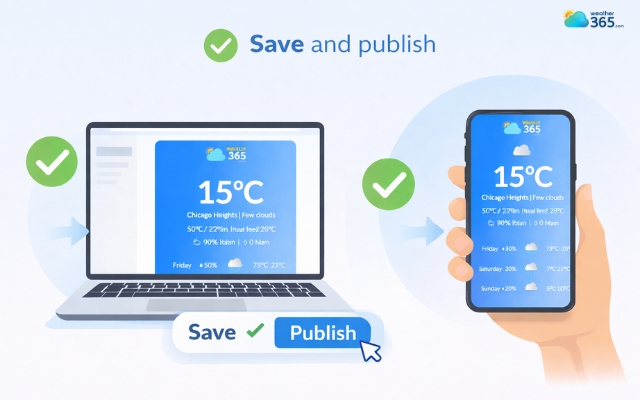
Publish the page to see the weather widget
Different Ways to Embed Based on Widget Type
While the steps above are generally the same, the exact implementation can vary depending on the type of widget you use.
Iframe Widget
This is the easiest option.
You just paste the iframe code into your HTML, and the widget will appear instantly. No extra setup needed.
JavaScript Widget
This requires adding a script (usually into the body or head of your site).
It offers more flexibility and customization, but may need a bit more attention when placing the code.
API-Based Widget (Advanced)
This is for developers. Instead of embedding a ready-made widget, you fetch weather data from an API and build your own interface.
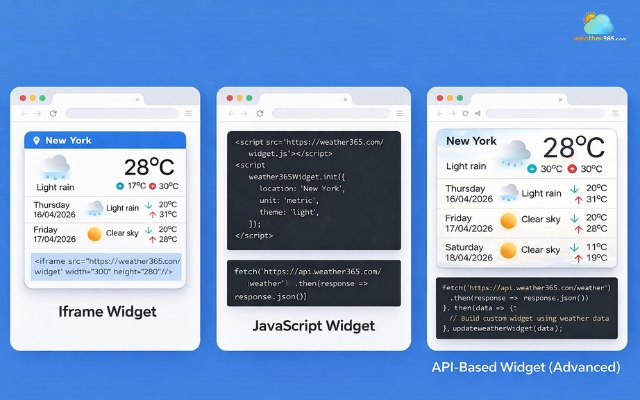
Implementation can vary depending on the type of widget you use
Common issues when embedding a weather widget
Embedding a weather widget is usually simple, but a few common issues can still happen. Here are the ones you should watch for:
Widget not showing up
Often caused by missing or incorrectly pasted code. Double-check your embed code and placement.
After fixing the widget, test whether location-specific information, such as the Texas weather forecast, loads correctly.
Wrong location displayed
This usually happens when the location isn’t set properly or auto-detect doesn’t work as expected.
Check the selected location, GPS permissions, and timezone settings.
You can also compare the displayed information with a specific location such as Alabama weather conditions to confirm the widget is showing the correct data.
JavaScript conflicts
Scripts from other plugins or tools can interfere with the widget.
Try adjusting where the script is placed or temporarily disabling conflicting plugins
Not mobile-friendly
Some widgets don’t adapt well to smaller screens. Make sure you’re using a responsive design.
For example, users accessing Hawaii weather from smartphones should be able to view the forecast without horizontal scrolling or broken layouts.
To ensure your widget looks great on all devices, consider using a Responsive Weather Widget for Any Screen Size for a seamless experience.
Slow loading
Heavy widgets or slow external servers can affect page speed. Choose a lightweight option if needed.
Most of these issues are easy to fix with a quick check, so don’t worry if it doesn’t work the first time perfectly.
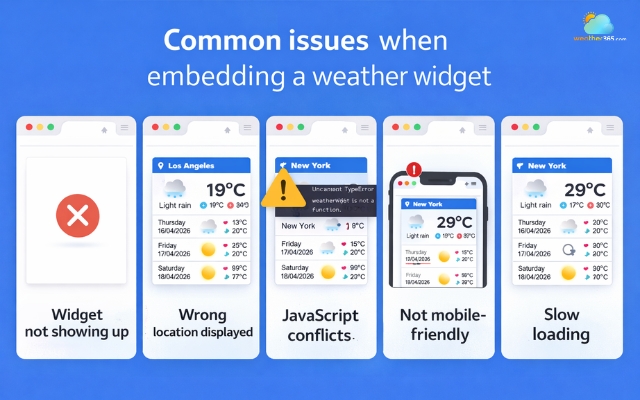
Common problems when adding a weather widget
Final Thought
Hope you successfully learned how to embed weather widget. It’s a quick and simple way to add real-time updates to your site without much effort. With just a few steps, you can improve user experience, boost engagement, and make your website feel more dynamic. Now it’s time to try it out yourself.
Frequently Asked Questions (FAQs)
Related post
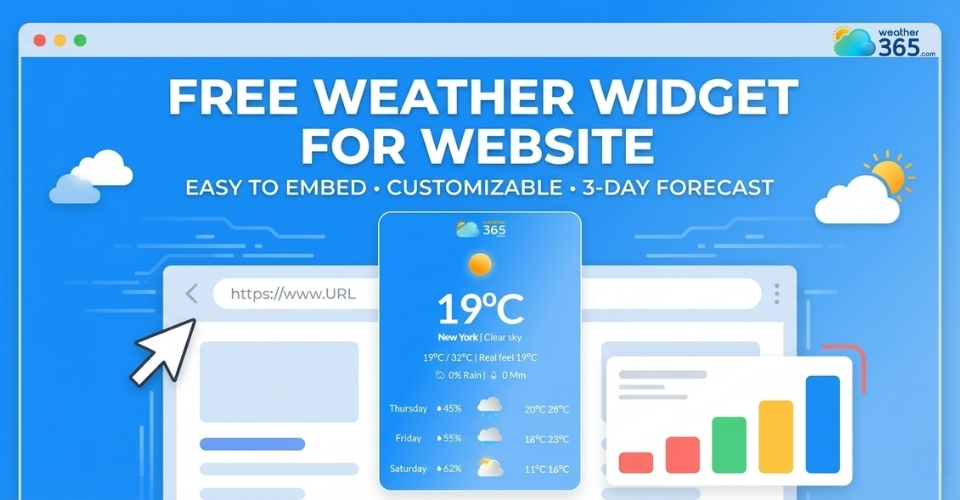
Free Weather Widget For Website: Top Ad-Free Live Weather Tools
 253
253
 8
8
 4.8
4.8
 14/08/2026
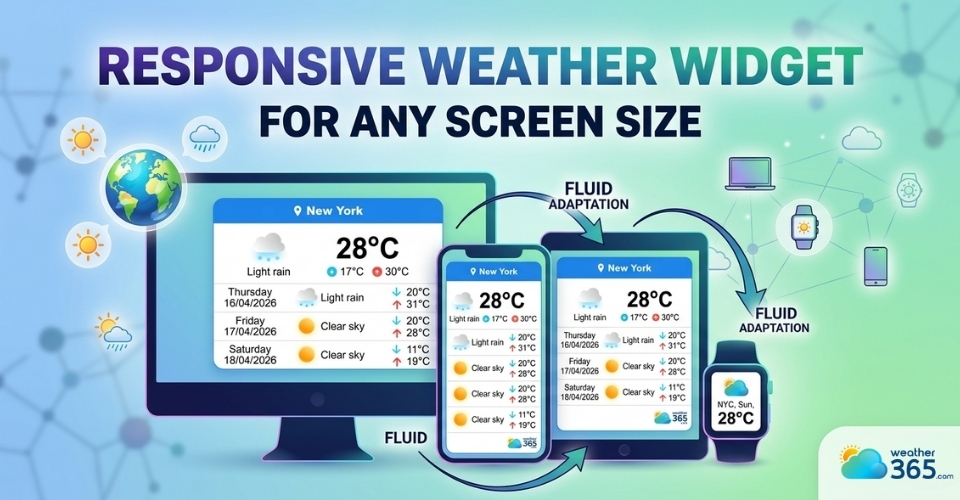
Discover Responsive Weather Widget for Any Screen Size
248
8
5.0
24/07/2026
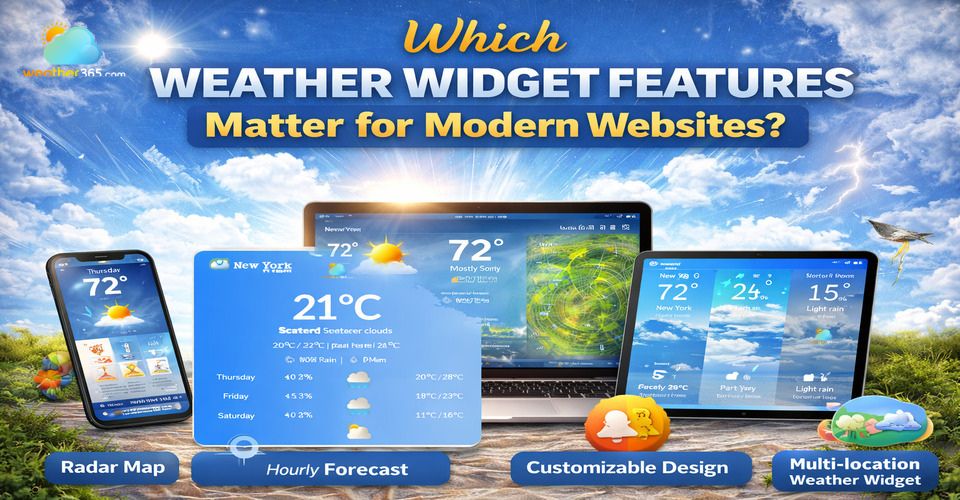
Which Weather Widget Features Matter for Modern Websites?
217
8
5.0
22/04/2026

8 Comment
Justin Thompson
One thing I'd double-check is the location setting. A weather widget isn't very helpful if it shows conditions for the wrong city!
weather365
Absolutely! Make sure the selected location matches your audience or the place you're featuring on the page. If you're using automatic location detection, test that behavior as well.
Leonardo Allen
I use WordPress for my blog, and adding everything through a plugin isn't always my first choice. Using a Custom HTML block sounds like a simpler alternative for this kind of feature.
weather365
That's a useful option to explore! WordPress supports Custom HTML blocks, so you may be able to add the widget without installing a dedicated plugin. Just preview the page to make sure it works as expected.
Luka Patterson
Is it really just a matter of copying and pasting the embed code? I’ve avoided adding widgets before because I assumed I’d need to edit the website's source code.
weather365
For many website platforms, that's often all it takes. You can usually paste the provided code into a compatible HTML or embed block, although the exact steps depend on your platform.
Ryan Morales
I always appreciate tutorials that break the process down into simple steps. Not everyone who runs a website has a technical background, so clear instructions really help.
weather365
Glad you find it useful! Adding a widget should feel manageable, even if you're not a developer. Following the setup steps one at a time can make the process much less intimidating.
Leave a comment
Your email address will not be published. Required fields are marked *