




Weather Widget Not Working? Common Issues & How to Fix Them


Weather widget not working? Discover the most common causes behind broken or slow-loading widgets, from script errors to API issues, and learn proven fixes to restore performance, accuracy, and responsiveness across all devices. Keep scrolling down and dive in.
Common issues and fixes for the weather widget not working
- Weather Widget Not Loading at All
- Common causes
- Solutions
- Weather Widget Loading Slow
- Causes
- Solutions
- Widget Not Showing Correct Location
- Causes
- Solutions
- Weather Widget Not Working Due to GDPR/Cookie Consent
- Causes
- Solutions
- Weather Widget Style Conflicts with Theme
- Causes
- Solutions
- Weather365 Widget - Best weather widget for website
- Key Features of Weather365 Widget
Weather Widget Not Loading at All
When your weather widget fails to load completely (showing a blank space or nothing at all), it usually points to technical issues rather than design problems.
Below are the most common causes and how to fix them.
Common causes
CORS (Cross-Origin Resource Sharing) Errors: If the widget is fetching data from an external API, the browser may block requests due to missing or incorrect CORS headers.
JavaScript Errors or Script Blocking: A broken script, missing dependency, or incorrect loading order (e.g., not using async/defer properly) can prevent the widget from rendering.
Ad Blockers or Browser Extensions: Some ad blockers mistakenly block third-party scripts used by weather widgets, especially if they come from external domains.
Incorrect Embed Code: A small mistake in the HTML or JavaScript snippet, such as missing tags or invalid attributes, can stop the widget from loading entirely.
Mixed Content (HTTP vs HTTPS): If your site uses HTTPS but the widget loads via HTTP, modern browsers will block it for security reasons.
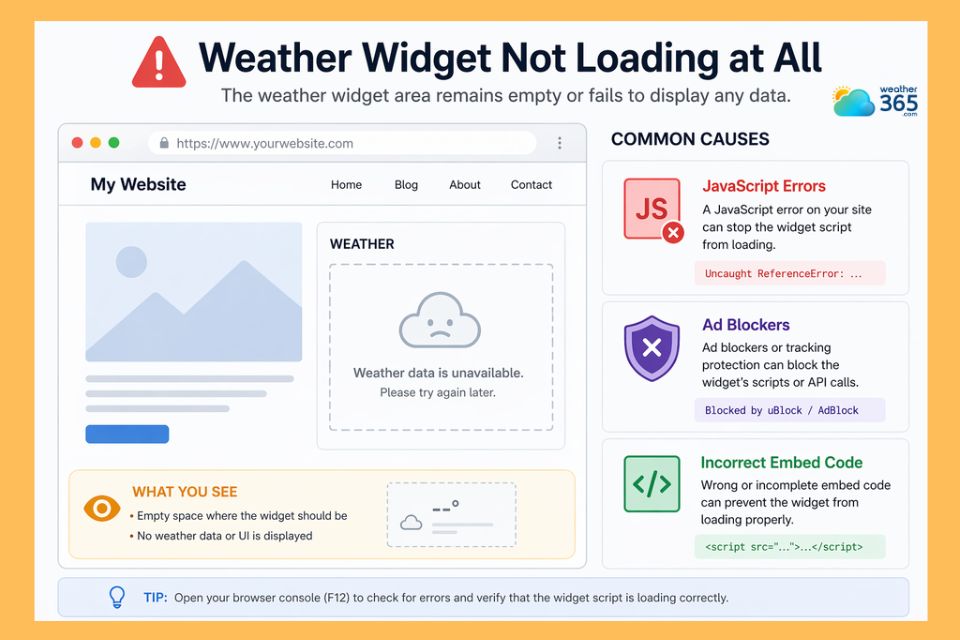
Common causes for weather widget not loading at all
Solutions
If your widget isn’t loading at all, don’t worry.
This is a common issue covered in many Weather Widget Tutorials. In most cases, the problem can be resolved quickly by identifying script errors or configuration mistakes.
Below are practical solutions to help you fix the issue and get your widget running again.
Check Browser Console for Errors: Open Developer Tools (F12) → Console tab to identify JavaScript or network errors affecting the widget.
Fix CORS Issues: Ensure the API provider supports your domain or use a proxy/server-side request if needed.
Verify and Reinstall Embed Code: Copy the widget code from the provider again and ensure it’s placed correctly inside the
Disable Ad Blockers for Testing: Temporarily turn off browser extensions to see if they are blocking the widget script.
Ensure Secure Loading (HTTPS): Update all widget URLs to HTTPS to avoid mixed content issues.
Load Scripts Properly: Use async or defer attributes to prevent blocking and ensure scripts execute in the correct order.
Weather Widget Loading Slow
A slow-loading widget can significantly impact user experience and SEO performance.
In most cases, the issue comes down to poor weather widget performance optimization and inefficient resource handling.
Causes
Slow performance is usually tied to how the widget loads scripts and fetches data.
Heavy JavaScript Files: Large third-party scripts increase load time and delay rendering.
Render-Blocking Scripts: Scripts without async or defer can block the page from loading smoothly.
Too Many API Requests: Frequent or redundant data calls slow down response time.
No Caching Mechanism: Without caching, the widget reloads data on every visit.
Slow External Servers: If the provider’s server is slow, your widget will load slowly as well.
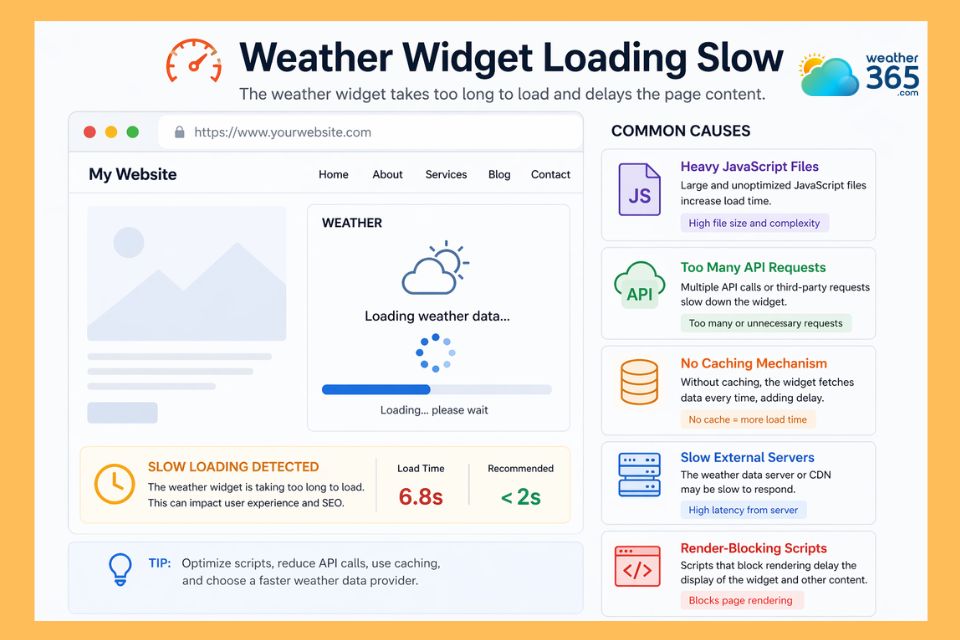
Why does the weather widget load slowly?
Solutions
Improving speed requires applying proper weather widget performance optimization techniques.
Use Async or Defer Loading: Prevent scripts from blocking page rendering.
Implement Lazy Loading: Load the widget only when it appears on screen.
Reduce API Calls: Optimize request frequency and avoid unnecessary data fetching.
Enable Caching (Browser/CDN): Store data locally to reduce repeated loading.
Choose a Lightweight Widget: Use optimized providers designed for fast performance.
Widget Not Showing Correct Location
One common issue when learning how to add weather widget to website is incorrect location display.
Instead of showing the intended city, the widget may default to a wrong or generic location, affecting user experience.
Causes
This problem is often related to how the widget detects or receives location data.
Inaccurate IP-Based Geolocation: Widgets using IP detection may show the wrong city due to ISP routing or VPN usage.
Missing or Incorrect Location Settings: The widget may not be properly configured with a fixed location.
Browser Location Permissions Denied: If users block location access, the widget cannot detect their real position.
API Configuration Errors: Incorrect parameters or missing location data in API requests can lead to wrong results.
Caching Issues: Cached data may display outdated or incorrect location information.
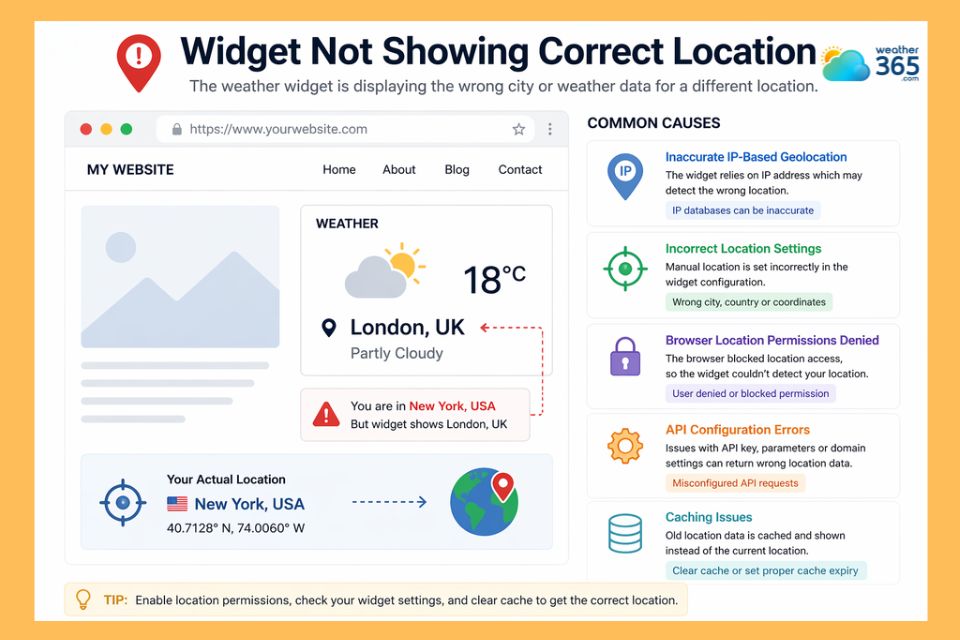
Detect causes for the widget not showing correct location
Solutions
To fix the problem “ weather widget not show correct location”, you can apply the solutions below:
Set a Fixed Location Manually: Define a specific city or coordinates instead of relying on auto-detection.
Enable and Test Geolocation Permissions: Ensure the browser allows location access and handles permission prompts correctly.
Verify API Parameters: Double-check location fields (city name, latitude/longitude) in your API requests.
Clear Cache or Disable Caching for Location Data: Prevent outdated location data from being reused.
Avoid VPN or Proxy During Testing: Test the widget under normal network conditions for accurate results.
Weather Widget Not Working Due to GDPR/Cookie Consent
In many cases, a widget doesn’t fail due to technical errors, but because of privacy regulations.
When the weather widget GDPR compliance is not properly implemented, scripts may be blocked until users provide explicit consent, preventing the widget from loading correctly.
Causes
GDPR and cookie policies can interfere with how third-party widgets load and function.
Thus, when the weather widget not working, you should consider these causes.
Scripts Blocked Before User Consent: Consent management platforms (CMPs) may prevent widget scripts from running until approval is granted.
Third-Party Cookies Restricted: Some widgets rely on cookies for location or personalization, which are blocked under GDPR rules.
Incorrect Consent Configuration: If the widget is not categorized properly (e.g., “functional” vs “marketing”), it may be unnecessarily blocked.
Auto-Loading Scripts Without Consent: Loading scripts before consent can trigger blocking by browsers or compliance tools.
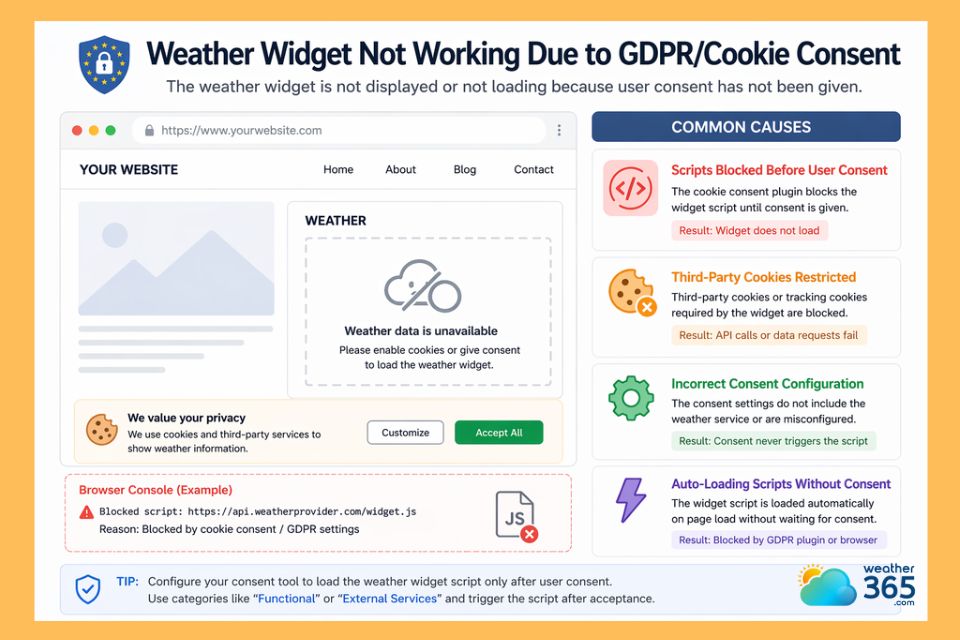
Common causes for the weather widget not working
Solutions
To ensure proper weather widget GDPR compliance, you need to align widget behavior with privacy requirements.
Delay Script Loading Until Consent: Configure your CMP to load the widget only after users accept relevant cookies.
Classify the Widget Correctly: Mark weather widgets as “essential” or “functional” if applicable to avoid unnecessary blocking.
Use GDPR-Compliant Providers: Choose widget services that minimize data collection and support privacy regulations.
Implement Consent-Based Script Triggers: Use tools like Google Tag Manager to control when scripts are executed.
Update Privacy Policy: Clearly disclose the use of weather widgets and any data they collect.
Weather Widget Style Conflicts with Theme
A weather widget may load correctly but still appear broken due to styling conflicts with your website theme.
This often results in layout issues, unreadable text, or elements overlapping. These problems typically come from CSS conflicts between the widget and your site’s existing styles.
Causes
Style conflicts usually occur when global styles override the widget’s default design.
CSS Overrides from Theme: Your theme’s global styles (fonts, colors, spacing) may unintentionally override widget styles.
Framework Conflicts (Bootstrap, Tailwind, etc.): CSS frameworks can apply default rules that interfere with widget layout.
Z-index and Positioning Issues: Improper stacking order can cause the widget to be hidden behind other elements.
Font and Color Inheritance: The widget may inherit styles that make text unreadable or inconsistent.
Container Size Restrictions: Fixed-width/height settings in the theme can break widget responsiveness.
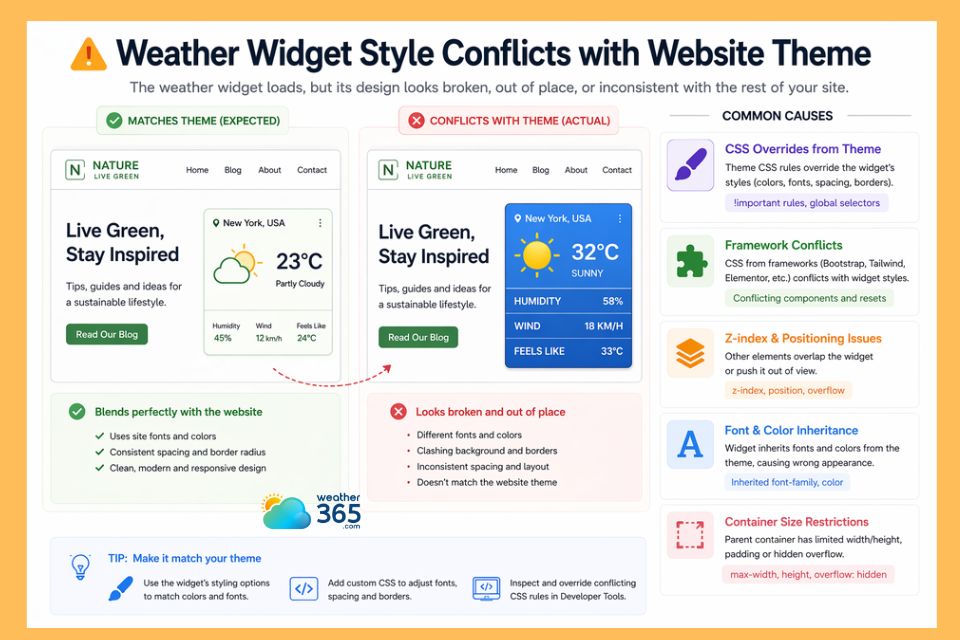
Causes for weather widget style conflicts with website theme
Solutions
Resolving style issues requires isolating and controlling how the widget interacts with your theme.
Use Scoped CSS or Custom Classes: Wrap the widget in a container with unique classes to prevent style conflicts.
Override Conflicting Styles: Apply specific CSS rules to fix layout, colors, and spacing issues.
Adjust Z-index and Positioning: Ensure the widget appears above other elements when needed.
Test with and without Framework Styles: Identify if frameworks like Bootstrap or Tailwind are causing conflicts.
Ensure Responsive Container Design: Use flexible layouts (e.g., max-width: 100%) to maintain proper display.
Weather365 Widget - Best weather widget for website
After identifying common issues and fixes, the most effective long-term solution is choosing a reliable provider.
The Weather365 widget is widely considered the best weather widget for website thanks to its balance of performance, flexibility, and ease of integration.
Unlike many third-party widgets that cause loading errors or conflicts, Weather365 is built with modern standards to ensure stability across different platforms and devices.
What makes Weather365 stand out is its focus on both usability and performance-first architecture, helping websites avoid common problems like slow loading, incorrect data, or script conflicts.
Key Features of Weather365 Widget
Lightweight & Fast Loading: Optimized scripts reduce load time and improve Core Web Vitals.
Easy Embed (No Complex Setup): Simple HTML/JavaScript integration. This is ideal for beginners and developers alike.
Fully Customizable Design: Adjust layout, colors, units (°C/°F), and display style to match your website theme.
Accurate Location Data: Supports both auto-detection and manual location settings for precision.
Responsive on All Devices: Works seamlessly across desktop, tablet, and mobile screens.
Weather Widget Performance Optimization: Built with async loading, minimal API calls, and efficient caching.
GDPR & Privacy Friendly: Designed to comply with modern data protection requirements.
Cross-Platform Compatibility: Works with WordPress, HTML websites, Shopify, Webflow, and more.
Wrap up
Most widget issues, from slow loading to incorrect data, can be resolved with proper setup, optimization, and compatibility checks. By applying the right fixes and choosing a reliable provider, you can ensure smooth performance and a better user experience. If you’re still facing issues, it’s time to address the root cause of the weather widget not working.
Frequently Asked Questions (FAQs)
Related post
Weather Widget Tutorials: Complete Guide to Fix Common Integration Issues
 243
243
 8
8
 5.0
5.0
 29/04/2026
How To Add Weather Widget To Website: Simple Embed Guide for All Platforms
222
8
4.8
17/08/2026

8 Comment
Carson Patel
I didn't realize a cookie consent plugin could stop a weather widget from loading. If the widget works after accepting cookies but not before, that seems like a useful clue when troubleshooting.
weather365
Exactly! Testing different consent choices can help identify whether the consent manager is blocking the script. The fix should also match the widget's actual data practices and applicable privacy requirements.
Kyle James
Is it normal for an auto-detect weather widget to show the wrong city when someone is using a VPN? I've noticed that location-based features don't always get it right.
weather365
Yes, that can happen with IP-based geolocation because a VPN may route traffic through a different region. Setting a fixed city or allowing visitors to choose their location manually can help.
Jason Parson
A slow weather widget can be annoying, especially when it sits near the top of a page. I'd probably check whether other scripts are slowing things down before replacing the widget altogether.
weather365
Good point! Testing the page before and after the widget loads can help identify the bottleneck. Script loading methods and unnecessary API requests are also worth checking.
Kaleb Bates
I've had this happen before. Everything looked fine in the editor, but the weather widget was completely blank on the live page. Checking the embed code first would have saved me a lot of time.
weather365
That can be frustrating! A small mistake in the embed code or a script error can prevent the widget from loading. Checking the browser console is a good place to start troubleshooting.
Leave a comment
Your email address will not be published. Required fields are marked *