




Weather Widget Performance Optimization Tips for Faster Websites


Weather widget performance optimization is often overlooked until your site starts loading painfully slow. If your widget is dragging down speed, frustrating users, or hurting SEO rankings, don’t worry, you’re not alone. In this guide, you’ll learn how to fix these issues and keep your website fast and smooth. Diving in!
Weather widget performance optimization
- Common Performance Issues with Weather Widgets
- Weather Widget Performance Optimization: Best Techniques
- Use Lightweight Weather Widgets
- Minimize External API Calls
- Optimize Script Loading (Async & Defer)
- Enable Caching (Browser & CDN)
- Enable Lazy Loading for Widgets
- Advanced Optimization Techniques for Weather Widgets
- How to Test and Monitor Widget Performance
- Google PageSpeed
- Lighthouse Reports
- WebPageTest
- Common mistakes to avoid in widget performance optimization
Common Performance Issues with Weather Widgets
Before you try to optimize anything, it helps to understand why your weather widget is slowing things down in the first place.
Most issues come from how the widget loads data and interacts with external services.
One of the biggest culprits is heavy third-party JavaScript files. Many weather widgets rely on external scripts packed with features you may not even use.
These files increase page size and take longer to load, especially on slower networks.
Another common problem is render-blocking scripts. If the widget’s code loads before your main content, it can delay everything else on the page.
Users end up staring at a blank screen for longer than necessary, which hurts both experience and SEO.
You’ll also notice performance drops when there are too many API requests.
Some widgets fetch weather updates too frequently or request unnecessary data.
This not only slows down your site but can also strain the API service.
A less obvious issue is having no caching strategy.
Without caching, your site has to reload weather data every single time a user visits.
Finally, slow external servers can drag your site down even if everything else is optimized.
Since weather widgets depend on third-party providers, any delay on their end directly affects your page speed.
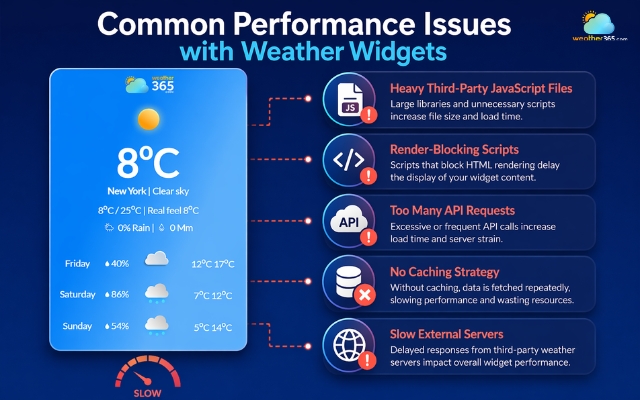
Most issues come from how the widget loads data
Weather Widget Performance Optimization: Best Techniques
Now it’s time fix what’s slowing your site down!
The goal of weather widget performance optimization is to keep your widget useful without hurting the overall user experience.
Before optimizing performance, it’s important to start with a proper setup.
If your widget is added incorrectly, it can cause unnecessary scripts and slow down your site from the beginning.
You can follow this guide on how to add weather widget to website to ensure everything is implemented the right way.
Use Lightweight Weather Widgets
A good place to start is choosing a lightweight weather widget like Weather365.
Not all widgets are built the same. Some come packed with animations, extra data layers, and bulky scripts that you may never use.
A lightweight option focuses only on essential information, which means less code to load and faster rendering right from the start.
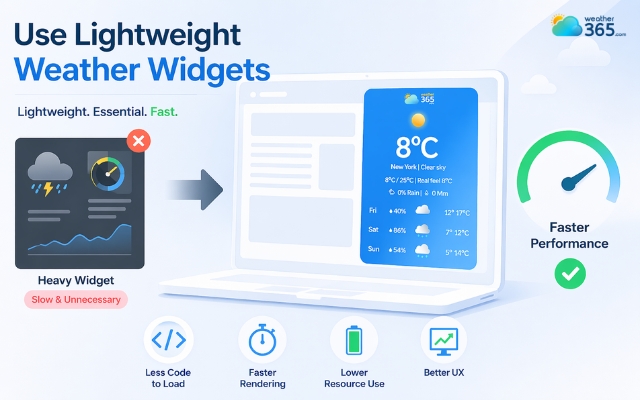
Try a lightweight weather widget from the Weather365
Minimize External API Calls
Next, take a closer look at how often your widget is calling external data. Minimizing API requests can make a noticeable difference.
Instead of fetching real-time weather updates every few seconds, you can increase the refresh interval or reuse stored data.
In most cases, users don’t need second-by-second updates, so reducing unnecessary calls helps both speed and stability.
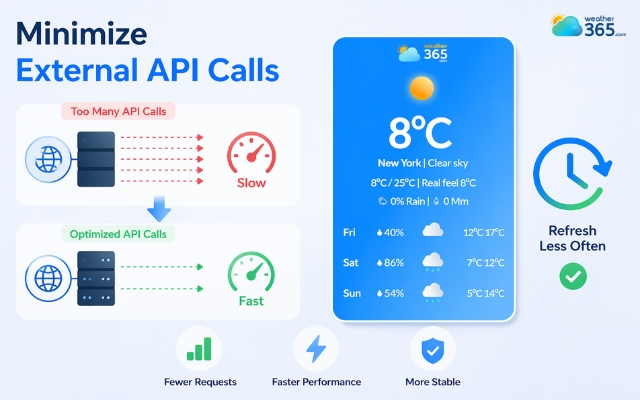
Minimizing API requests can make a noticeable difference
Optimize Script Loading (Async & Defer)
Another key technique is improving how scripts are loaded.
By default, many widgets load in a way that blocks the page. That’s where async and defer come in.
When you apply these attributes, your weather widget loads in the background instead of interrupting the main content.
This allows your page to appear faster, even if the widget is still loading behind the scenes.
If you’re adding a widget manually, make sure you understand how scripts are embedded properly. This helps you avoid unnecessary code and loading issues from the start.
You can follow this guide on how to embed weather widget in HTML to ensure your setup is clean and optimized.
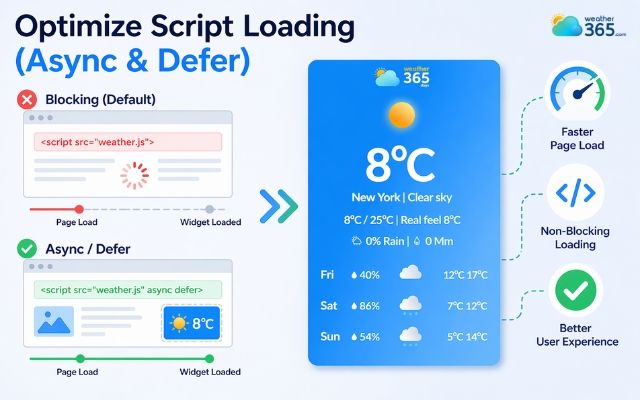
Many widgets load in a way that blocks the page
Enable Caching (Browser & CDN)
From there, you should focus on caching, which is one of the most effective optimizations available.
With browser caching, returning visitors don’t have to reload the same widget files again. Adding a CDN layer takes it further by delivering cached content from servers closer to the user.
This reduces latency and speeds up load times across different regions.
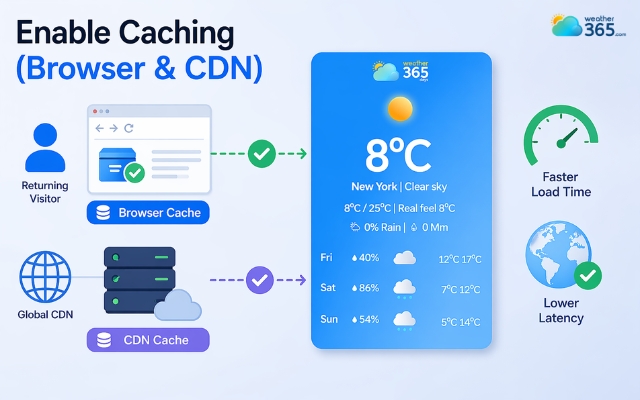
Enable caching is one of the most effective optimizations available
Enable Lazy Loading for Widgets
Finally, consider lazy loading your weather widget. This means the widget only loads when it actually appears on the user’s screen.
For example, if your widget sits in the footer, there’s no reason to load it immediately when the page opens.
Delaying its load reduces initial page weight and improves perceived performance.
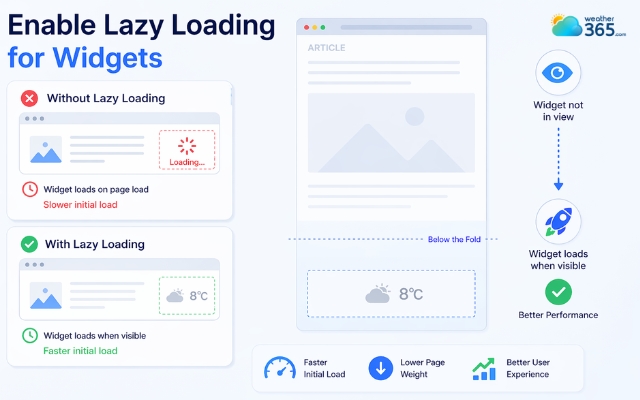
Consider lazy loading your weather widget
Advanced Optimization Techniques for Weather Widgets
Once you’ve covered the basics, you can start fine-tuning things a bit more. These next optimizations go deeper: helping you catch the small, less obvious issues that can still slow your site down behind the scenes.
Minimize JavaScript and CSS Footprint
One key step is to minimize your JavaScript and CSS footprint. Many weather widgets load extra styles and scripts that aren’t fully needed.
By removing unused code, minifying files, or limiting features to only what you actually display, you can significantly reduce the amount of data the browser has to process.
Smaller files mean faster load times and smoother rendering.
Use CDN and Edge Delivery
Another powerful approach is to use CDN and edge delivery.
Instead of loading widget assets from a single distant server, a CDN distributes them across multiple global locations.
This allows users to access the widget from the nearest server, reducing latency.
Edge delivery takes it a step further by processing requests closer to the user, which improves speed and reliability, especially for international traffic.
Avoid Third-Party Script Conflicts
Finally, don’t overlook the impact of third-party script conflicts. Your weather widget isn’t the only script running on your site.
Analytics tools, ads, and other plugins can interfere with each other, causing delays or unexpected behavior.
Regularly auditing your scripts and removing anything unnecessary helps prevent conflicts and keeps everything running efficiently.
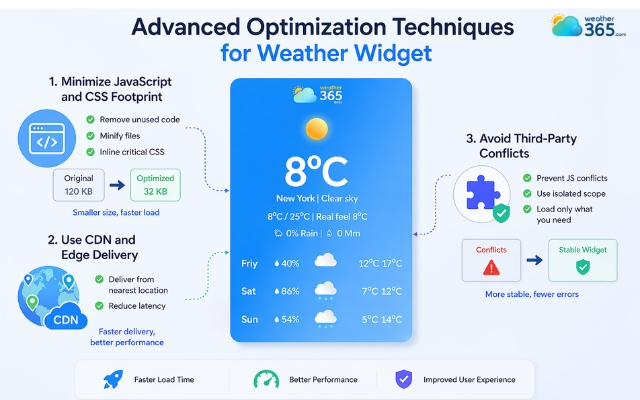
Try advanced optimization for your weather widget
How to Test and Monitor Widget Performance
After optimizing your widget, you still need to test it regularly to make sure everything runs smoothly. This helps you spot issues early and keep your site fast over time.
Google PageSpeed
Google PageSpeed Insights is a free tool that shows how fast your page loads and what’s slowing it down.
It analyzes real performance data and highlights problems like heavy scripts or render-blocking resources.
To test your widget:
► Paste your page URL into the tool
► Run the analysis
► Look for warnings related to third-party scripts or JavaScript size
Pay close attention to sections like “Opportunities” and “Diagnostics” - this is where widget-related issues usually appear.
Lighthouse Reports
Lighthouse gives a more detailed breakdown of your site’s performance. It simulates how your page loads and shows where delays happen.
You can run it directly in Chrome DevTools.
Focus on metrics like JavaScript execution time and third-party impact - these are common trouble spots for widgets.
WebPageTest
WebPageTest is great for deeper analysis. It lets you test your site under different conditions and see exactly how each file loads.
Just enter your URL, choose a location, and run the test. The waterfall chart will show when your weather widget loads and whether it’s causing delays.
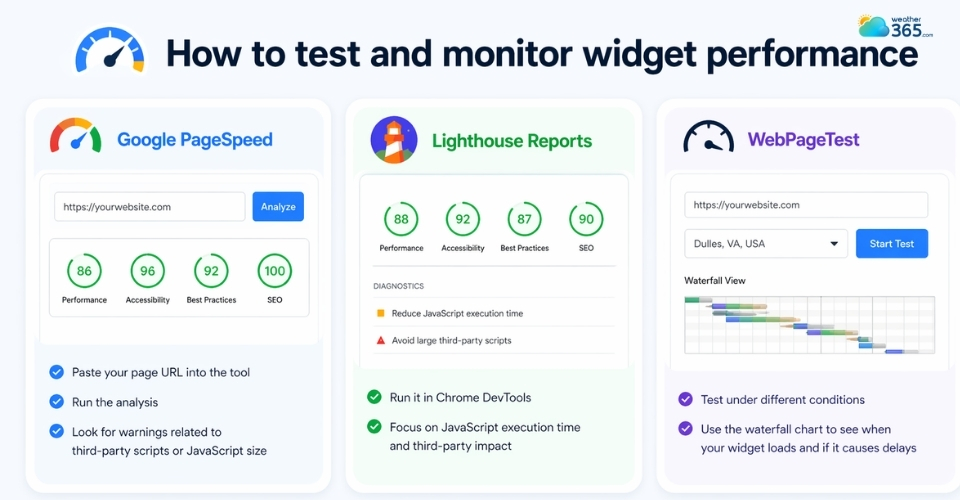
Regularly test to make sure your site runs smoothly
Common mistakes to avoid in widget performance optimization
Even if you’ve applied the right techniques, a few common mistakes can still slow your site down.
These are easy to overlook, but they can have a big impact on performance:
Embedding multiple widgets on one page
One frequent issue is embedding multiple widgets on the same page. It might seem harmless, but each widget loads its own scripts and API calls.
When stacked together, they quickly increase page weight and slow everything down.
This often happens when users install multiple plugins without proper configuration.
If you're using WordPress, it's important to follow a structured setup process like this guide on how to add weather widget to WordPress to avoid loading too many scripts at once.
Ignoring mobile optimization
Another mistake is ignoring mobile optimization. A widget that works fine on desktop can feel heavy on mobile devices, especially with slower connections.
If your widget isn’t responsive or loads too much data, mobile users will notice the lag immediately.
Overusing real-time API calls
You should also be careful with overusing real-time API calls. While live updates sound useful, they’re often unnecessary.
Constantly fetching fresh data puts pressure on both your site and the API, leading to slower performance overall.
Not testing performance regularly
Finally, many people don’t test their performance regularly. This is risky because even small changes, like adding a plugin or updating scripts, can affect speed. Without testing, these issues can go unnoticed and gradually hurt your site.
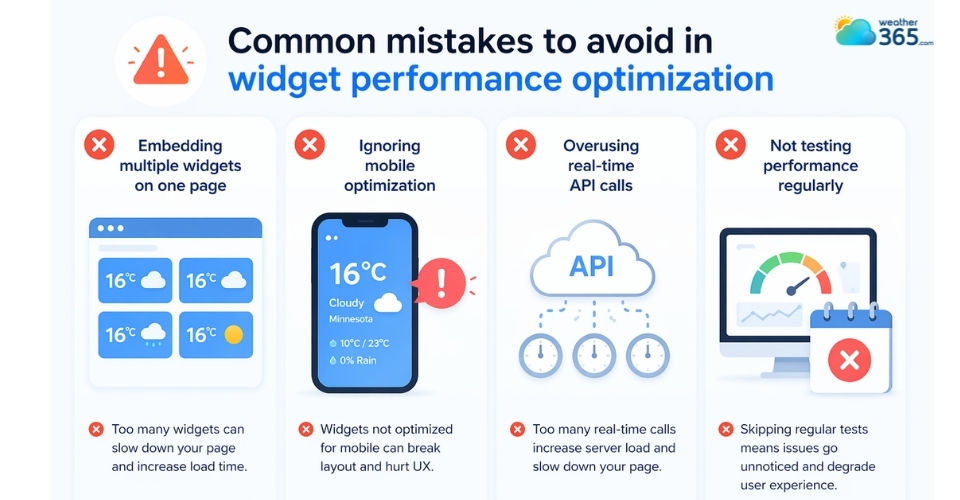
Avoid these mistakes when optimizing widget performance
Sum up
If your site feels slower after adding a widget, weather widget performance optimization is likely the fix you need. By simplifying scripts, reducing API calls, and optimizing how the widget loads, you can improve speed without removing features users rely on.
Frequently Asked Questions (FAQs)
Related post
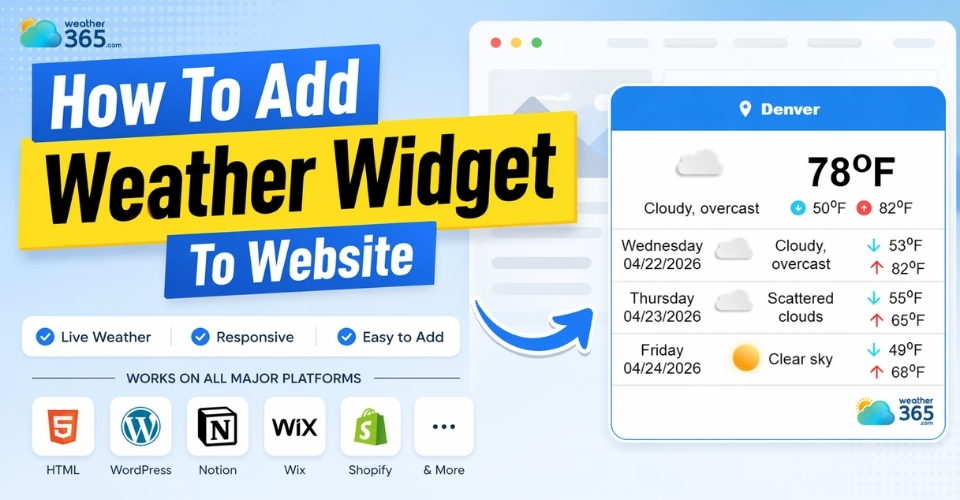
How To Add Weather Widget To Website: Simple Embed Guide for All Platforms
 221
221
 8
8
 4.8
4.8
 17/08/2026

8 Comment
Bella Bates
This is useful for anyone working on SEO. Sometimes we focus so much on content and keywords that we forget how third-party elements can affect the actual browsing experience.
weather365
So true. Good content matters, but users also expect pages to load and respond smoothly. Checking Core Web Vitals alongside content improvements gives you a more complete picture of website performance.
Callie Davidson
The part about script loading caught my attention. I’ve seen websites where third-party scripts seem to slow down everything else. Is using async always the best option?
weather365
Not always! Async and defer work differently, so it depends on how the script needs to run. If execution order matters, defer may be a better fit. It’s worth testing the setup rather than assuming one option works for every widget.
Josephine Norman
I hadn’t really thought about lazy loading for weather widgets before. It makes sense to load them only when visitors scroll close to that part of the page, especially on longer blog posts.
weather365
Exactly! It can help avoid loading everything at once. For widgets below the fold, lazy loading is definitely worth considering, as long as it doesn’t delay content users need immediately.
Copy
Leah Torres
I like adding useful features to my website, but I always worry about page speed. A weather widget is helpful, but not if it makes the whole page feel sluggish.
weather365
That’s a fair point. I think checking the page speed before and after adding a widget is a good habit. It helps you see whether the extra feature is actually worth it.
Leave a comment
Your email address will not be published. Required fields are marked *