




Weather Widget for US Cities: Display Accurate Local Forecasts On Your Site


If your website attracts visitors from different parts of the United States, showing the right weather at the right place can instantly make your content more useful. A weather widget for US cities helps you display real-time local forecasts based on city-specific data. Scrolling down to learn how to add one to your site!
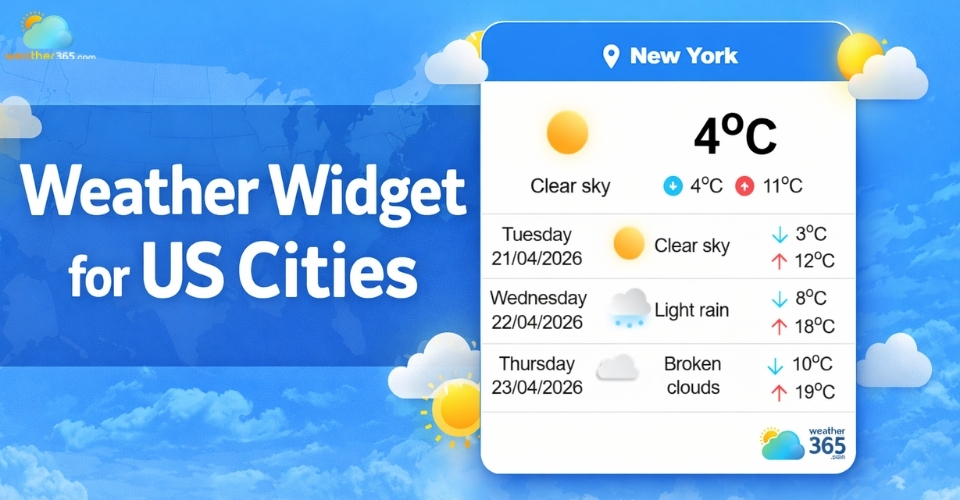
Weather widget for US cities
Live Weather Widget for US Cities
A live weather widget for US cities helps websites show real-time forecasts that automatically update based on reliable meteorological data.
Instead of static information, users see dynamic conditions like temperature changes, rain probability, wind speed, and upcoming forecasts for specific locations such as New York, Los Angeles, or Chicago.
If your audience comes from different regions worldwide, drop by weather widget by location to learn the details!
Below are three of the most commonly used solutions:
Weather365
Weather365 is a good choice if you want something fast and easy to use. It loads quickly and doesn’t slow down your website.
You can choose US cities and add the widget in just a few steps. The design is simple, so visitors can easily read the weather without confusion.
This makes it a great option for blogs, small websites, or anyone who wants a clean and light widget.
In short, Weather365 is best when you want something simple, fast, and easy to manage.
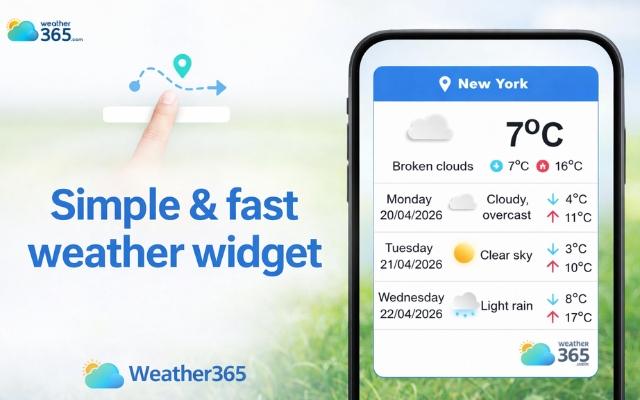
Weather365 is fast and easy to use
Weather Underground
Weather Underground gives more detailed weather information.
It doesn’t just show temperature, but also things like humidity, rain chances, and “feels like” temperature.
This tool is very useful because it collects data from many local weather stations in the US. So the forecast can be more accurate in smaller areas.
Because of this strong data system, it’s also a good choice if your website serves international users.
For example, you might also consider using a weather widget for European cities to provide the same level of detailed, location-based forecasts outside the US.
However, because it shows more data, it can look a bit more complex.
It works best for websites that need detailed weather, like travel sites or outdoor activity pages.
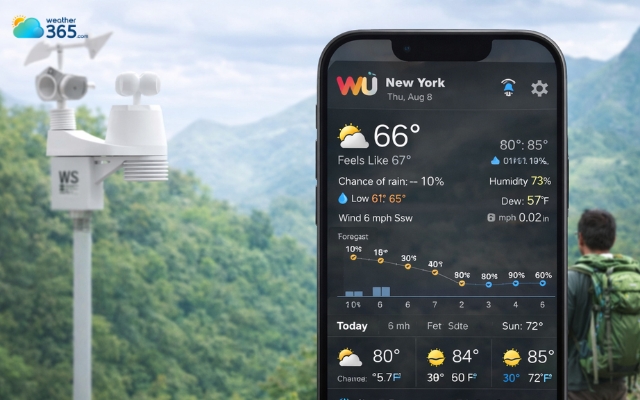
Weather Underground looks a bit more complex
Accuweather
AccuWeather is a very popular weather service used all over the world. It gives reliable forecasts for many US cities and is trusted by many users.
The widget shows both current weather and future forecasts, so users can plan ahead easily.
It also has a nice and clear design that works well on most websites.
It may have more features than basic widgets, but it is still easy to understand and use. This makes it a good all-around choice for many types of websites.
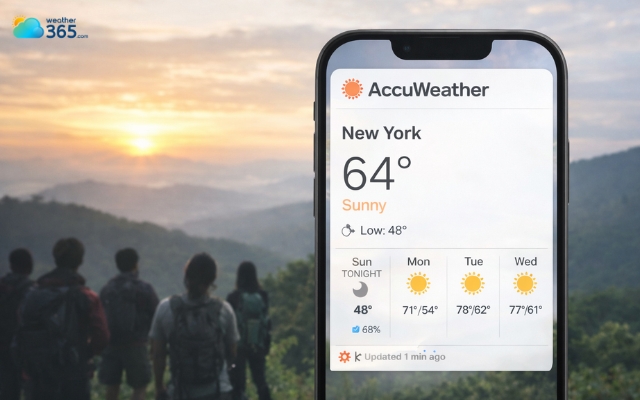
AccuWeather is a very popular weather service
Features of Widget
A weather widget for US cities is a smart tool that brings real-time weather data directly to your website.
The goal is to make information easy to understand, fast to access, and useful for every visitor.
Below are the key features that most modern weather widgets provide, explained in a simple and clear way.
Real-time updates
One of the most important features is real-time updates. The widget automatically refreshes weather data based on live sources.
This means users always see the most recent temperature, weather condition, and forecast without needing to reload the page.
For websites with US city audiences, this is especially useful because weather can change quickly from one region to another.
Multi-cities support
Another key feature is multi-city support.
Instead of showing weather for just one place, the widget allows you to display several US cities at the same time.
For example, you can show New York, Los Angeles, Chicago, and Miami in one view.
This is helpful for travel websites, news platforms, or any site that serves users from different regions.
Moreover, it’s especially useful if your audience is global, for example, when you also need a weather widget for Asia-Pacific regions alongside US cities.
Forecast information
A good weather widget also includes forecast information, not just current conditions.
Visitors can see what the weather will be like in the next few hours or even the next several days. This helps users plan ahead, whether they are traveling, working outdoors, or organizing events.
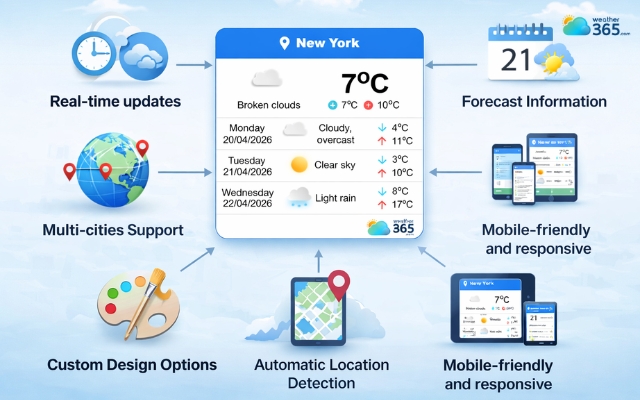
Typical features of a weather widget
Custom design options
Custom design options are another important feature. Most widgets allow you to change colors, layout style, and size so it matches your website design.
This is important for branding because the widget should feel like part of your site, not something added separately.
Automatic location detection
Many widgets also support automatic location detection.
This means the system can detect where the visitor is browsing from and show the weather for that specific US city.
If auto-detect is not used, users can still manually choose their city.
This flexibility improves user experience because each visitor gets relevant local information.
Mobile-friendly and responsive
Finally, most modern widgets are mobile-friendly and responsive.
This means they work smoothly on phones, tablets, and desktops.
Since many users access websites from mobile devices, this feature ensures the weather information always looks clear and easy to read.
How to Add a Weather Widget for US Cities
Adding a weather widget for US cities with Weather365 is very easy. You don’t need coding skills; just follow the few simple steps below.
Each step helps you build and embed the widget correctly on your website.
Step 1: Choose a US City
First, go to the Weather365 widget setup page and select the city you want to display.
You can search for any US city, like New York, Los Angeles, Chicago, or Miami.
This step is important because the widget will pull live weather data based on the city you choose.
If your website serves multiple audiences, you can also create different widgets for different cities.
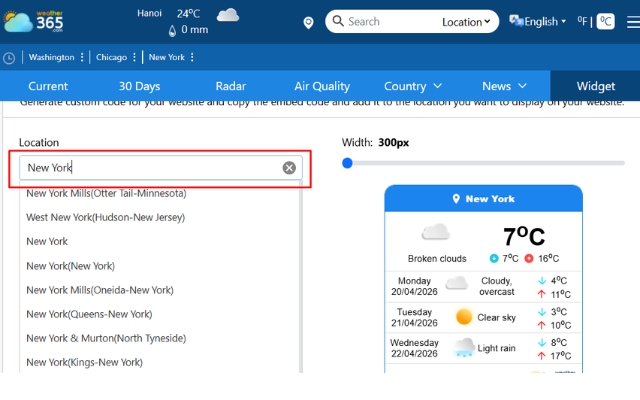
Find the city you want to show
Step 2: Customize Your Settings
After choosing the city, you can adjust basic settings.
Weather365 allows you to decide what information to show, such as current temperature, forecast, or weather conditions.
You can also choose the temperature unit (Celsius or Fahrenheit) and control how detailed the forecast should be.
This helps you keep the widget simple or more informative, depending on your website style.
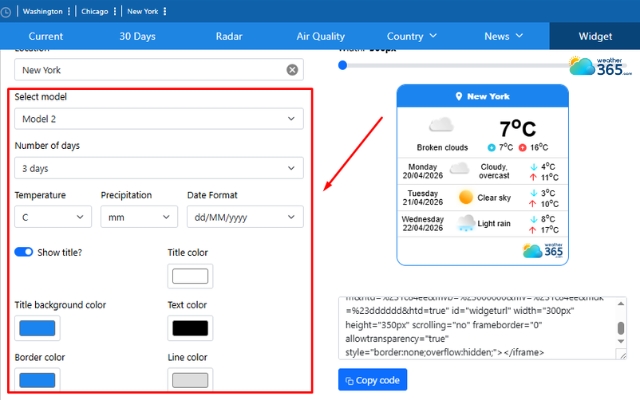
Design your own weather widget to match your style
Step 4: Get the Embed Code
Once you finish customizing, click “Create widget” and Weather365 will generate an embed code for you. This code is what connects the widget to your website.
You just need to copy the code carefully. It contains all the settings you selected, including city, design, and layout.
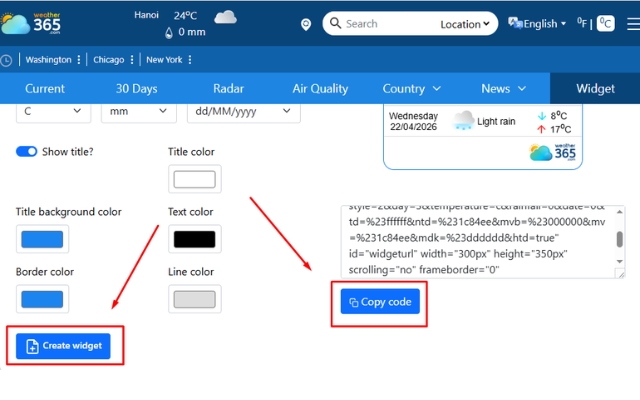
Carefully copy the embed code
Step 5: Add the Code to Your Website
Finally, paste the embed code into your website. You can place it in an HTML block, sidebar widget area, or CMS editor (like WordPress).
After saving, the weather widget will appear immediately and start updating automatically with real-time US city weather data.
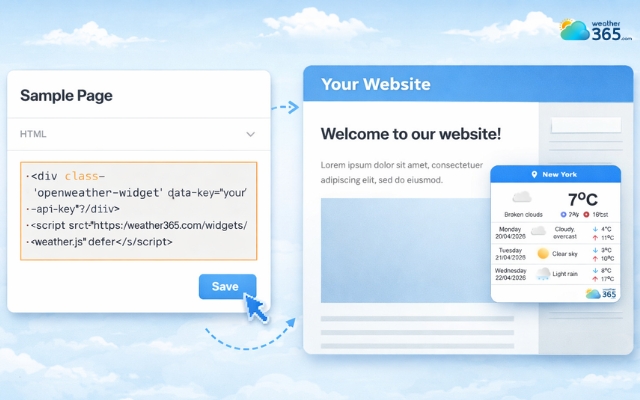
Paste the embed code into your website
Customize your widget
To help the widget fit naturally into your website instead of looking like a random add-on, it’s necessary to customize the widget.
With tools like Weather365, you can adjust both the data and the design in a very flexible way.
Location (City Selection)
You can choose any US city to display. This ensures the weather shown is relevant to your audience.
If your site targets users from different regions, you can create multiple widgets for different cities.
Layout Model (Display Style)
The layout controls how the widget looks on your page. You can pick a compact style for small spaces or a more detailed layout if you want to show more information.
A clean layout helps users read the weather quickly without feeling overwhelmed.
Number of Forecast Days
You can decide how many days of weather to show. Fewer days keep the widget simple, while more days give users a better view of upcoming conditions.
Choose based on how much detail your visitors need.
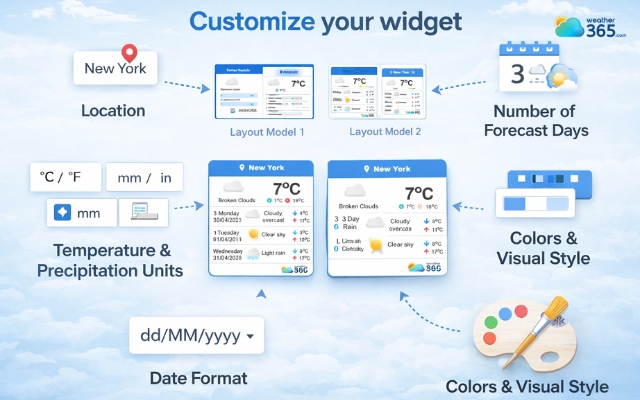
Customize the widget in your own way
Temperature & Precipitation Units
Weather365 lets you adjust units like °F or °C, and inches or millimeters for precipitation.
For US audiences, Fahrenheit is usually the better option. Using familiar units makes the widget easier to understand.
Date Format
You can also change how dates appear. For example, the US commonly uses MM/DD format.
Setting the right format helps avoid confusion and improves readability.
Colors & Visual Style
You can customize colors such as title, text, background, and borders.
This helps the widget match your website design and feel like a natural part of your page instead of a separate element.
Final Thought
A weather widget for US cities is an easy way to add real value to your website while keeping visitors engaged. With live updates, flexible customization, and simple setup, it helps users check local forecasts quickly and conveniently. When done right, this small feature can make your site feel more helpful, relevant, and user-friendly.
Frequently Asked Questions (FAQs)
Related post
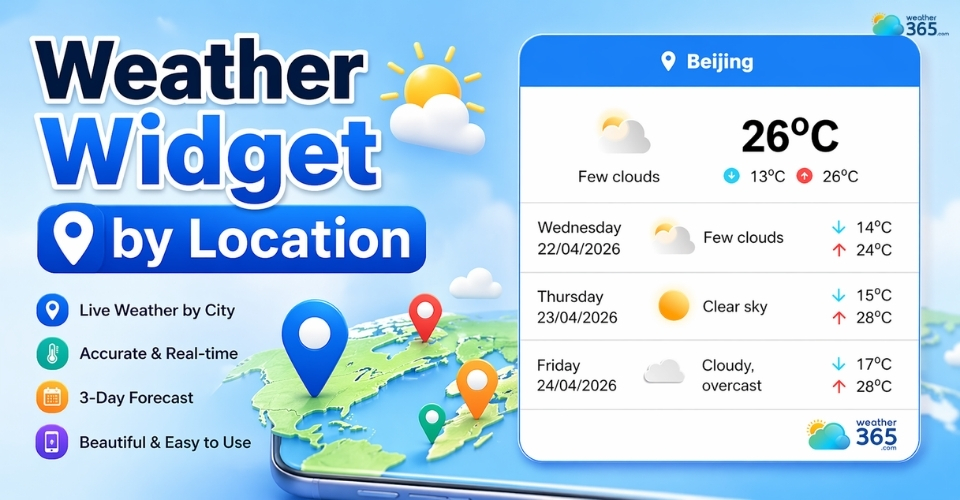
Weather Widget by Location: Easy & Accurate Forecasts for Your Website
 252
252
 0
0
 4.8
4.8
 22/04/2026
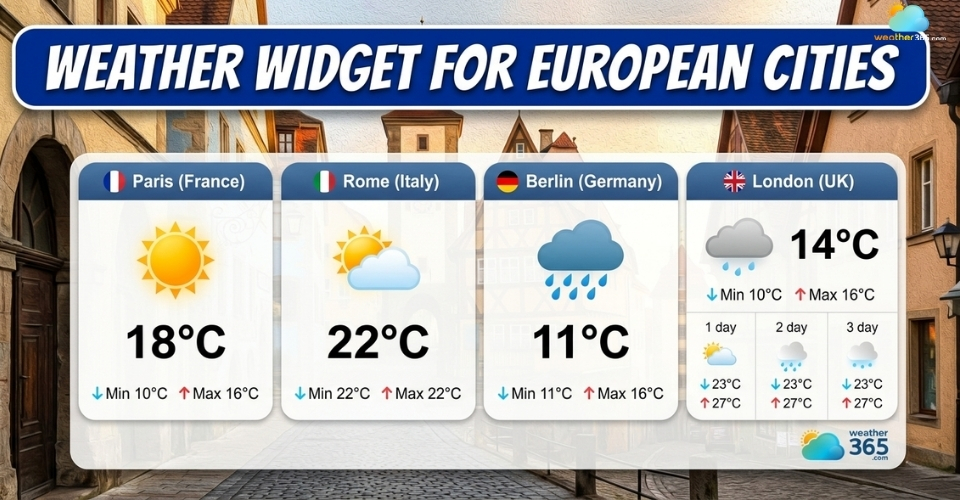
Weather Widget for European Cities: Display Real-Time Forecasts Across Europe
113
0
4.7
22/04/2026
Weather Widget for Asia-Pacific: Live Weather for Multiple APAC Locations
109
0
4.9
22/04/2026

0 Comment
Leave a comment
Your email address will not be published. Required fields are marked *