




Weather Widget for Asia-Pacific: Live Weather for Multiple APAC Locations


Are you looking for a weather widget for Asia-Pacific locations? If your audience spans cities like Tokyo, Singapore, or Sydney, having accurate, real-time forecasts on your site can make a big difference. In this guide, you’ll learn how to add, customize, and optimize a Weather Widget for Asia-Pacific so it fits your design and delivers reliable local weather updates.
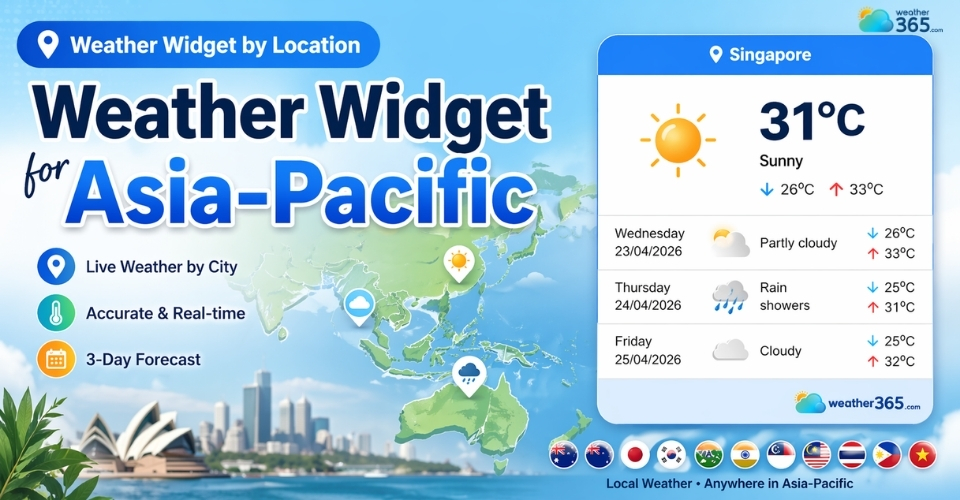
Weather widget for Asia-Pacific
- Live Weather Widget for Asia-Pacific
- Weather365 Widget
- WeatherWidget.io
- Elfsight
- Features of a Weather Widget
- How To Add Weather Widget for Asia-Pacific
- Step 1: Go to Weather365 and create your widget
- Step 2: Customize the widget settings
- Step 3: Generate and copy the embed code
- Step 4: Add the widget to your website
- Step 5: Preview and adjust if needed
- Customize your widget
Live Weather Widget for Asia-Pacific
When choosing a Weather Widget for Asia-Pacific, what really matters is how accurate the data is across different cities, how fast the widget loads, and how well it fits your website design.
Instead of using generic data, many websites now prefer a weather widget by location to deliver more accurate, city-specific forecasts for their audience.
Below are three popular options, each suited for different needs, from simple setups to more advanced use cases.
Weather365 Widget
If you prefer a clean solution that works right out of the box, Weather365 widget is a strong starting point.
One of its biggest advantages is how easy it is to use. You simply enter a location (like Tokyo, Singapore, or Sydney), adjust a few settings, and copy the embed code into your site.
There’s no complicated setup, which makes it ideal if you want something quick and efficient.
Where Weather365 really stands out is customization without complexity.
You can tweak colors, layout, and displayed information so the widget blends naturally with your website instead of looking like a third-party add-on.
This is especially useful if you care about branding and visual consistency.
It also delivers real-time weather updates and short-term forecasts, which is important for Asia-Pacific regions where weather conditions can change quickly.
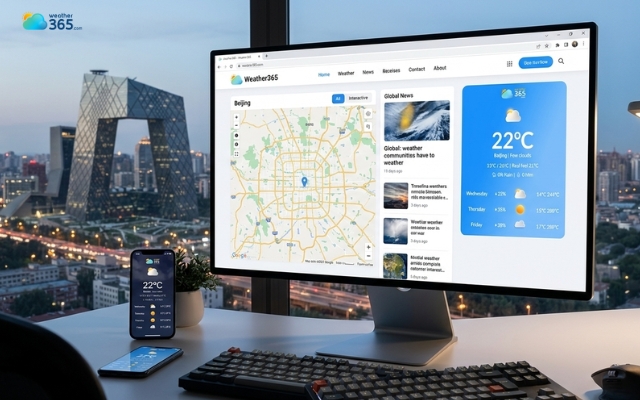
Weather365 widget
WeatherWidget.io
If budget matters but you still want flexibility, WeatherWidget.io is a very popular choice.
It offers a surprising level of customization for a free tool. You can adjust fonts, colors, icons, number of forecast days, and layout styles.
This allows you to create a widget that feels tailored to your site rather than generic.
Another major advantage is that it’s fully responsive, meaning it adapts smoothly to different screen sizes.
That’s a big deal in Asia-Pacific, where a large portion of users access websites via mobile devices.
You can also choose what to display:
Current weather only
Forecast only
Or a combination of both
The only limitation is that locations are usually set manually, so it won’t automatically detect a user’s location.
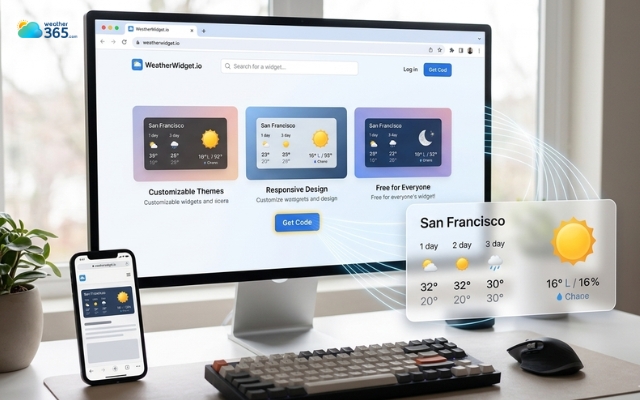
WeatherWidget.io is fully responsive
Elfsight
If you’re building a more advanced website and want deeper functionality, Elfsight is worth considering.
This widget goes beyond basic temperature display. You can include detailed data like:
Humidity
Wind speed
Atmospheric pressure
Hourly and extended forecasts
It also supports multiple languages and flexible location input, which is ideal if your audience spans different countries across Asia-Pacific.
Another standout feature is its design flexibility. You can add animations, dynamic backgrounds, and more interactive elements, making the widget feel more engaging for users.
However, while there is a free version, many of the advanced features require a paid plan.
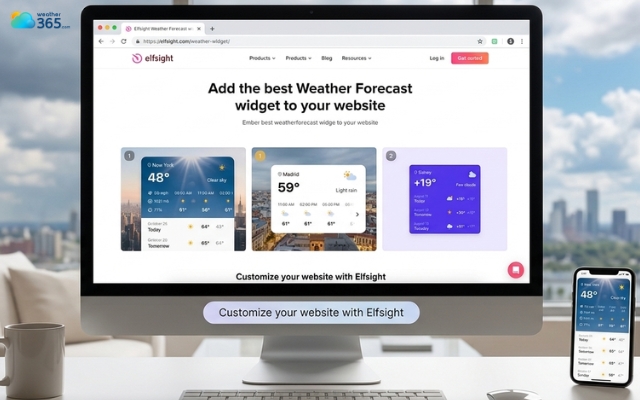
Elfsight weather widget supports multiple languages
Features of a Weather Widget
Before adding any Weather Widget for Asia-Pacific to your site, here are the key features you should look for:
Real-time weather updates
A good widget should display live, frequently updated data.
This is especially important in Asia-Pacific regions, where weather conditions can change quickly due to tropical climates or seasonal shifts.
If your widget shows outdated information, it can reduce trust and make your site feel unreliable.
Multi-location support
If your audience is spread across different countries, you’ll want a widget that can handle multiple cities at once.
For example, instead of showing weather for just one place, you can display forecasts for Tokyo, Bangkok, and Sydney in a single section.
This makes your content more relevant for a broader audience.
This is especially useful if your audience spans different regions, similar to how a weather widget for US cities allows you to display forecasts across multiple locations.
Customizable design
Your widget shouldn’t look like it was “pasted” onto your website. A good tool allows you to adjust colors, fonts, layout styles, displayed data.
This helps the widget blend naturally with your brand and keeps your design consistent.
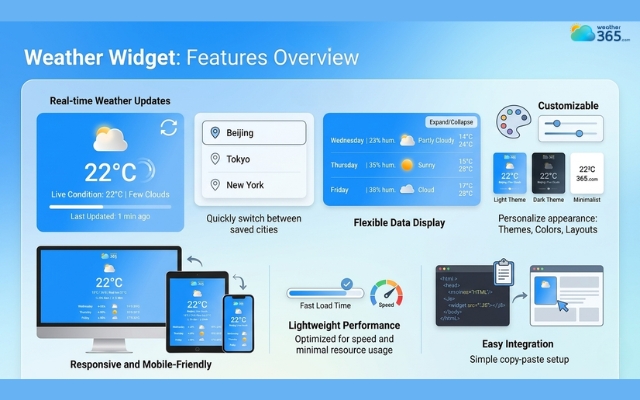
Notable features of a weather widget
Responsive and mobile-friendly
In Asia-Pacific, a large percentage of users browse on mobile devices.
That’s why your widget must be fully responsive, meaning it automatically adapts to different screen sizes.
A widget that looks great on desktop but breaks on mobile can hurt user experience and increase bounce rates.
Lightweight performance
Speed matters. A well-built weather widget should be lightweight and optimized, so it doesn’t slow down your page.
Heavy widgets can affect loading time, which not only frustrates users but also impacts your SEO rankings.
Flexible data display
Different websites need different levels of detail. A good widget lets you choose what to show, such as temperature, weather conditions, or humidity, wind speed,...
This flexibility allows you to keep things simple or provide more in-depth information depending on your content.
Easy integration
Finally, the widget should be easy to install.
Most modern tools provide a simple embed code that you can copy and paste into your site without any technical knowledge.
The easier it is to set up, the faster you can start delivering value to your users.
How To Add Weather Widget for Asia-Pacific
Adding a Weather Widget for Asia-Pacific is really a easy process!
The key idea is: configure → copy code → embed → adjust.
Let’s walk through it step by step so you can do it confidently, even without coding experience.
Step 1: Go to Weather365 and create your widget
Start by visiting the Weather365 widget page. This is where everything begins.
You’ll see a setup panel where you can:
Enter a location (e.g., Tokyo, Singapore, Sydney)
If you target at a weather widget for European cities, just search for those cities, Weather365 confidently has them!
Choose the widget style/model
Select how many days of forecast you want to show
This step is important because it defines what your users will actually see.
For Asia-Pacific websites, it’s a good idea to pick cities that match your audience instead of using a generic global location.
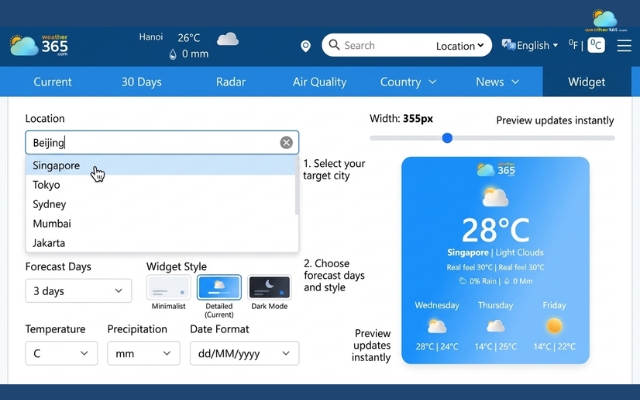
Choose a location to show on the weather widget
Step 2: Customize the widget settings
Once you’ve selected your location, Weather365 allows you to fine-tune how the widget looks and behaves.
You can adjust:
Temperature unit (°C or °F)
Number of forecast days
Date format
Colors (text, background, borders)
Whether to show titles or labels
All of these options are available in a simple interface, no coding needed. According to Weather365, you can fully customize the widget and generate code directly from these settings.
This step matters more than people think. A well-customized widget will blend into your website design, while a default one can feel out of place.
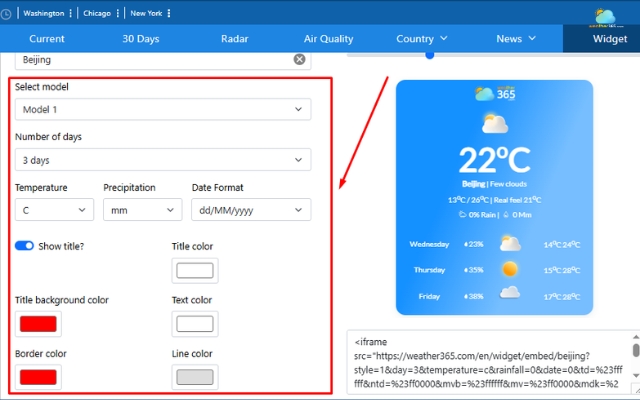
Customize the weather widget to match your site’s design
Step 3: Generate and copy the embed code
After customizing, click the button to create your widget. Weather365 will generate an HTML embed code for you.
This code is the “bridge” between the widget and your website. It contains everything needed to display the weather data.
Weather365 clearly states that you can generate custom code and copy it to place anywhere on your site.
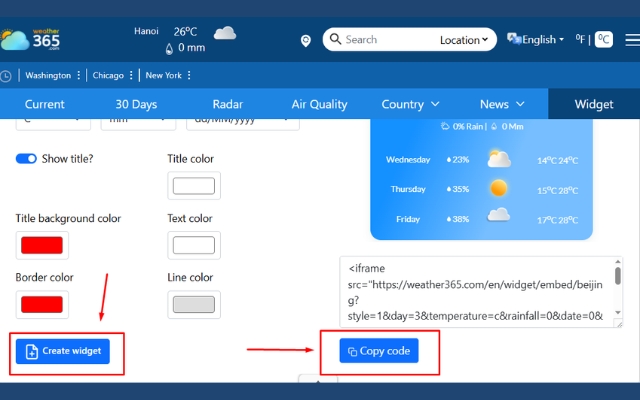
Click "Create widget” to generate the code
Step 4: Add the widget to your website
Now comes the actual embedding step.
Open your website editor (WordPress, HTML page, or any CMS), then:
Choose where you want the widget (homepage, sidebar, footer…)
Paste the embed code into an HTML block or section
Save or publish your page
In general, most platforms support embedding by simply pasting code into an HTML field, making the process very straightforward.
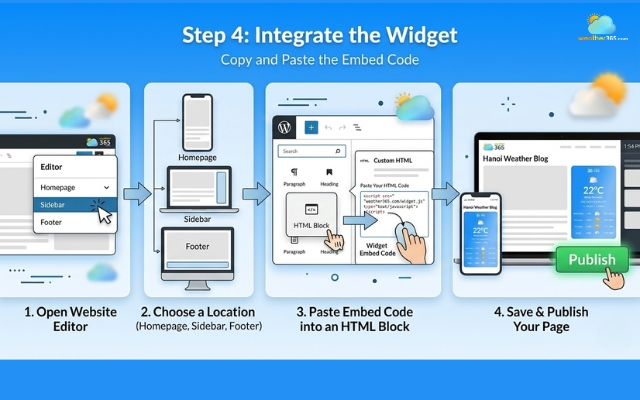
Paste the code into an HTML field
Step 5: Preview and adjust if needed
After embedding, always check how the widget looks on your site.
Ask yourself:
Does it fit the layout properly?
Is the text easy to read?
Does it look good on mobile?
If something feels off, you can go back to Weather365, tweak the settings, and replace the code.
The process is flexible, so you can refine it until it feels just right.
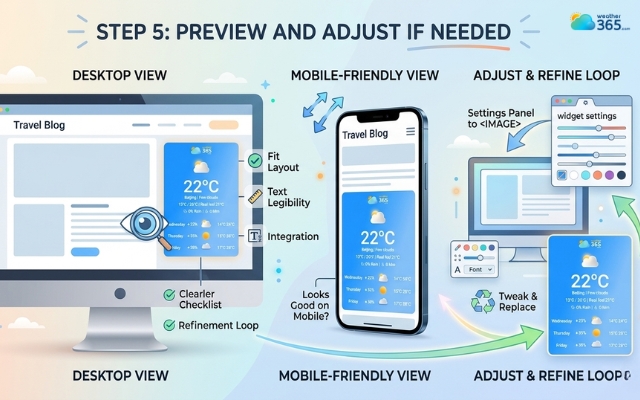
Preview the weather widget to see if it fits
Customize your widget
When adding a Weather Widget for Asia-Pacific, make sure it actually fits your website.
A default widget might work, but customization is what turns it into something that feels natural, on-brand, and easy to use.
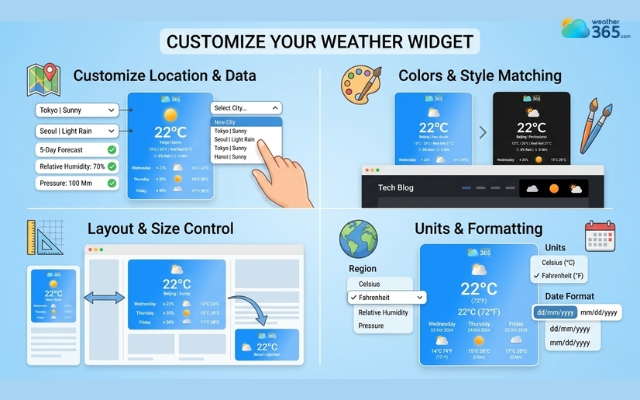
Weather365 offers flexible customization
With tools like Weather365, customization is not complicated; you can adjust everything directly in the setup panel before generating the code.
Weather365 widget allows you to:
Adjust location and displayed data
Choose the cities that matter most to your audience and decide what information to show, like temperature or forecast days.
Customize colors and visual style
Match the widget’s colors and style with your website so it feels consistent and not out of place. Even small tweaks can make it look more professional.
Control layout and size
Adjust the layout and size so the widget fits naturally into your page, whether it’s in a sidebar or a main section.
A well-placed widget improves both design and usability.
Set units and formatting
Pick the right temperature unit and date format based on your audience’s region.
This makes the information easier to read and more familiar to users.
In general, modern weather widgets like Weather365 allow you to control both data and appearance, so you can balance clarity and functionality.
Sum up
If your audience is spread across Asia-Pacific, a Weather Widget for Asia-Pacific just makes sense. It’s easy to add, simple to customize, and helps your content feel more relevant to different locations. Once it’s in place, it becomes one of those small features users actually appreciate.
Frequently Asked Questions (FAQs)
Related post
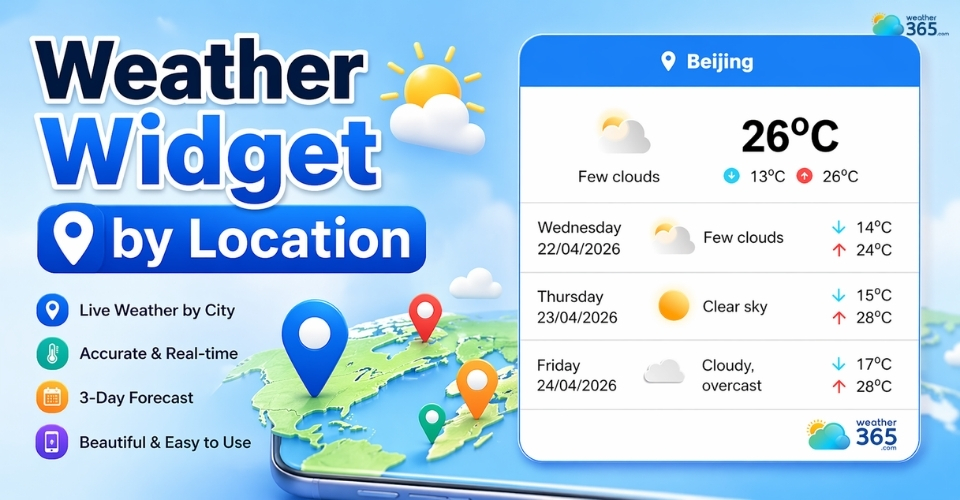
Weather Widget by Location: Easy & Accurate Forecasts for Your Website
 252
252
 0
0
 4.8
4.8
 22/04/2026
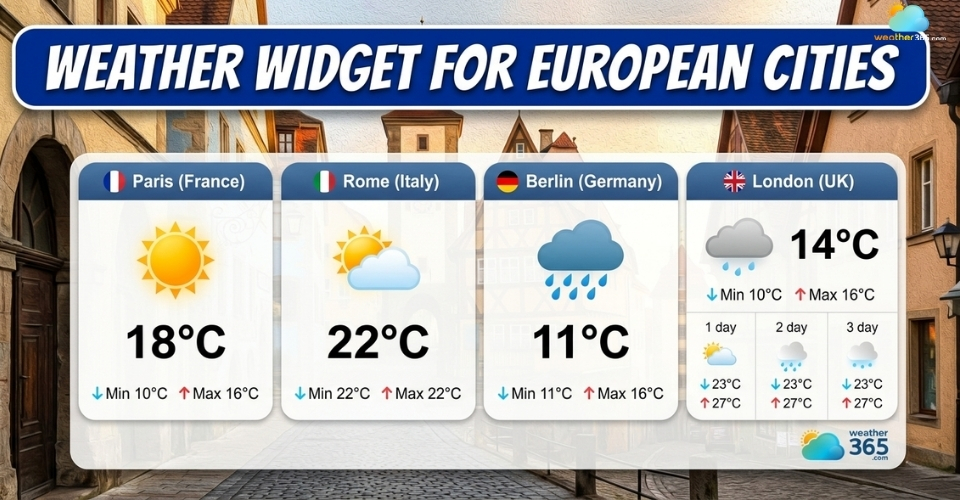
Weather Widget for European Cities: Display Real-Time Forecasts Across Europe
114
0
4.7
22/04/2026
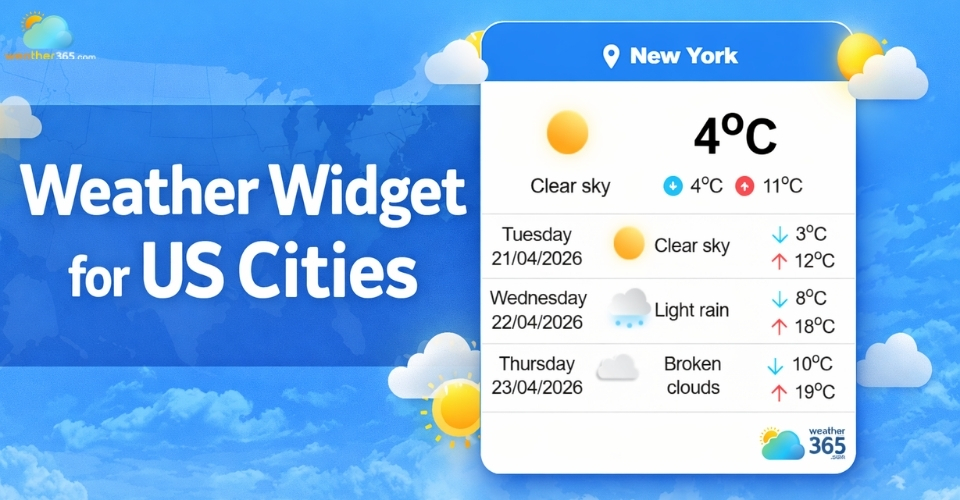
Weather Widget for US Cities: Display Accurate Local Forecasts On Your Site
110
0
4.9
22/04/2026

0 Comment
Leave a comment
Your email address will not be published. Required fields are marked *