




Weather Widget by Location: Easy & Accurate Forecasts for Your Website


Struggling to show accurate weather for different places on your website without making things complicated? A weather widget by location can solve that, but not all widgets are easy to set up or flexible enough for real needs. In this guide, you’ll learn how to choose the right one, what features actually matter, and how to use it smoothly on your site.
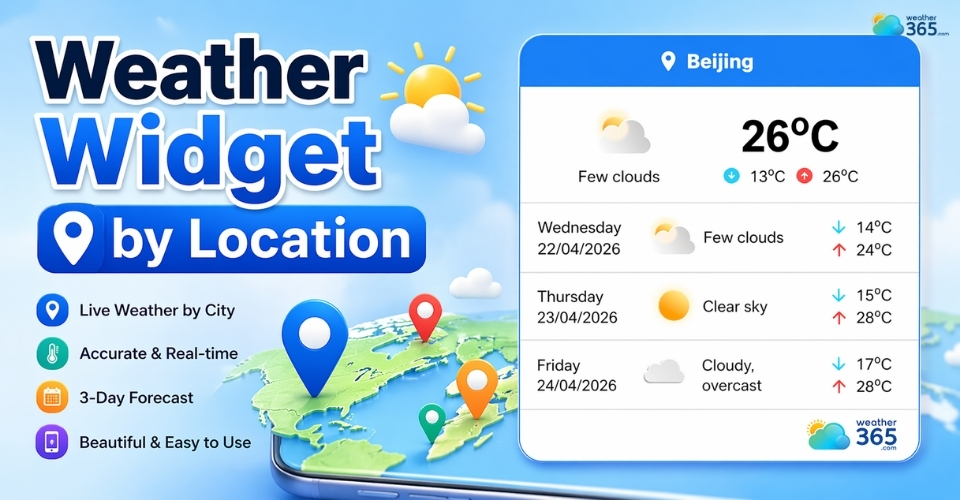
Weather widget by location
- Live Weather Widget by Location
- Weather widget for US cities
- Weather widget for European cities
- Weather widget for Asia-Pacific
- Features of the widget
- How To Add a Weather Widget
- Create and customize your widget
- Copy the embed code
- Paste the code into your website
- Preview and adjust
- Customize your widget
Live Weather Widget by Location
When people visit your website, they don’t just want “weather”, they want weather in their location. That’s the key difference.
A Weather widget by location helps you deliver real-time, relevant forecasts based on where your users are or where they’re interested in.
Instead of showing generic data, modern widgets allow you to display live weather for specific cities, regions, or even auto-detected user locations.
This makes your website feel more useful, more personalized, and ultimately more engaging.
Weather widget for US cities
If your audience is mainly in the US, showing the right city-level data is critical. Weather in New York is completely different from Los Angeles or Chicago, so a generic forecast simply won’t work.
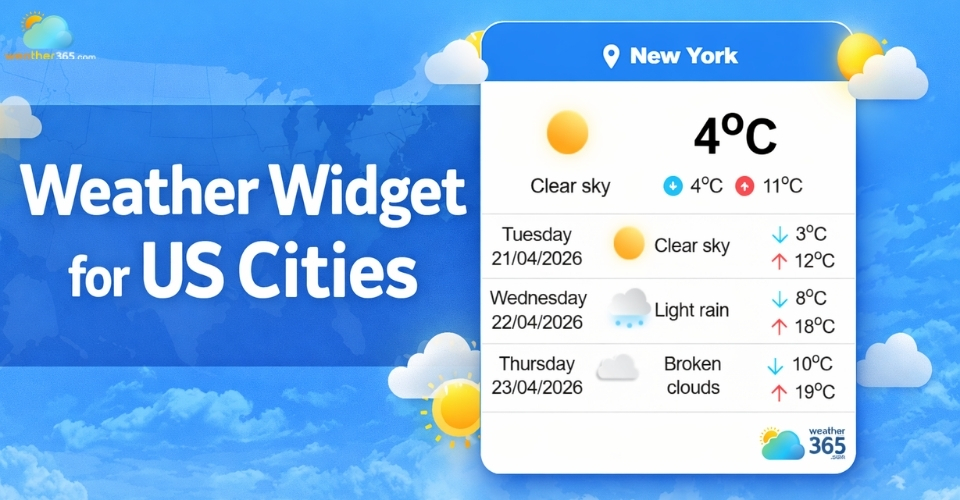
With a weather widget by location, you can easily display real-time weather for specific cities, helping users get exactly what they need without extra clicks.
This is especially useful for travel websites, local services, or blogs targeting US readers.
If you want to explore this in more detail, check out our guide on weather widget for US cities to see how to set it up effectively.
Using a solution like Weather365 widget, you can quickly embed live forecasts for multiple US locations, switch between them, and keep your content accurate at all times.
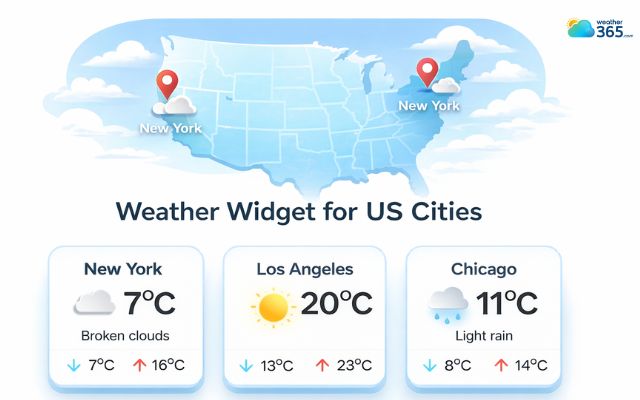
The Weather365 widget allows you to easily display real-time weather for specific cities
Weather widget for European cities
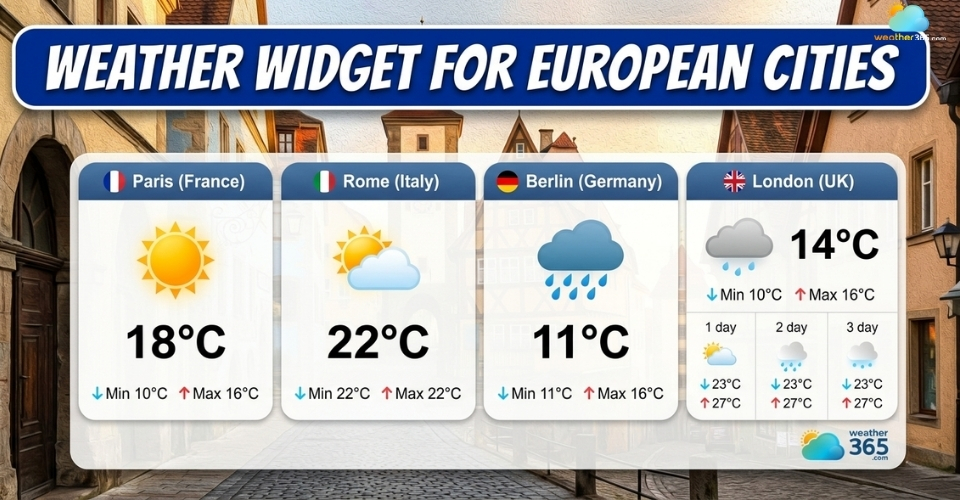
Europe introduces more complexity: different countries, languages, and measurement units. That means your widget needs to be flexible enough to adapt.
A well-built Weather widget by location allows you to show forecasts for cities like Paris, Berlin, or Madrid while automatically adjusting temperature units and formats to match user expectations.
For a deeper look, read our full breakdown of weather widget for European cities and how to localize weather data for international audiences.
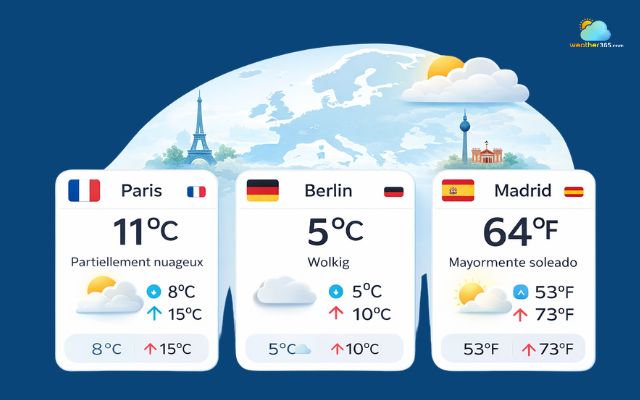
Weather widget for European cities needs to be flexible
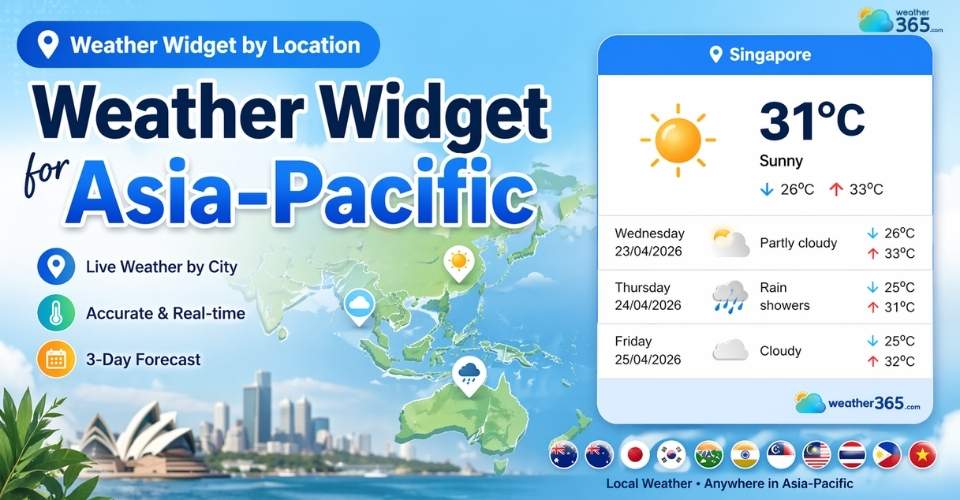
Weather widget for Asia-Pacific
The Asia-Pacific region is highly dynamic, with fast-changing weather and a wide range of climates.
From tropical cities like Singapore to coastal areas in Australia, accuracy and real-time updates are essential.
A Weather widget by location works best here when it can auto-detect user location and instantly show relevant forecasts.
This removes friction and makes your website more user-friendly.
If your audience is in this region, check out our guide on weather widget for Asia-Pacific to understand how to optimize for these conditions.
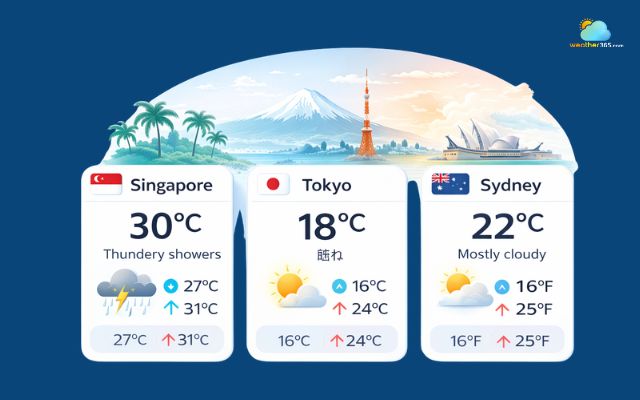
Weather widget for Asia-Pacific needs real-time updates
Features of the widget
So what actually makes a Weather widget by location useful, and not just another decorative element on your site?
The difference comes down to features that solve real problems: accuracy, flexibility, and ease of use.
Now let’s break down the key features that matter most:
Real-time weather updates
Location-based display
Multi-location support
Easy customization
Flexible display options
Lightweight and easy to embed
Global coverage
Which widget “possesses” all of these features? The Weather365 widget will surprise you!
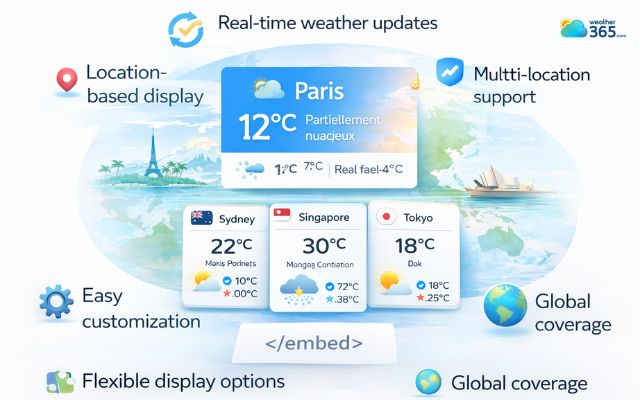
Unique features of a weather widget
How To Add a Weather Widget
Ready to add a weather widget? Follow these simple steps to quickly get live weather for your site!
Create and customize your widget
Start by going to a widget builder like Weather365 widget, where you can both create and design your widget in one place.
You’ll first choose the location you want to display, this could be a specific city or multiple locations depending on your needs.
Right after that, you can adjust how the widget looks and behaves.
Instead of dealing with complicated settings, everything is visual and straightforward.
You can change colors, layout, size, and the type of weather data shown so it fits naturally with your website design.
Once you’re happy with the setup, the platform will automatically generate a ready-to-use widget for you.
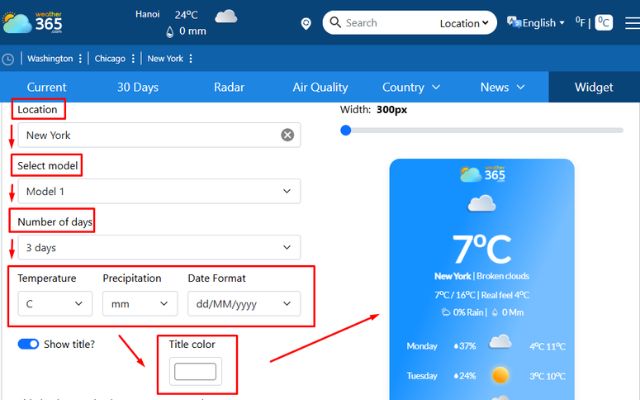
Easily create a widget with Weather365
Copy the embed code
After finishing the setup, you’ll receive a small piece of HTML code. This is what connects the weather data to your website.
You don’t need to edit or understand the code, just copy it as it is.
Most tools, including Weather365, are designed to keep this step as simple as possible.
With Weather365, after customizing the widget, just click “Create widget”, and the code will be automatically generated.
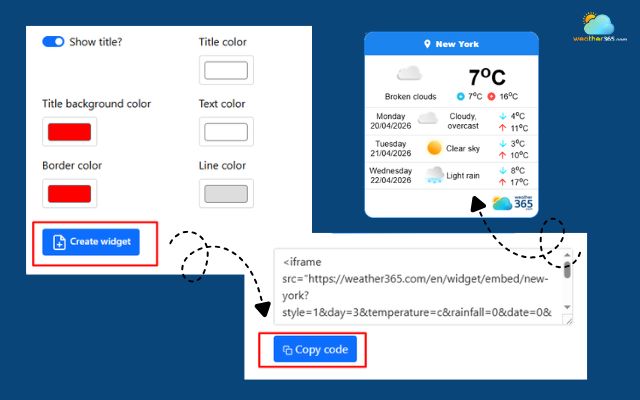
Generate and copy the code
Paste the code into your website
Next, go to your website and place the code where you want the widget to appear.
Whether you’re using WordPress, a custom site, or a website builder, the process is usually the same: paste the code into a custom HTML or embed section.
Once you save the page, the widget will show up instantly.
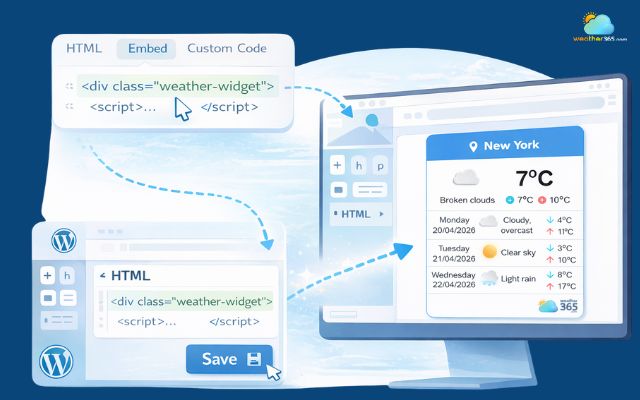
Paste the code, and a weather widget will appear
Preview and adjust
Finally, take a quick look at your page to see how everything appears in real conditions.
Check if the widget fits well within your layout and if the information is easy to read.
If needed, you can go back, tweak the settings, and update the code in just a few clicks.
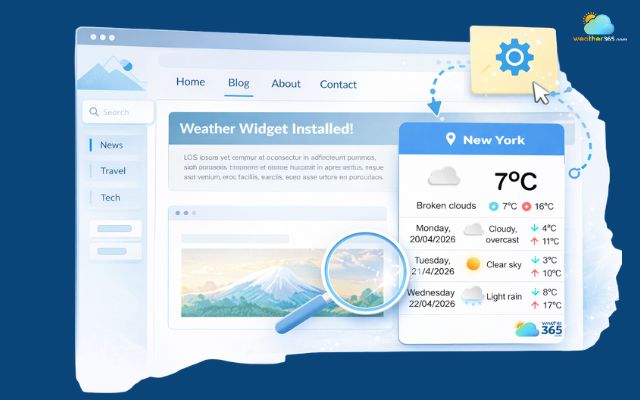
Publish, review, and adjust your weather widget
Customize your widget
Customizing your Weather widget by location is what makes it truly fit your website instead of feeling like an add-on.
With Weather365, the process is simple but flexible enough to cover most needs.
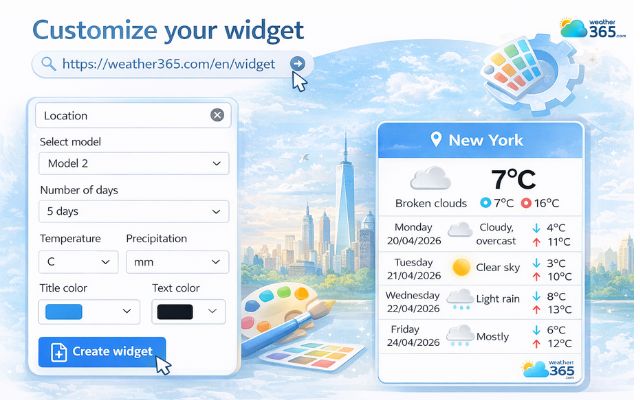
Freely customize the weather widget by Weather365 widget
You start with the location and layout model, which defines what users see and how it’s presented.
A clean, compact layout works well for blogs, while a more detailed one suits travel or information-heavy sites.
Next, you can control the number of forecast days and adjust temperature or precipitation units. This helps you match user expectations, especially if your audience comes from different regions.
The date format can also be changed to avoid confusion and make the widget feel more localized.
On the design side, Weather365 lets you customize colors like title background, title text, main text, lines, and borders.
This ensures the widget blends naturally with your website instead of standing out awkwardly.
Sum up
Can you pick any Weather widget by location and expect it to work for your website? Probably not. The best option is one that’s accurate, easy to customize, and fits your layout naturally. With tools like Weather365, you can quickly add a widget that looks clean, works smoothly, and actually makes your site more useful for visitors.
Frequently Asked Questions (FAQs)
Related post
Weather Widget for European Cities: Display Real-Time Forecasts Across Europe
 113
113
 0
0
 4.7
4.7
 22/04/2026
Weather Widget for US Cities: Display Accurate Local Forecasts On Your Site
109
0
4.9
22/04/2026
Weather Widget for Asia-Pacific: Live Weather for Multiple APAC Locations
109
0
4.9
22/04/2026

0 Comment
Leave a comment
Your email address will not be published. Required fields are marked *