




Current Weather Widget: Add The Best Live Weather for Your Website


Current weather widget options are everywhere today, but not all of them deliver accurate forecasts, smooth performance, and mobile-friendly design at the same time. So how do you find the best fit for your website? Let’s explore the essential features, comparisons, and setup strategies you should know.
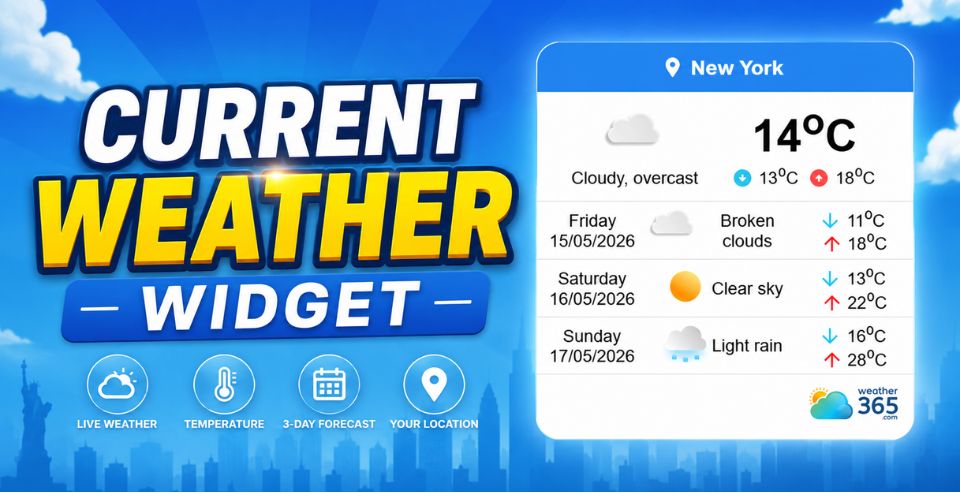
Current weather widget
Key features to look for in a current weather widget
Do you know what makes a good current weather widget? It’s not only about showing the temperature!
A good widget should improve user experience while keeping your website fast and visually clean.
Hyper-local Accuracy
Forecast accuracy is one of the most important factors. The best widgets use GPS or precise zip code data instead of relying only on the nearest airport station.
This helps visitors see weather conditions that actually match their area, especially in places where rain, wind, or temperature can change quickly within the same city.
Visual Customization
A weather widget should match your website design naturally. Look for adaptive design features like dark mode, transparent backgrounds, and customizable icons or colors.
A clean, well-integrated widget makes your site look more professional and improves the overall browsing experience.
Weekend Outlook Toggles
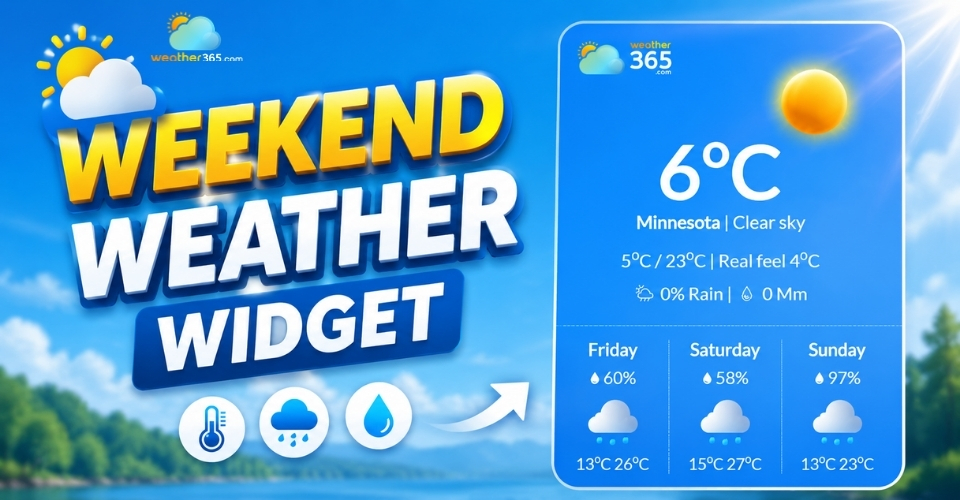
Many visitors want more than just the current temperature. Widgets with weekend outlook toggles allow users to quickly switch between “Right Now” conditions and a short weekend forecast.
This feature is especially useful for travel, tourism, or event websites where visitors often plan ahead.
Discover more on the Weekend weather widget!
Lightweight Code
A weather widget should not slow down your website. Lightweight widgets that use asynchronous loading help pages load faster because the weather data loads separately from the main content.
This improves mobile performance, user experience, and even SEO rankings.
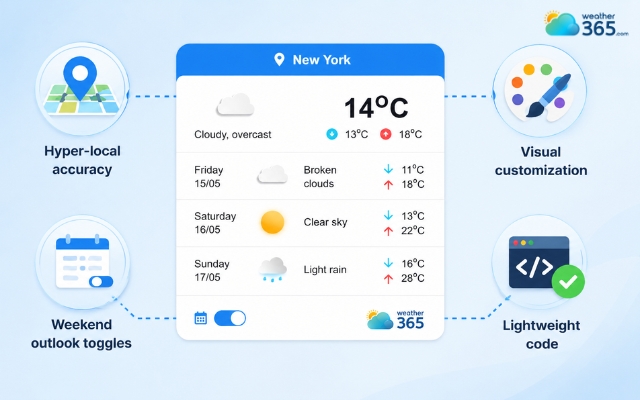
Important features of a current weather widget
Current weather widget vs Real-time weather widget
Many people use the terms “current weather” and “real-time weather” interchangeably, but they are not exactly the same.
The biggest difference comes down to how frequently the data updates and how much live information the widget displays.
The Refresh Rate
A current weather widget usually updates every 15 to 60 minutes. It provides a reliable snapshot of conditions like temperature, clouds, rain, or wind without constantly refreshing data.
A real-time weather widget works differently. It pulls live data streams from radar systems, lightning trackers, or weather APIs that refresh every few seconds or minutes.
This makes it better for tracking fast-changing weather conditions such as storms or heavy rainfall.
For example, users can monitor the Ohio weather today when changing conditions may affect outdoor plans.
Resource Usage
Real-time weather widgets typically use more bandwidth and require stronger API support because they continuously process live data.
Some advanced setups may even need premium API plans or additional scripts to handle radar maps and live alerts.
In comparison, a current weather widget is much lighter and easier to manage.
It works well for standard blogs, travel websites, business pages, or landing pages where visitors only need quick and reliable forecast information.
Travel-focused websites, for instance, can provide location-specific information such as the Hawaii weather forecast without requiring continuously updated radar data.
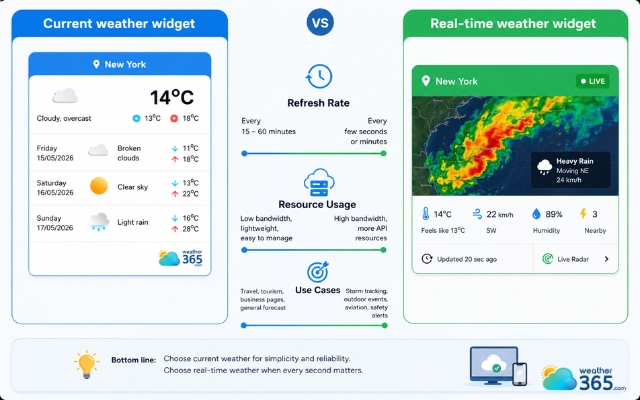
Current weather widget vs real-time weather widget comparison
Use Cases
The best option depends on your website goals.
A current weather widget is ideal for: travel blogs, tourism websites, local business pages, and general forecast updates,....
Meanwhile, a real-time weather widget is more suitable for: outdoor event planning, live storm tracking, marine or aviation use, safety and emergency alerts, and other situations where rapidly changing conditions matter.
In these cases, detailed information such as the Alabama 3 day forecast can help users plan around upcoming weather conditions.
If you want a deeper look at live forecasting tools, you can also explore our guide about the Real-Time Weather Widget.
Feature | Current Weather Widget | Real-Time Weather Widget |
Update Frequency | Usually updates every 15–60 minutes. | Continuously refreshes every few seconds or minutes. |
Data Source | Uses local weather stations and forecast models. | Uses live radar, lightning trackers, and streaming weather APIs. |
Performance Impact | Lightweight and faster for most websites. | Heavier due to constant live data processing. |
Bandwidth Usage | Lower bandwidth consumption. | Higher bandwidth and API usage. |
Setup Complexity | Simple embed codes or plugins. | Often requires advanced API integration. |
Best For | Travel blogs, local business sites, general forecasts. | Storm tracking, outdoor events, aviation, safety alerts. |
How to add a current weather widget
Ready to add a current weather widget but don’t know how?
Don’t worry! Adding a current weather widget is usually much easier than many website owners expect.
Most providers offer ready-made embed tools that can be installed in just a few minutes without advanced coding knowledge.
Platforms like Weather365 are popular because they provide simple setup options and customizable designs for different website styles.
HTML/IFrames
One of the easiest methods is using HTML or iframe embed codes.
Many weather widget providers generate a code snippet automatically after you choose the widget style, location, and forecast settings.
You simply copy the code and paste it into your website’s HTML section, sidebar, or footer. This method works well for:
Static websites
Landing pages
Custom-built blogs
IFrames are especially beginner-friendly because they separate the widget from your main website code, reducing compatibility issues.
They also make updating the widget easier since most changes are handled directly by the provider.
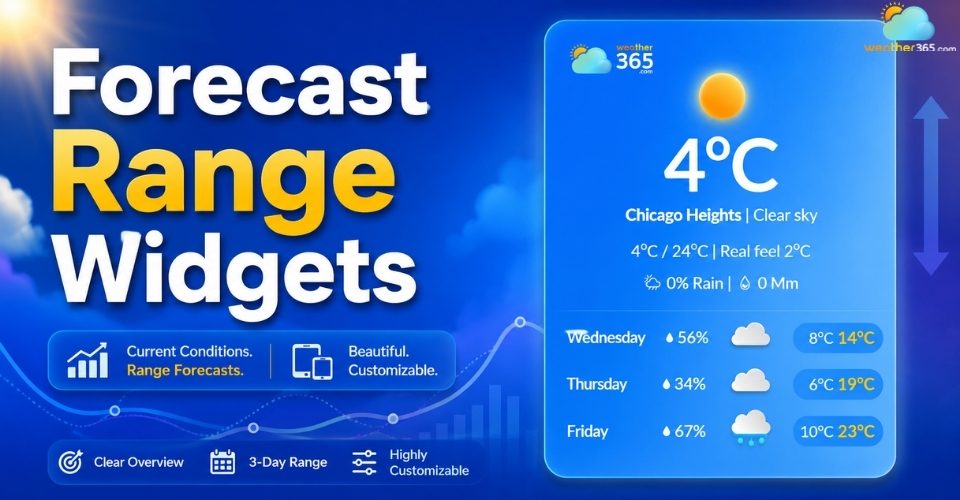
Many providers also allow you to combine current conditions with extended forecast layouts, making it easier to create more flexible forecast range widgets for your website.
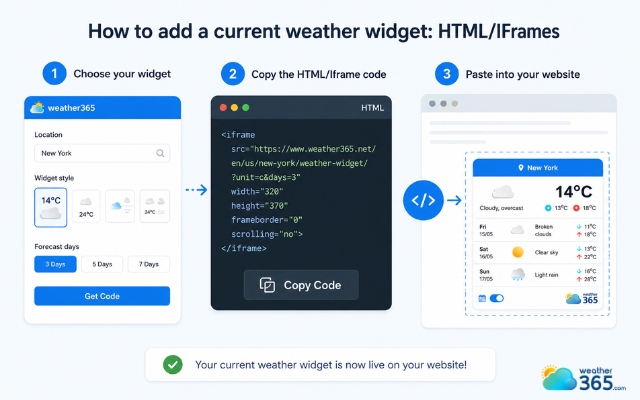
Using HTML or iframe embed codes is the simplest method
WordPress Plugins
If your website runs on WordPress, plugins are usually the fastest option. Many weather plugins allow you to add widgets through drag-and-drop blocks without touching code.
Some plugins also include features like:
Automatic location detection
Multiple widget layouts
Mobile-friendly designs
Shortcodes for easy placement
Before installing a plugin, it’s important to check reviews, update frequency, and page speed performance. A poorly optimized plugin can slow down your website, especially on mobile devices.
For most small business websites or blogs, lightweight plugins combined with a simple current weather widget are usually the best balance between functionality and speed.
However, if you prefer other options besides a plugin, try the Weather365 widget!
Learn detailed steps here!
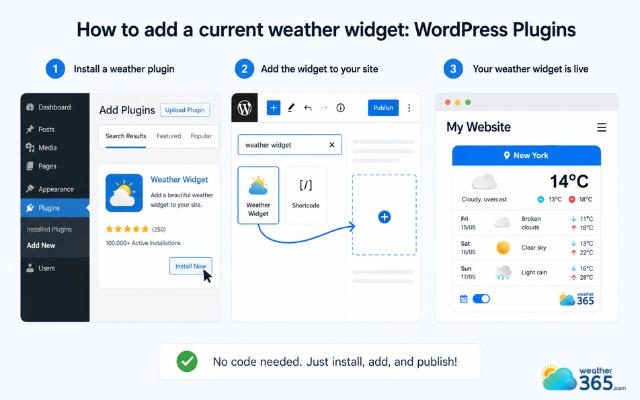
Using a plugin to add a current weather widget
Common mistakes to avoid
Even a well-designed current weather widget can create problems if it is added carelessly.
Small setup mistakes may hurt user experience, slow down your website, or make the forecast less useful for visitors.
Ignoring Mobile Responsiveness
A widget may look perfect on desktop but completely break the layout on smaller screens. This is one of the most common mistakes website owners make.
Always test the widget on smartphones and tablets to make sure the text stays readable, buttons are easy to tap, and the layout adjusts properly.
Since a large portion of traffic now comes from mobile devices, responsiveness is essential for both usability and SEO.
Auto-Location Issues
Automatic location detection can be convenient, but it is not always accurate. IP-based systems sometimes display forecasts for nearby cities instead of the user’s actual location.
A better approach is to include a manual “Search City” option. This gives visitors more control and helps avoid frustration when the default forecast is incorrect.
Overloading Information
More weather data does not always mean a better experience.
Many websites try to squeeze too much information into a small widget, making it look cluttered and difficult to read.
Adding too many details such as dew point, pressure charts, or UV levels can distract from the most important forecast information.
Broken Links
Some widgets include a “Full Forecast” button that redirects users to another weather page. If that link is broken, outdated, or leads to an unreliable source, it can damage credibility quickly.
Before publishing the widget, always test external forecast links on both desktop and mobile devices to ensure they work properly and lead to trustworthy weather sources.
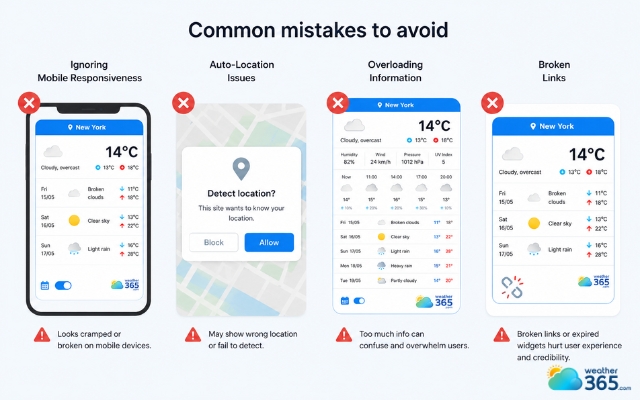
Small mistakes can hurt user experience
Final Words
Did you successfully add a current weather widget to your website? If not, do not hesitate to leave comments below so we can help you right away! With the right setup, a weather widget can improve user experience, keep visitors engaged longer, and make your website feel more practical and interactive every day.
Frequently Asked Questions (FAQs)
Related post

What is Dew Point Widget? Tracking Real-Time Comfort & Moisture
 233
233
 0
0
 5.0
5.0
 14/08/2026
Forecast Range Widgets: Key features, Benefits, How to Add & Best tools
229
0
4.6
11/08/2026
Weekend Weather Widget: The Ultimate Tool For Smart Event Planning
127
0
4.9
29/06/2026

0 Comment
Leave a comment
Your email address will not be published. Required fields are marked *